
HP laptop volume can stay loud while Windows 11's slider moves because the driver combination isn't controlling the speakers correctly. Check the selected speakers and audio enhancements first, then the AMD package on AMD models.
The reports concern a fault that appeared after Windows 11 22H2. The AMD step applies to compatible AMD hardware, while an HP laptop with an Intel processor needs its own HP drivers.
In this guide
1. Confirm that the slider targets the speakers
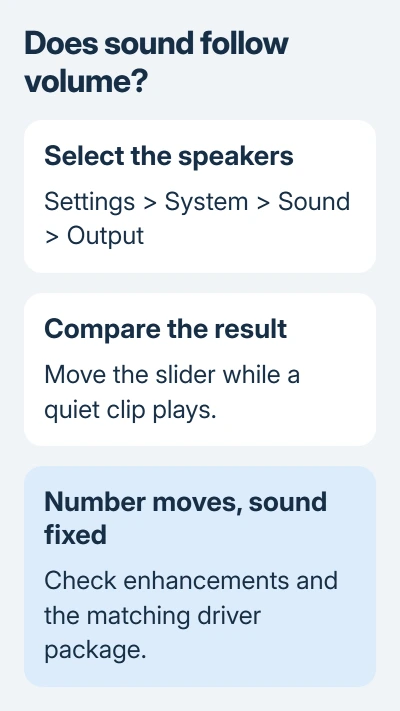
Open Settings > System > Sound. Under Output, select the laptop's built-in speakers, often labeled Speakers (Realtek Audio). Disconnect Bluetooth audio and external displays for this check to keep playback on the internal speakers.
Play a familiar clip with its app volume set low. Move Windows' volume control between a low and a moderate setting. Note whether the sound changes, only the number changes, or the mute button works while volume stays fixed.
If volume changes in Settings but the keyboard keys don't work, check the keyboard controls. Check function-key mode or HP hotkey software instead of installing an AMD package for that symptom.
For speakers that are completely silent, start with the HP no-sound checks, which include HP's Audio Check. Fixed loudness while sound keeps playing needs the driver comparison here.
If only one app ignores volume, open Settings > System > Sound > Volume mixer and check that app's level and output. Test a second app to check whether it has the same volume problem.
For Bluetooth AirPods specifically, use the Windows AirPods volume checks. The HP reports here describe the internal speakers, so a Bluetooth volume-sync fix isn't the matching repair.
2. Turn off sound processing for this output
In Settings > System > Sound, open the selected speaker device. Set Audio enhancements to Off when that control is available, then replay the same clip and move the volume slider.
On builds using the older sound dialog, open More sound settings, select the speakers under Playback, and choose Properties. If an Enhancements tab appears, select Disable all enhancements or Disable all sound effects, then apply it.
Not every HP audio driver shows the same tabs. A missing enhancement control isn't a reason to remove unrelated audio devices. Continue to the model-specific driver check when your speaker properties don't offer it.
Microsoft's Windows audio repair steps include disabling enhancements and checking the output device. If that restores control, keep the setting that works and stop before changing drivers.
If it doesn't help, return enhancements to their previous setting before comparing another change. That way, you can tell which change helps without leaving several unrelated audio settings changed.
3. Check the exact HP model and processor
Open Settings > System > About and note the Processor and Windows version. Then find the HP product number using the laptop's product label or HP's identification tools. Similar Pavilion names can use different hardware.
The original HP volume discussion started with an HP 15-eh0015cl after 22H2. An owner reported that reinstalling HP's Realtek drivers didn't help, but manually installing the matching AMD package and restarting did.
Another owner later confirmed the AMD updates worked. A separate reply reported success after HP BIOS and firmware updates. Those owners fixed the problem in different ways, so the right package still depends on your HP model.
Visit the HP laptop driver page, identify the exact product, and select the matching Windows version. Check the available audio and AMD-related packages for that machine before using a generic driver download.
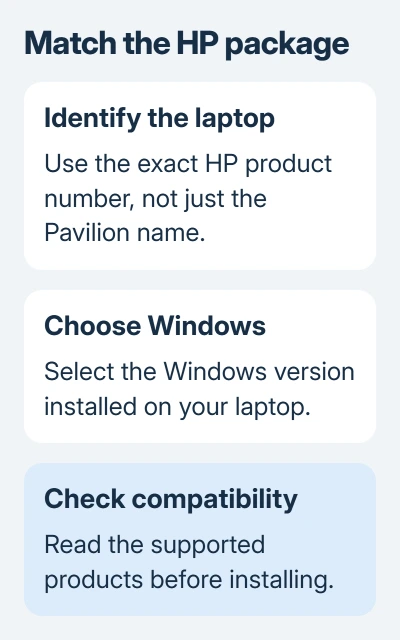
Read the package's list of supported products and operating systems. A similar laptop name doesn't make its driver compatible. Match the supported hardware and Windows version.
After an offered HP driver update and restart, repeat the same speaker check. If the control works, note the installed package version so support has it if the problem returns.
4. Try the matching AMD update on an AMD laptop
If HP's packages haven't resolved the matching fault, open AMD Drivers and Support. Use the product selector for the AMD hardware identified on your laptop, or its Auto-Detect and Install tool for supported devices.
The tool checks for compatible Radeon graphics and Ryzen chipset hardware. It isn't a universal HP audio repair tool, and an Intel-based HP shouldn't receive a Ryzen package because another Pavilion owner needed one.
Choose Recommended when the graphics installer offers Recommended and Optional releases. Check its supported hardware and installation choices. Plug in the laptop, save your work, and leave Factory Reset unselected.
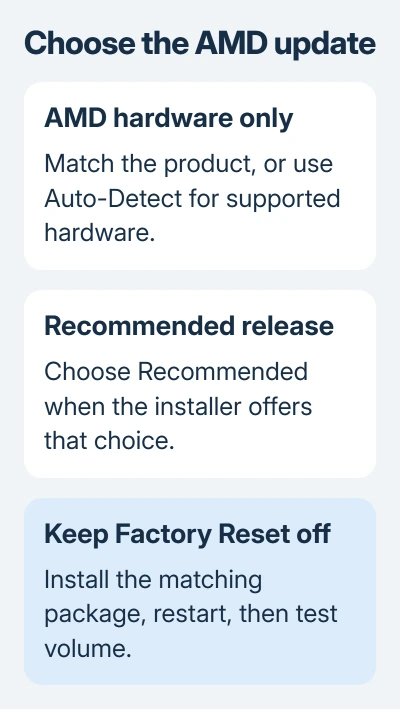
Follow the installer and restart when required. Check the built-in speakers again. Listen for the sound getting quieter or louder as you move the Windows slider. That tells you whether the installation restored volume control.
The successful owner hit a network error in AMD's automatic tool and used manual selection instead. If detection fails, match the product carefully or ask HP to identify the package.
I'd try the AMD update that worked for those owners before another Windows reset. The original asker reported that resets and a clean installation hadn't fixed the fault, so repeating that work isn't a reliable next step for the same fault.
5. Escalate firmware and recurring failures to HP
Ask HP to check BIOS, firmware and the AMD/Realtek combination for your product number if the slider still fails. Mention any update that preceded it and whether a previous fix stopped working after a restart.
A BIOS update is a separate operation. Use only the package for the exact HP product and follow its power and recovery instructions; don't install another model's BIOS because a forum reply reported success.
Provide the Windows build, processor, audio driver version and a headphone-versus-speaker comparison. Those details help HP decide whether to check the drivers further or test the internal speakers.
The Short Version
Check the output and enhancements, then the matching HP or AMD package. Owners confirmed AMD updates helped after Realtek reinstalls failed. Repeated Windows resets weren't a reliable cure in the original report.
Checked November 16, 2026.





