The MEE Audio Connect T1CMA sends computer sound to its headphones through a wired audio connection. Plug the computer's headphone output into the transmitter's 3.5 mm input; USB supplies power, not music.
The included Matrix Cinema headphones arrive paired with the transmitter. Use that paired connection first. The computer sends sound through the cable, so pairing the transmitter through Windows or macOS isn't needed.
In this guide
Connect the computer's audio output first
Check your model label before using these controls. T1CMA includes a Connect transmitter and Matrix Cinema headphones. Connect Hub, Connect Air, and Cinema 3D bundles have their own instructions and controls.
Find the computer's headphone jack or another supported audio output. The T1CMA connection options include computers with 3.5 mm stereo, optical, or suitable RCA audio outputs. A microphone-only socket isn't an audio output.

For a laptop with a headphone jack, use the supplied 3.5 mm audio cable. Insert one end fully into that jack and the other into the Connect's 3.5 mm audio input. Keep the computer's sound unmuted.
Connect a micro-USB power cable to the transmitter's POWER port, then to a powered computer USB port or suitable USB power supply. The transmitter and headphones each need their own charge; powering one doesn't charge the other.
If your laptop has no suitable audio output, check its supported audio-adapter options first. A plain USB charging lead won't replace that missing output. I'd confirm the connection before buying another Bluetooth accessory.
Switch on the paired headphones and transmitter
Slide the Connect transmitter's ON/OFF switch to ON. Turn on the included Matrix Cinema headphones using their power switch. The supplied pair should connect automatically when both units are powered.
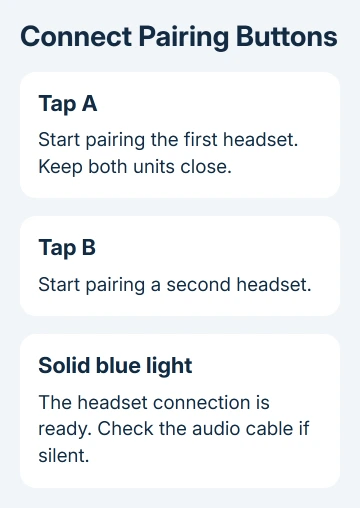
The transmitter's green power indicator shows it has switched on. A solid blue connection light shows that a Bluetooth audio connection has formed. A light that keeps flashing means pairing hasn't finished.
Play something familiar on the computer. Raise the headphone volume gradually, then the computer's volume if needed. You should hear it through the headphones without a Windows Bluetooth pairing request.
Keep the units close together for the first setup. If the headphones previously connected to your phone, disconnect that phone while getting the transmitter connection working. Otherwise, they can reconnect to the wrong source.
With this setup, sound comes from the computer's wired output. The transmitter isn't a Bluetooth receiver for the PC, so choosing it from the computer's Bluetooth discovery list isn't the setup step that supplies audio.
Select the wired output in Windows or macOS
On Windows 11, open Start > Settings > System > Sound. Under Output, select the device supplying the headphone jack. Its name depends on the computer's audio hardware, so it might mention speakers or Realtek.
On Windows 10, open Start > Settings > System > Sound, then use Choose your output device. Free Windows 10 support stopped in October 2025; use a supported system to keep receiving regular security updates.
On a current Mac, open Apple menu > System Settings > Sound > Output and select the connected headphone output. For an older Mac, look in System Preferences, open Sound, then choose Output.
Microsoft says to select the intended output in Sound settings. An HDMI monitor can stay selected after you plug in a headphone cable.
With this wired setup, Matrix Cinema doesn't need to appear as a Bluetooth output on your computer. Connect handles the wireless link. For a headset connected directly to Windows, check its Bluetooth output selection.
Pair again when the blue light won't stay solid
Start pairing on the headphones if they've lost their saved connection. On the bundled Matrix Cinema, switch power on and hold Power / Multifunction about five seconds until red and blue flashes alternate. Other models differ.
On the Connect, quickly tap A to pair the first headset, or B for a second headset. Don't hold the button for an ordinary pairing attempt. Keep the headset and transmitter within about three feet while both are searching.
The Connect requires headphones or another receiver supporting A2DP, the Bluetooth mode for stereo audio. A second transmitter can't serve as the receiving headphones, even if both devices have Bluetooth.
If a remembered headset won't reconnect, switch the Connect off, wait five seconds, then turn it on again. Disconnect competing phone connections and retry. The support steps put a reset after these connection checks.
To clear the Connect's memory, switch it on and hold A until the blue indicator stops blinking. The bundle manual gives about five seconds; its support FAQ gives approximately six. This clears saved headset pairings.
Check the cable when the light is blue but sound is missing
A solid blue indicator confirms a wireless connection, not an incoming audio signal. Recheck which output the computer uses, the cable ends, mute, and both volume controls.
Try ordinary wired headphones directly in the computer's jack. If those are silent too, work through the computer's headphone sound checks before changing the transmitter's saved pairings.
For an optical connection, select the matching digital output on the computer and use stereo PCM audio. The Connect doesn't convert Dolby or other surround formats. A connected optical cable can still be silent with an unsupported format.
This setup sends sound to the headphones, but it doesn't send their microphone audio back to the computer. For a video call, select the microphone separately from the computer's available input devices.
Report the power, cable, and light results
For a charging failure, check for the pulsing green charge indicator and try a powered USB source. Some computer ports lose power during sleep or shutdown, so plugging in the cable doesn't always mean it's charging.
If wired headphones work but the Connect route stays silent, contact MEE Audio through its support page. Give the T1CMA model, cable type, computer output selected, and whether the transmitter's blue light is solid or flashing.
Those details separate a missing audio feed from a pairing or power fault. For damaged sockets or a unit that won't power on from a working supply, ask about service or warranty eligibility instead of repeating the reset.
The Short Version
Use an audio cable from the computer to the Connect, plus separate USB power. Switch on the supplied paired headphones, select the computer's wired output, and check the blue light. Re-pair only when the wireless connection fails.
Checked November 16, 2026.