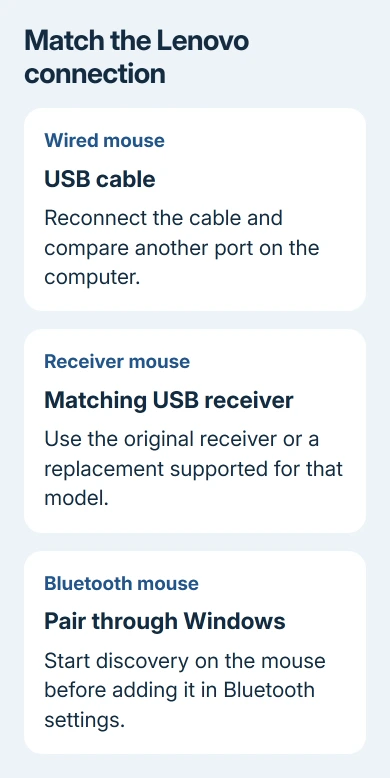
A Lenovo mouse that won't move the pointer needs its power and connection checked first. Check whether yours uses a cable, a USB receiver or Bluetooth. An unrelated receiver won't connect a Bluetooth mouse.
The model matters for pairing. The ThinkPad Bluetooth Laser Mouse uses a three-second button hold; the ThinkPad Precision Wireless Mouse has a different receiver-pairing procedure. Check the label on the underside before choosing one.
In this guide
1. Check power and identify your mouse
Read the underside label to identify the mouse model. For a battery-powered model, open the battery compartment and check the battery direction against its markings. Replace exhausted batteries and switch the mouse on.
For the ThinkPad Bluetooth Laser Mouse, a green light means the batteries are charged and the mouse is ready. A flashing amber light means low batteries. Those light meanings apply to this model.
Don't apply that color rule to every Lenovo mouse. The Lenovo Laser Wireless Mouse, for example, uses a flashing red low-battery indication. Read your model's guide rather than guessing from another mouse's light.
A wired mouse plugs straight into a USB port. A wireless receiver also plugs into USB, but connects to the mouse by radio. Bluetooth connects through the computer's Bluetooth hardware without that receiver.
If the pointer works but only one button or scrolling fails, your mouse may still be connected correctly. That one control could need cleaning, a setting check or a repair.
2. Try the cable or matching receiver directly
For a wired mouse, disconnect its USB plug and reconnect it firmly. Test another compatible port on the computer. For a receiver model, move the receiver itself to another port instead of moving only the mouse.
Use a computer port directly, bypassing any dock or hub. If the mouse works there, the extra USB device needs attention. Check its connection and power before changing mouse software.
Use the receiver supplied for that mouse or one its instructions specifically support. Matching brand names or plug shapes don't mean a spare dongle is compatible.
On the ThinkPad Precision Wireless Mouse, the receiver is stored inside the battery compartment when not in use. Its original receiver is paired at the factory, so reconnecting that matching receiver is the first step.
If you're setting up a mouse rather than repairing an existing connection, the wireless mouse setup guide explains the receiver-versus-Bluetooth choice. The model-specific re-pairing sequence comes next.
3. Re-pair a ThinkPad Precision Wireless Mouse
This procedure is for the ThinkPad Precision Wireless Mouse and its supported Lenovo USB Receiver. Other Lenovo receivers can use different pairing arrangements. Check that both model names match before pressing buttons.
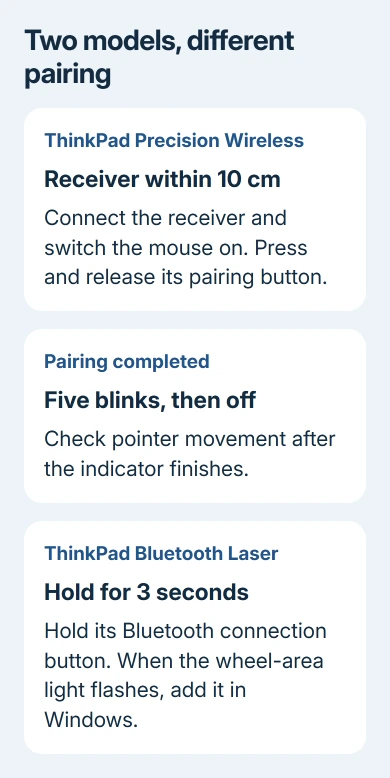
Connect the receiver to a free USB port. Position the mouse within 10 cm of it, then switch the mouse on. Press the mouse's pairing button once and release it.
The status indicator should blink five times, then go out when pairing succeeds. Check pointer movement afterward. If that sequence doesn't complete, recheck the batteries, receiver and exact mouse model before repeating it.
Lenovo says to use that sequence in its combined mouse manual. A compatible replacement mouse must have the receiver-compatible symbol shown in the manual.
That compatibility matters when the original receiver was lost. I'd identify the supported replacement before buying one, rather than assume a Bluetooth adapter or another Lenovo dongle will pair with this mouse.
4. Pair the ThinkPad Bluetooth Laser Mouse
Switch the ThinkPad Bluetooth Laser Mouse on and hold its Bluetooth connection button for three seconds. The wheel-area light flashes. That's separate from enabling Bluetooth on the PC.
On Windows 11, open Settings > Bluetooth & devices, enable Bluetooth, then choose Add device > Bluetooth. Choose the ThinkPad mouse in the list and follow the remaining prompts.
On Windows 10, use Settings > Devices > Bluetooth & other devices. Turn Bluetooth on and select Add Bluetooth or other device > Bluetooth, then choose the mouse from the list of nearby devices.
The Windows Bluetooth pairing steps cover those computer controls. The three-second hold belongs to this ThinkPad model, not every Lenovo Bluetooth mouse.
If the mouse was used with another computer, disconnect it there before pairing it here. Bring it closer to the intended PC and reduce nearby wireless interference if discovery or movement remains unreliable.
If Windows offers no Bluetooth control and can't detect other Bluetooth accessories either, check the PC's Bluetooth hardware and driver. Repeating the mouse's pairing button won't restore a missing computer adapter.
5. Compare tracking, then check Windows detection
Try a plain mouse pad if clicks register but movement doesn't. Highly reflective glass or mirror surfaces can prevent proper tracking. Try your mouse on the pad before deciding its sensor has failed.
For the ThinkPad Bluetooth Laser Mouse, the manual allows cleaning the lens with a soft cotton swab. Keep liquid and solvent off that lens. Retest on the pad once loose dirt is removed.
If the device still fails, open Device Manager from Start search and inspect Mice and other pointing devices. Look for the mouse's entry and any warning symbol. Note whether Windows sees a device at all.
Use the Windows mouse-driver steps when the entry needs a driver update. Keep the receiver and mouse names in your notes so you don't change an unrelated touchpad device.
Finally, compare another mouse on this PC and this mouse on a second compatible computer. If it works elsewhere, focus on USB, Bluetooth and drivers on the original PC. If it fails on both, ask about a mouse or receiver repair.
Give Lenovo Support the model, connection type, indicator behavior and both comparison results. Ask about receiver compatibility or warranty service. A replacement receiver and a replacement mouse are different purchases.
The Short Version
Check your Lenovo mouse's model and connection first. Precision receiver pairing uses close placement and one button press. The Bluetooth Laser model needs a three-second hold. Test another surface and computer before repair.
Checked November 16, 2026.