
Printing a file and copying a paper original use different controls on an Epson printer. Load the correct paper first, then use your computer's Print command for a file or the printer's Copy mode for an original on the scanner glass.
These steps use an Epson ET-2850 for the physical controls and cover the print choices on Windows and Mac separately. Other Epson models can use a cassette, touchscreen, or different buttons, so keep your model's manual handy.
In this guide
Prepare the printer and choose the job
Read the model label, then power up the printer. Check its display. Finish any first-time ink setup before sending a job. A new EcoTank needs its own tank-filling and initial ink-charging instructions, not cartridge replacement steps.
For an ET-2850 that's already set up, wait until it's ready rather than showing an error or setup prompt. Write down the message if it isn't ready. Sending the same document repeatedly won't finish a physical setup step.
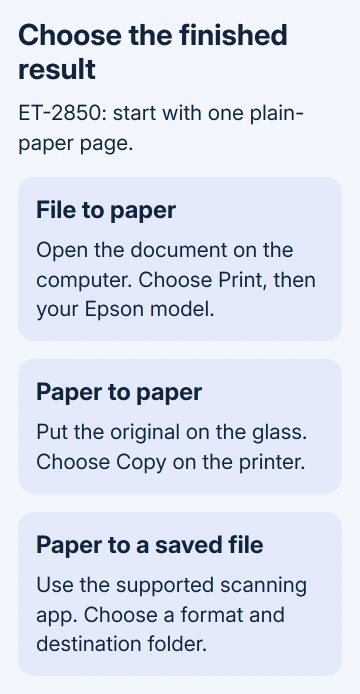
Choose what you want at the end: a printed file, a paper copy, or a saved scan. Printing starts in an app, copying starts at the printer, and scanning uses the scanner controls or software for that model.
If the computer hasn't been connected yet, use the Epson computer-connection steps. The instructions here begin once the printer is installed and available in the computer's printer list.
I'd make the first job one plain-paper page. Once that works, add photo paper, multiple copies, or two-sided output. You can spot a wrong paper or color choice on that page without wasting a whole stack.
Load plain paper into the ET-2850 rear feeder
Move the paper feeder guard forward and raise the paper support. Slide the edge guides apart. Fan a small stack of ordinary paper and tap its edges flat. Photo paper uses different handling, so don't fan or curl it.
Place the paper at the center of the support, short edge first and printable side up. Slide the edge guides against it without squeezing. Tilt the feeder guard to its stopping position so it isn't touching the paper.
Epson's ET-2850 loading instructions explain this rear-feeder layout. A model with a front cassette needs its own loading directions.
Select the loaded paper's size and type when prompted, then press OK. Extend the output tray. For ordinary Letter paper, choose Letter and the plain-paper setting, rather than a photo-paper type.
Match these choices in the computer's print window too. A printer loaded with Letter paper won't correct an A4 or photo-paper selection in your app. A size mismatch can crop the document or produce unwanted margins.
Print a document from Windows
Open the file and choose File > Print, or use Ctrl+P if that's the app's print shortcut. Select the Epson by its model name. An entry such as Print to PDF creates a file; it won't send the sheet through your Epson.
Choose which pages to print and how many copies you need. For your first attempt, choose one page and one copy. Open Properties or Preferences if you need the Epson driver's detailed settings; the app decides which button appears.
On the ET-2850 driver's Main tab, match Document Size and Paper Type to the loaded sheet. Choose the document orientation, then the quality level and Color or Black/Grayscale output.
Use 2-Sided Printing only when you intend to print on both sides and the selected paper supports it. Leave Multi-Page alone for a normal one-page-per-sheet job. Review the preview before sending the document.
Save your choices in the driver window, then select the app's final Print button. Wait for the page to arrive in the output tray. A closed print window only means the app has sent the job; check the printed page to see whether it worked.
The app controls the print window on Windows 11 or 10, so labels can differ between programs. Keep the file open while reviewing the job; the printer's queue is for work you've already sent.
Print the same kind of file from a Mac
Open the document, then choose File > Print or press Command+P. Select the Epson in the Printer field. Check the page range, copies, paper size, and orientation before printing.
In older print dialogs, you may need to click Show Details to see these controls. The window also varies by macOS version and application, so check the app's page-setup controls if the size or orientation isn't visible in the first view.
With the Epson driver, look for Print Settings or Printer Features. Select the matching Media Type and desired Print Quality. These are the Mac equivalents of choosing the loaded paper and output quality in the Windows driver.
An AirPrint entry can show different options from the Epson driver. Work with the settings shown for the printer entry you've selected. Labels from an older manual might appear elsewhere or be missing.
Print one page and inspect its size, orientation, and color. If the result is rotated, clipped, or unexpectedly gray, reopen this job's settings and correct that choice before printing the remaining pages.
Make a paper copy without using the computer
Load blank paper in the rear feeder. Place the original on the scanner glass, printed face against the glass and top at the marked corner. Gently close the cover to keep the original in position.
On the ET-2850, press Home if needed. Use the left or right navigation button to choose Copy, then press OK. Set the number of copies with the up or down button.
Choose Color or B&W with the left or right button. Press OK to review the print settings. Use the down button to view individual settings, change them with left or right, and confirm with OK.
Press Start when the choices are ready. Use Stop to cancel copying. These steps use the ET-2850's physical buttons. On a touchscreen Epson, you may make the same choices on screen.
If copying works but a computer file won't print, you've checked paper feeding and copying without involving the computer. Check the selected computer printer, connection, and waiting job before changing the ink system.
Save a scan or deal with a job that won't finish
A copy produces paper. To save a PDF or image, follow the Epson scanning procedure and choose the destination folder in the scanning app. The printer's Copy button doesn't create that computer file.
If nothing prints, read the printer display and the computer's queue. Cancel unwanted waiting jobs. For a paper-size request, load the requested size or correct the document's settings before submitting it again.
If the error won't clear, open your model's Epson support page. Give support the error, your computer's operating system, and how the printer is connected. Say whether copying works, then ask for the matching print or paper-feed repair.
The Short Version
Load paper and match its settings. Print files from the computer, make copies through Copy mode, and use scanner software to save a file. Start with one plain-paper page, then adjust the choices for the finished result you need.
Checked November 16, 2026.





