
Your Bluetooth headphones pair and say Connected, yet they never appear in the sound output list, and the sound stays on your speakers. Updating drivers changes nothing.
I go to one checkbox Windows hides two windows deep. Owners kept thanking the answer that names it.
Readers have opened the April 2018 Super User question about it 248,991 times. A February 2026 Q&A thread about the same symptom counts 20+ people.
A headset is several services
Headphones offer Windows a short list of services. One plays stereo sound, one carries calls, one handles the play and pause buttons. The stereo output in your sound list comes from the one the service list calls Audio Sink.
Switch that service off and the headphones still connect. Their buttons may even work, but the stereo output never appears.
Status: Microsoft's no sound page skips the Services tab. Audio Sink is the owner fix, confirmed for years. This laptop's Bluetooth audio entries read 10 October 2026.
Microsoft's page on Bluetooth connected but no sound lists eight solutions, and that tab is not one of them.
Its seventh comes close, where Microsoft says to "make sure your Bluetooth device supports the A2DP protocol for higher-quality audio streaming". A2DP is the stereo service that Audio Sink stands for.
Ours: Device Manager on this laptop keeps a Sound entry for each of three Bluetooth headsets and speakers paired here, every one on Microsoft's BthA2dp driver. None is connected now, and the sound list holds no Bluetooth output.
1. Tick Audio Sink
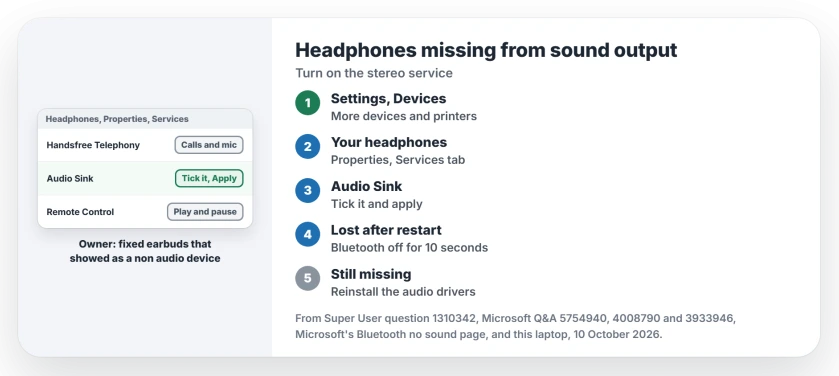
On Windows 11, open Settings, Bluetooth & devices, Devices, and scroll down to More devices and printer settings. On Windows 10 it is Control Panel, Hardware and Sound, Devices and Printers.
Right-click your headphones there, choose Properties, then open the Services tab. Tick Audio Sink, select Apply and wait a moment. Your headphones should then appear under Output. For many pairs, that is the whole fix.
The 2019 answer came from an owner with a Bluetooth speaker, and it works for headphones too. One reader replied: "This solved my problem!"
Another wrote: "Can confirm this also fixed my issue with my Bose QC Earbuds showing up in Windows as a non audio device".
That reader also warned that the tab only lives there, since "the properties from there are different from the properties in Device Manager". Device Manager has no Services tab at all.
Want your headset microphone too? A reader with a Sennheiser HD 250BT also had to tick Handsfree Telephony. The same tab works the other way for sound quality, as the hands-free checkbox page explains.
2. Gone again after a restart? Turn Bluetooth off and on
Some PCs build the entry once, then drop it again each time Windows starts up. A 2024 Q&A asker found theirs vanished as soon as they restarted their laptop, with Bose headphones and AirPods alike.
Microsoft's own steps say "Turn Bluetooth off and wait 10 seconds". You will find the switch at the top of Settings, Bluetooth & devices. Then connect your headphones again.
I would try this before reinstalling anything, since it takes ten seconds.
An owner on the Super User thread did the same with the laptop's Bluetooth switch, "and then it showed up under playback devices". A Dell Inspiron owner wrote: "Simply disabling/enabling the wifi from the keyboard worked".
3. Ticked and still missing? Reinstall the audio drivers
Audio Sink already ticked on your headphones? One reader found the drivers under it had broken after a Windows update.
Running the headset's Troubleshoot entry in Devices and Printers reinstalled them, the Microsoft Bluetooth A2dp driver among them.
On Windows 11, Microsoft's page starts with its own automated Bluetooth check, run from Get Help, so try that first.
A forum adviser in 2026 also suggested uninstalling the headset under Sound, video and game controllers in Device Manager, then restarting. That asker never replied.
When the adapter's driver is the problem
An owner with a Qualcomm Atheros adapter tried every driver they could find. The headset kept enumerating with the wrong device functions until they deleted the Atheros driver packages, letting Windows' own driver take over.
They found the packages with pnputil, a tool already on your PC. Open an elevated Command Prompt, then:
pnputil /enum-drivers
pnputil /delete-driver oemNN.inf
Replace oemNN.inf with the Published Name next to your adapter maker's Bluetooth entry, and delete only that one. Then restart and pair the headphones again.
Two Dell owners went another way. One installed an older Windows 8.1 Bluetooth driver from Dell's site on an XPS 13.
Another bought a USB Bluetooth 4.0 adapter for an old Latitude, and both sets of headphones "connected and worked immediately".
I would leave driver packages for last. Before you buy anything, read how to reinstall a Bluetooth driver so it sticks, which covers removing the old one first.
Hidden, or never there?
The other common answer is the Sound control panel. Right-click inside its Playback tab and tick both options, so disabled and disconnected devices show as well. A disabled entry can then be enabled.
That did not help the 2018 asker: "Headphones are unavailable in the list". Theirs never had an entry to hide. If yours appear there grayed out, open Settings, System, Sound, then All sound devices, select them and choose Allow.
What did not help
Driver updates and the general troubleshooter failed for a 2024 asker who tried two different pairs. A headphone reset did nothing for the 2018 asker, whose headphones worked fine under Linux on the same PC.
One more owner fix sits outside the Services tab. After a Windows update, one owner got their headphones back by turning off Bluetooth absolute volume.
A reader with a Bluetooth amplifier confirmed it. The absolute volume page has the one-line change.
Why are my headphones under Other devices?
If they sit under Other devices and keep blinking as if unpaired, they never finished connecting. A 2020 Q&A asker saw exactly that. Fix the pairing first, in the order that works on Windows, then come back to the Services tab.
The Short Version
- A connected headset needs its Audio Sink service before it plays sound.
- Open More devices and printer settings, then your headphones' Properties.
- On the Services tab, tick Audio Sink and apply.
- Lost again after a restart? Turn Bluetooth off for 10 seconds.
- Still missing? Reinstall the Bluetooth audio drivers, then the adapter's.
Where to Next
Which headphones made you tick Audio Sink by hand? Name them in a comment, so owners of the same pair find this faster.

Isaac Smith is the founder and editor of PC Glance, a website that covers computers, laptops, and technology. He is a tech enthusiast and a computer geek who loves to share his insights and help his readers make smart choices when buying tech gadgets or laptops. He is always curious and updated about the latest tech trends.