
Put Samsung Buds in Bluetooth pairing mode so your device can find them. A new pair can show a Connect prompt when you open the case near a Galaxy phone; for another phone or a computer, use that device's Bluetooth list.
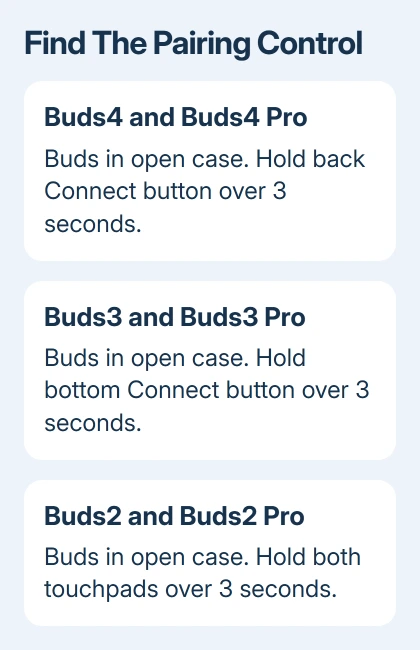
Different Buds generations have different pairing controls. Buds4 use the case's back button, Buds3 use its bottom button, and several older models use both earbuds' touchpads. Use the matching control before searching for them.
Start pairing with your model's control
Charge the earbuds and their case before starting. Seat both buds in their matching charging slots, close the lid, then reopen it near your intended phone or computer. For a new Galaxy-phone setup, check for the connection prompt first.
For manual pairing on Galaxy Buds4 or Buds4 Pro, leave both buds in the open case. Hold the Connect button on the back for more than 3 seconds, until the indicator flashes blue, red and green.
On Galaxy Buds3 or Buds3 Pro, leave the lid open with both buds seated, then hold the bottom Connect button for more than 3 seconds. The flashing indicator shows that the case has entered Bluetooth pairing mode.
The Buds3 FE also use the case's Connect button. Hold it for 3 seconds with the earbuds seated and the lid open. Don't confuse these with the original Buds FE, which have touchpads rather than that case-button procedure.
For Galaxy Buds2 or Buds2 Pro, keep both earbuds in the open case. Touch and hold both touchpads together for more than 3 seconds until the case indicator flashes.
For the original Galaxy Buds FE, place both buds in the case and hold both touchpads for more than 3 seconds. Their battery indicator flashes red and green when manual pairing starts.
For Galaxy Buds, Buds+, Buds Live or Buds Pro, wear both earbuds and hold both touchpads for more than 3 seconds until you hear the pairing sound. Samsung says older models use in-ear touchpads in its model-specific pairing steps.
Connect to a Samsung or another Android phone
On a Galaxy phone, turn on Bluetooth and open the charged Buds case nearby. If a setup prompt appears, tap Connect and follow the requested permissions and setup screens. Newer Buds can show their controls directly in the phone's settings.
If no prompt appears, put your model into manual pairing mode. Open Settings > Connections > Bluetooth on the Galaxy phone and select the Buds from Available devices. Accept the Bluetooth pairing request.
On another Android phone, open its Bluetooth settings and choose Pair new device or the option that lists available devices. On a Pixel, this is normally Settings > Connected devices > Pair new device. Select the Buds by name.
The Galaxy Wearable app is another setup route on supported Android phones and Buds models. Open it, add a new device and choose your earbuds. Follow any prompts to install the matching Buds component and finish setup.
The model's Android requirements still apply if you want app controls. Your Buds can play Bluetooth audio without giving you every Samsung feature. Check the Bluetooth list to see whether they're connected.
Play a short audio clip after pairing. Start at a low volume and check both sides. I'd use plain audio before adjusting the sound effects, so a missing side is easy to notice.
Pair with an iPhone or iPad using Bluetooth
Put the Buds into the manual mode for their model. On iPhone or iPad, go to Settings > Bluetooth, turn Bluetooth on, and wait for the earbuds' name under Other Devices. Tap it to connect.
Once connected, the Buds move into My Devices and show their connection state. Play audio and choose the earbuds from the audio-output selector if sound is still coming from the phone or tablet.
The iOS Samsung Galaxy Buds app supports Buds+ and Buds Live. Other Buds models can still pair for ordinary Bluetooth audio, but installing that app won't add support for a model it doesn't recognize.
For Buds+ or Buds Live in the app, choose Get started, close the case for 5 to 6 seconds, reopen it, and select the earbuds. Finish the setup prompts rather than expecting the Android app's controls on an iPhone.
Add the earbuds to Windows or a Mac
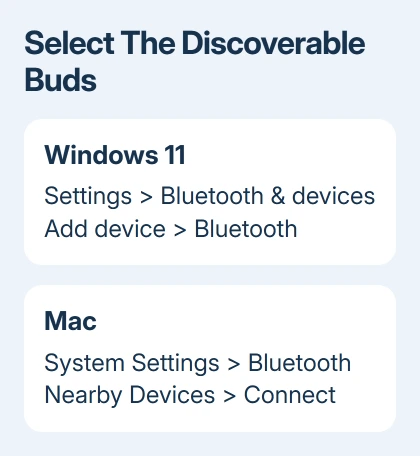
On Windows 11, put the Buds into pairing mode, then open Settings > Bluetooth & devices > Add device > Bluetooth. Select the Galaxy Buds name and finish the connection prompts.
On Windows 10, use Settings > Devices > Bluetooth & other devices > Add Bluetooth or other device > Bluetooth. Choose the earbuds when they appear. The Windows Bluetooth pairing instructions cover the device-side process.
If the PC has no Bluetooth switch, use the Windows Bluetooth setup checks. Holding the case button longer won't add Bluetooth hardware or restore a missing PC driver.
On a Mac with System Settings, open Apple menu > System Settings > Bluetooth. Find the Buds in Nearby Devices and click Connect. For an older macOS interface, go through System Preferences > Bluetooth.
After pairing, select the earbuds in the computer's sound output controls if necessary. A connection that succeeds but sends no music to the buds needs the Bluetooth audio-output checks, rather than searching for the earbuds again.
Reconnect or handle Buds that don't appear
Previously paired earbuds can reconnect to another nearby device before the new one finds them. Temporarily turn Bluetooth off on the old phone or computer, then put the Buds back into manual pairing mode and search from the new device.
For a device that already lists the Buds, try selecting that existing entry to connect. If it keeps failing, remove or forget that entry, put the earbuds back in pairing mode and repeat the setup on your device.
On Galaxy, tap the gear for the Buds in Bluetooth settings, then Unpair. On iPhone, use their information button and Forget This Device. This removes the phone's saved connection. It doesn't link the two earbuds to each other as a set.
Linking replacement earbuds into a set is different from connecting to a phone. If a bud was replaced or they don't work together, ask Samsung Support how to couple that model instead of trying random long button holds.
If no device finds the Buds after you've charged them and started pairing correctly, tell Samsung Support the model, lights and how each bud behaves when charging. Request a case or earbud assessment if pairing mode never starts.
The Short Version
Start pairing on your Buds, then choose their name in Bluetooth settings. Temporarily disable the old device's Bluetooth if it takes the connection. If they're connected but you hear nothing, check where your device is sending the sound.
Checked November 9, 2026.

Isaac Smith is the founder and editor of PC Glance, a website that covers computers, laptops, and technology. He is a tech enthusiast and a computer geek who loves to share his insights and help his readers make smart choices when buying tech gadgets or laptops. He is always curious and updated about the latest tech trends.