
That Microsoft account doesn't exist means Microsoft doesn't recognize the address you've entered. Check the spelling and the ending, such as outlook.com or hotmail.co.uk. Then try another existing sign-in address or linked phone number.
That message alone doesn't tell you the account was deleted. A typing mistake, the wrong account type or an old sign-in name can also send you down the wrong path. Check those before creating a replacement account or changing a password.
1. Correct the full address before doing a password reset
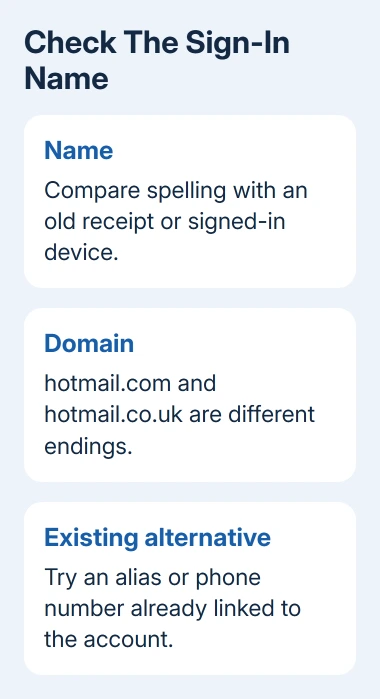
Open account.microsoft.com yourself and enter the complete address. Pay attention to doubled letters, missing characters and the part after @. An address ending in hotmail.com isn't the same as one ending in hotmail.co.uk.
Use an old receipt, a saved sign-in or an account already open on your device to check what you previously used. Don't rely on a contact's suggested address or a browser tile that could belong to a different account.
Microsoft says reaching the password screen confirms the entered address is a Microsoft account. Its account recognition check explains the difference from an account-not-found result.
Once the password prompt appears, you've got past the address problem. Stop searching for a different address and follow the password or verification request on screen. It doesn't mean the password has already been accepted.
If the exact address still isn't recognized, continue with another existing sign-in name. Repeating password guesses can't help while the page is still refusing the username.
2. Try an existing alias, phone number or Skype name
An alias is another email address attached to the same Microsoft account. If you've added one in the past, try it instead of the address being refused. Use an alias you already know belongs to that account.
The stopped-working username procedure also allows the associated phone number or Skype name when starting recovery. It specifically suggests another alias or phone number if an email isn't recognized.
Enter that address, number or Skype name in the sign-in or recovery prompt. If it reaches the right account, follow its verification choices. A familiar recovery email or phone can help you recognize it without seeing all its details.
Don't make a new email address to use as an alias at this stage. Creating a separate account doesn't attach it to the missing one or bring back the old account's files, purchases and subscriptions.
If the account is recognized but access fails because the recovery phone is gone, the Microsoft account recovery steps cover that later problem. First get the sign-in service to recognize the account you're trying to recover.
3. Look up a forgotten username using your recovery details
Use the Look up your Microsoft account option linked from the sign-in support page. This is for a forgotten sign-in name, rather than a password reset for a known address.
Enter the recovery email or phone you previously added, then verify it with the security code. The results can show partly hidden usernames. Match the visible parts with the account you remember using.
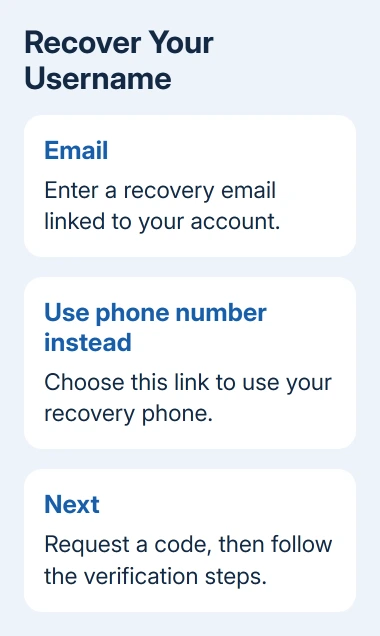
A shortened username is intentional. It lets you recognize an account without displaying its full address to anyone who happens to know a phone number. Use your old records to fill in the missing characters before signing in.
If several accounts appear, compare the name and domain with the service you're trying to use. One recovery phone can locate multiple accounts. The mailbox you want might differ from the account used to sign into Windows.
If you can't access that recovery email or phone anymore, don't keep requesting codes there. Use Sign-in Helper on the support page and follow the route for the details you can still provide. Keep security codes private.
4. Separate personal accounts from work or school accounts
A company or school email address can be valid without being a personal Microsoft account. If your organization supplied the login, start from its Microsoft 365 sign-in page or the app your administrator instructed you to use.
Choose Work or school account or Personal account to match the service you need. The same email address can belong to two separate accounts, each with its own password and settings.
For an employer's Outlook mailbox, try outlook.office.com/mail and enter the organization's address. If it isn't accepted there either, give IT the exact message. Ask them to check the current username and whether the account is enabled.
Don't create a personal account using the work address as a repair. It won't recreate an organizational mailbox, grant an Exchange license or restore access to the company's OneDrive files. Those are managed by the organization.
For a new job or renamed account, ask IT for the current login name. It can differ from your public email address, so an address that receives messages isn't always the one to enter at sign-in.
5. Check whether the account was closed or deleted
For an account you closed yourself, the reopening instructions explain the grace period. At closure, you're offered either 30 days or 60 days to change your mind.
During that period, sign in and complete verification to reopen it. Once the period expires, the account is permanently deleted. Count from the closure using the period offered then, rather than starting a fresh 60 days today.
An account unused for more than two years may also have been deleted. The important word is may: check whether the account was inactive, but don't treat this message alone as confirmation that it was deleted.
I'd finish the address and account-type checks before treating years of mail as lost. A familiar-looking address with the wrong domain is easy to miss, and it's a much smaller problem than a permanently deleted account.
When a replacement is necessary, create a new Microsoft account for future use. That creates a separate account; it doesn't restore the deleted account's contents or transfer its purchases.
6. Ask support about the username that stopped working
Open Sign-in Helper from Microsoft's account support page and provide the address or mobile number you're trying to use. Follow the result it gives for that account instead of continuing through unrelated Outlook repairs.
If a previously working username still isn't found, the stopped-working username page has a Contact support option. Tell the advocate that the username stopped working and list the domain and alternative sign-in names you've checked.
For an organizational login, send those details to IT. Support can direct the next check, but can't reopen a permanently deleted personal account. Keep any device that's still signed in available while support checks the account.
The Short Version
Verify spelling and the full domain, then try an existing alias or linked phone number. Use username lookup when the sign-in name is forgotten, choose the correct account type and check closure history before replacing an account.
Checked November 9, 2026.

Isaac Smith is the founder and editor of PC Glance, a website that covers computers, laptops, and technology. He is a tech enthusiast and a computer geek who loves to share his insights and help his readers make smart choices when buying tech gadgets or laptops. He is always curious and updated about the latest tech trends.