
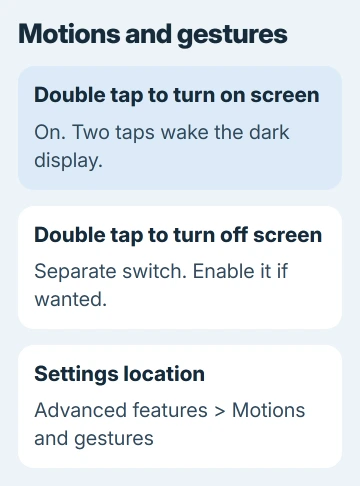
Two taps can wake a supported Galaxy without pressing the Side button. Open Settings > Advanced features > Motions and gestures and enable Double tap to turn on screen. The gesture wakes the display; it doesn't remove your screen lock.
Turning the screen off with two taps has its own switch and works in different places. Set up the wake gesture first, then add the screen-off gesture if you want both.
Turn on the wake gesture in Motions and gestures
Open Settings, select Advanced features, then tap Motions and gestures. Find Double tap to turn on screen and turn its switch on. Some Galaxy software calls this Double tap to wake instead.
Samsung's motions and gestures instructions describe the wake and screen-off controls separately. The available gestures vary between Galaxy models and software releases, so another Galaxy can have options your phone lacks.
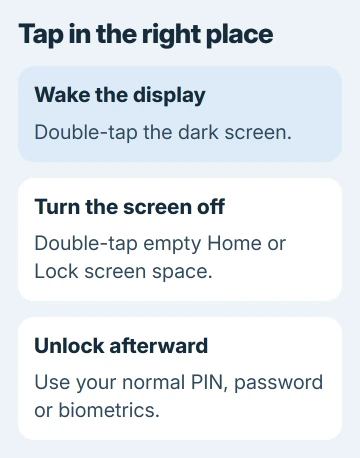
Press the Side or Power button once to turn the screen off. Wait a moment, then tap the display twice in quick succession. The screen should light up and show the Lock screen.
Try the taps with a bare finger on a clean, dry screen. Use two ordinary taps rather than a long press. Holding a finger down is a different touchscreen action and won't tell you whether the wake gesture works.
If the display wakes, setup is complete. If it remains dark, first check whether a normal press of the Side or Power button wakes it. A phone that won't wake by either method needs a power or screen check before gesture settings.
Keep waking separate from unlocking
After double-tapping, use your usual PIN, pattern, password or biometric unlock. If the Lock screen appears, the gesture worked, even when your phone still asks for your code.
The Android screen-lock guidance explains those lock methods. A wake gesture changes how you light the display, while your screen lock controls access to the information on it.
If your phone unlocks immediately, check whether face or fingerprint recognition is unlocking it at the same time. Double-tap wake itself isn't a replacement password. Keep your normal lock in place when setting up this convenience feature.
If a code was forgotten, use the Samsung forgotten-lock guidance. Repeatedly toggling a wake setting won't recover the code or clear a lock message.
An Always On Display is another separate feature. A dim clock on a dark screen doesn't mean the full screen is awake. Judge the wake gesture by whether the normal Lock screen appears and responds.
Enable double-tap screen-off separately
Return to Settings > Advanced features > Motions and gestures. Turn on Double tap to turn off screen if that switch is available. It doesn't turn on automatically just because the wake switch is enabled.
For this gesture, double-tap an empty area on the Home screen or Lock screen. Tapping an app icon, a widget or a button can activate that item instead. Try a clear patch of wallpaper first.
The display should go dark. Press the Side button once or use your wake gesture to bring the Lock screen back. This makes it easy to check each gesture separately rather than wondering which switch failed.
Don't expect the screen-off gesture to work inside every app. It works on the Home and Lock screens. Two taps inside a photo or a browser can have an app-specific action, such as zooming.
I'd test screen-off on empty wallpaper before changing anything else. A gesture that works there but not on an icon is behaving as intended.
Check the model when the switch is missing
Search Settings for Double tap or Motions and gestures. If the search finds the control, open that result and check the switch. Search can help when a menu has moved, but it can't add an unsupported feature.
Find your model number under Settings > About phone. Under Software information, note the One UI and Android versions. Give those details to Samsung Support if the expected gesture is missing.
Samsung specifically notes that double-tap wake isn't available on the Galaxy Note9 in its pocket-wake guidance. Check what your model supports before resetting it just because another Galaxy has the switch.
For another model, ask support which gestures it supports. Use the Side or Power button in the meantime. An app offering the same action has its own permissions and may work differently from the built-in gesture.
When the switch is on but taps don't work
Check whether normal touch works after waking the display with the button. If several areas ignore taps, deal with the touchscreen response first. Remove gloves and wipe away moisture before comparing again.
A screen protector or accessory can affect touch response. Check whether a case overlaps the display or whether trouble started after fitting a protector. Follow the accessory maker's removal advice if it needs to come off for a comparison.
If the phone is responding slowly or appears stuck, restart the Galaxy and test again. For a frozen model with a Side key, keep Side + Volume Down pressed until it restarts, holding longer than seven seconds.
Once it has restarted, unlock it normally and check the gesture's switch again. If taps still fail while button wake works, use Samsung Members > Support to look for the phone's diagnostics or ask for help checking the touchscreen.
Describe whether wake, screen-off or both gestures fail, and whether ordinary taps work in the same part of the screen. That gives support a clearer starting point than saying the phone won't open.
Stop the phone waking in a pocket
If the screen lights up accidentally, return to Motions and gestures and turn off double-tap wake. Lift to wake is a separate switch there; turn it off too if picking up or moving the phone is the trigger.
Check Settings > Display > Accidental touch protection as well. It helps guard against unintended touches in dark places such as a pocket. Keep the gestures that suit you, rather than switching on every motion control at once.
The Short Version
Enable Double tap to turn on screen in Motions and gestures, then unlock normally. Screen-off has its own switch and needs empty Home or Lock screen space. Check model support and touch response if either gesture fails.
Checked November 9, 2026.

Isaac Smith is the founder and editor of PC Glance, a website that covers computers, laptops, and technology. He is a tech enthusiast and a computer geek who loves to share his insights and help his readers make smart choices when buying tech gadgets or laptops. He is always curious and updated about the latest tech trends.