
Creating a Microsoft account starts with Create free account on Microsoft's account-creation page. Choose an existing email address or create a new Outlook.com address, then finish the verification prompts.
A forgotten Microsoft sign-in should be recovered before making a replacement.
Choose the address the new account will use
Microsoft documents the starting button in its account-creation guide. Use that page in a browser on a computer or phone.
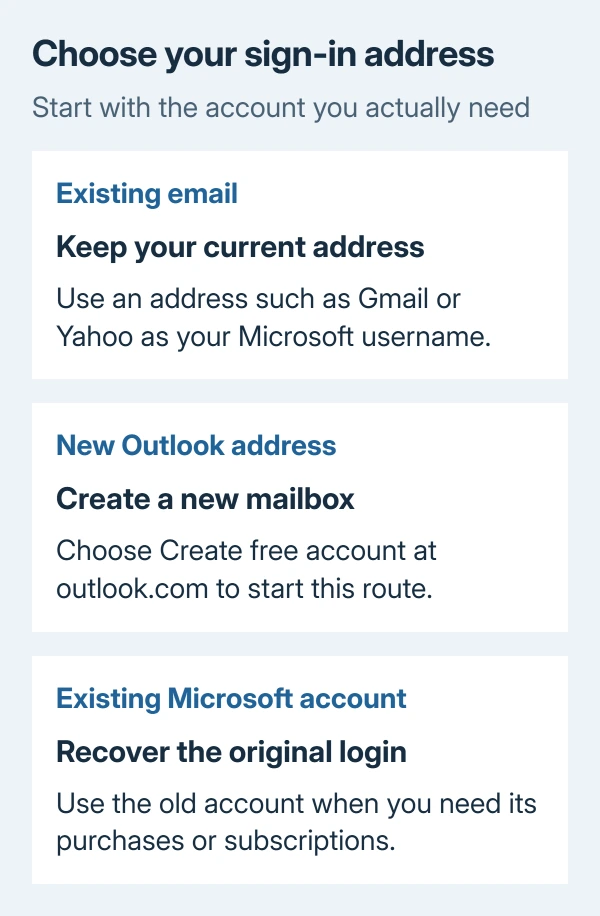
For a new mailbox, go to outlook.com and select Create free account. For an existing address, Microsoft supports using an address from another provider, including Gmail or Yahoo.
Status: Microsoft's signup, email-choice and verification guidance checked October 29, 2026. No account was created and no personal details were entered.
Microsoft explains the two address choices in its Outlook account guidance. Using Gmail as the Microsoft username does not make it an Outlook.com address.
Keep the chosen address somewhere you can find it. That recommendation is ours: remembering only a display name makes it harder to identify the account later.
Complete the signup and confirm the right account
- Open Microsoft's creation page and select Create free account.
- Choose the existing-email or new-address option that matches the intended result.
- Supply the details requested by the signup form and complete its verification prompts.
- Open account.microsoft.com and confirm the signed-in email is the account just created.
Follow the authentication choices the form actually offers. The signup method can vary, so an older tutorial's sequence of password and phone-number screens is not a reliable checklist for every new account.
A parent or guardian also needs to sign in when setting up a child's account. Follow that process using the child's correct details.
The account is free. Its included online Word and Excel access is different from buying a desktop Microsoft 365 subscription; check the product offered before agreeing to any paid plan.
Check whether the email already belongs to an account
Before making another login to regain old purchases, look for the existing one. Microsoft's account lookup guidance suggests checking Microsoft receipts and signed-in apps.
In desktop Word or Excel, open File > Account and check Belongs to under Product Information. That identifies the account associated with that product, which may be different from the address remembered for Windows.
Use the Microsoft account recovery routes when that account is the one needed. A new account cannot serve as proof of ownership of the old one.
Microsoft says previously used Microsoft account addresses cannot be reused for a new account, even after closure. If the intended address is unavailable, choose another rather than repeatedly submitting it.
Resolve a verification or creation failure
For a missing emailed code, check the intended inbox and its junk folder. Microsoft's verification troubleshooting identifies @accountprotection.microsoft.com as the domain for valid code emails.
Avoid repeatedly requesting more codes. Microsoft warns that excessive requests can trigger blocks. Follow the error's offered verification method or wait when it describes a temporary restriction.
For a signup that still fails, Microsoft's creation guide suggests a different signup method, such as email instead of a phone number, or another device. Retain the exact error if those alternatives fail.
If the real task is giving another person a separate desktop, use the Windows user-account procedure after deciding which identity they need. Creating an online account does not itself add a Windows user.
Contact Microsoft Support with the failed step and error text when signup remains unavailable. Do not send passwords or verification codes in the description.
The Short Version
Start from Microsoft's creation page, choose the email identity and finish verification. Confirm the signed-in address. Recover the original account for old purchases; adding a PC user requires a separate Windows setting.

Isaac Smith is the founder and editor of PC Glance, a website that covers computers, laptops, and technology. He is a tech enthusiast and a computer geek who loves to share his insights and help his readers make smart choices when buying tech gadgets or laptops. He is always curious and updated about the latest tech trends.