Microsoft Edge's profile button shows the account signed into the browser. To read your email, open your provider's website. Click the profile picture to find Edge's account address. Open Outlook or Gmail in a tab to read messages.
Those can be different accounts. A work profile doesn't mean your personal email disappeared, and browser sign-in doesn't automatically open a mailbox. Choose the section matching the address or messages you need.
In this guide
Find the email address used for your Edge profile
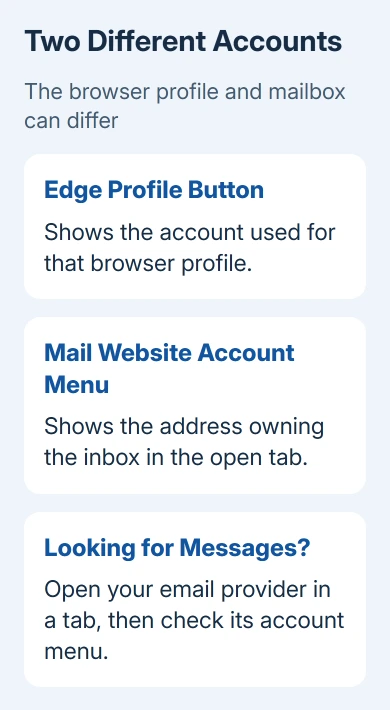
Open Edge and select the Profile button beside the browser's other top controls. It can show a photo, initials, or a generic person symbol. The menu shows the current browser profile and any account signed into it.
Read the full address, including the part after @. That tells you which account this profile is using. A profile name such as Personal or Work is a label, so don't assume that label is the actual email address.
Select Profile settings to inspect the account details. You can also open edge://settings/profiles directly by entering that address in a tab.
Microsoft's profile instructions explain how profiles keep browser settings, bookmarks, and extensions separate. The account shown there belongs to that browser profile. Other mailboxes you've used won't all appear there.
If the menu offers Sign in to sync data, the current profile might not be signed in. That doesn't mean your email account was deleted. Open your provider's website or check another existing profile before creating anything new.
Check another profile or a guest window
Select the Profile button again and look for another existing profile. Choose the profile where you usually read email. Edge opens that profile in a separate window, with its own browsing information and website sign-ins.
Check that window's tabs and bookmarks for your usual mail page. A work window can look almost identical to a personal one, so confirm the account shown on the mail website itself before sending a message.
A mail page you visited earlier can also be located through Edge history search in that same profile.
Guest and InPrivate windows don't necessarily have your usual website sign-ins. Open a normal window and choose your usual profile to check the website sign-ins you normally use.
Don't remove a profile to switch accounts. Removing it can discard local browser information you still need. You can check another existing profile without deleting anything.
For an Office or Windows app whose account button does nothing, use the Microsoft account-switching checks. Those app controls are separate from Edge's profiles.
Open the inbox belonging to your email provider
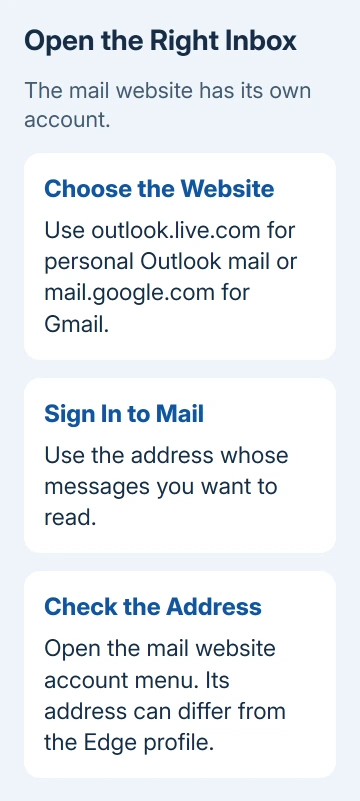
For a personal Outlook, Hotmail, or Live mailbox, type outlook.live.com into Edge's address bar. For Gmail, type mail.google.com. Sign in with the account whose messages you want.
A work or school mailbox might use your organization's Microsoft 365 page or another provider. Follow the webmail link your organization provides. Some work accounts use a different sign-in page from personal Outlook accounts.
Once the inbox opens, select its account picture and read the address shown there. That's the account for the inbox you're looking at. It can differ from the address on Edge's Profile button, even in the same browser window.
If the provider asks you to choose an account, select the one matching the email address you need. Don't choose the first familiar name without checking the address, especially on a shared family computer.
If your inbox appears but recent messages don't, check its search and folders rather than looking through Edge settings. Edge displays the website; mail delivery and folder contents belong to the email service.
Look for an address saved with a website password
If you remember using email on this computer but can't remember its address, check the browser's saved sign-ins. Open Settings > Passwords and autofill > Microsoft Password Manager, then search for your email provider's website.
The saved entry can include a username or email address. For example, an entry associated with your mail provider can remind you which address you used. You don't need to reveal or copy the password to read the username.
Don't share a screenshot containing passwords or recovery details. If the computer belongs to someone else, use only your own profile and saved account entries. Another person's saved sign-in isn't a way to recover your account.
A missing entry means Edge has no matching saved sign-in in that profile. It doesn't show that the mailbox is gone. Password saving might have been off, or you might have used another profile, browser, or device.
If you've found the address but the password is missing, use the provider's recovery process. The saved-password guide for Edge covers locating browser entries without confusing them with a mailbox login.
Recover a forgotten Microsoft account address
For a personal Microsoft account whose address you still can't find, open the forgotten username instructions. Use the username lookup linked there.
Enter a phone number or alternate email already added as security information. Request and enter its code, then continue. The result is a masked username hint, so you might still need to recognize the complete address.
Use that hint to compare your known addresses or older account records. The same recovery phone number or address can be linked to several accounts. Read each result carefully rather than assuming the first hint is the account you want.
The lookup needs security information already linked to that account. A new phone number can't identify a forgotten mailbox. Without matching information, follow the page's route for checking other products or services.
For work and school accounts, ask your IT team to confirm your sign-in name and mailbox address. They can differ. Personal Microsoft account recovery can't change your work account or get around your organization's sign-in rules.
Keep the right inbox easy to find
Once the correct inbox is open, press Ctrl+D to bookmark it in the profile you intend to use. Give the bookmark a recognizable name such as Personal Gmail or Work mail. Reopen it once to confirm it leads to the expected provider.
A bookmark saves the page address, but it won't keep you signed in forever. When the website asks for an account again, check the address in the account menu. On a shared computer, sign out of webmail when you're finished.
If recovery fails, tell the provider whether you lost the address, password, or recovery method. Each needs different help. Resetting Edge won't recover those missing account details.
The Short Version
Check Edge's Profile button for its browser account. Open your provider's website for the inbox, and confirm the address in that website's account menu. Use saved sign-ins or the provider's username recovery if the address is forgotten.
Checked November 12, 2026.
 If you have any business, I can build it online