Edge itself is rarely missing when this error appears. A leftover registry entry tells Windows to run another program whenever msedge.exe starts, and that program is gone, so the launch fails with Edge right there in its folder.
Delete the Debugger value under Edge's Image File Execution Options key and Edge opens again, often without a restart.
In the cases owners traced, the entry came from Avast or AVG cleanup software. If one of those is still installed, wake Edge in its Sleep Mode list first.
In this guide
Why reinstalling Edge doesn't help
The full message reads "Windows cannot find 'C:\Program Files (x86)\Microsoft\Edge\Application\msedge.exe'. Make sure you typed the name correctly, and then try again."
Yet the file is there, and opening it straight from that folder gives the same error.
In a long-running Microsoft forum thread on this error, the asker uninstalled Edge, reinstalled it from the web three times and tried Repair and Reset, and nothing changed. That's because the problem isn't in Edge's folder at all.
Windows keeps a registry key called Image File Execution Options that holds special launch settings for programs, listed by file name. A value called Debugger in a program's key makes Windows start whatever program it names instead.
Developers use it to open a debugging tool the moment an app starts. When the Debugger value points at a program that's been removed, every launch of msedge.exe fails, whichever shortcut or folder you start it from.
Cleanup tools borrow the same trick to put apps to sleep. Owners found that uninstalling Avast or AVG left an msedge.exe entry behind, and an adviser in the thread explained that the uninstaller doesn't remove the entries it added.
1. Wake Edge in Avast Cleanup, if it's still installed
Avast's own steps are short: open Avast Cleanup Premium, hover over the side menu and select Sleep Mode. Click the slider next to Microsoft Edge so it turns from gray (Off) to green (On).
Do this before you uninstall the cleanup tool, because uninstalling it is what leaves the entries behind. AVG TuneUp has its own Sleep Mode list, so check there if AVG is what you use.
2. Check for the entry from Terminal
Right-click Start and choose Terminal (Admin), or Windows PowerShell (Admin) on Windows 10, then run:
reg query "HKLM\SOFTWARE\Microsoft\Windows NT\CurrentVersion\Image File Execution Options\msedge.exe" /sIf reg says it can't find the key, no entry exists, so skip to step 5. If the output shows a line starting with Debugger, that's your culprit, and the output also shows which subkey it sits in.
3. Delete the Debugger value in Registry Editor
Press Windows+R, type regedit and press Enter. Paste this path into the address bar under the menu and press Enter:
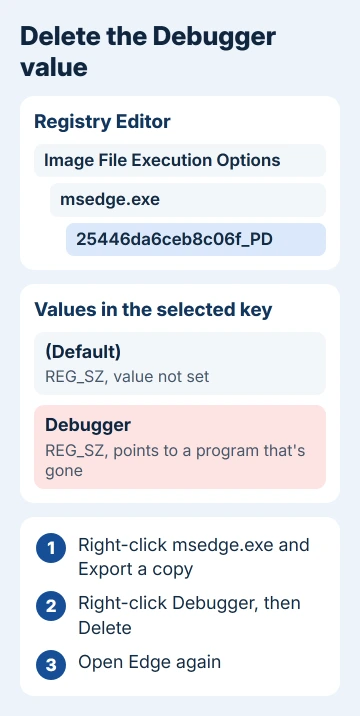
HKEY_LOCAL_MACHINE\SOFTWARE\Microsoft\Windows NT\CurrentVersion\Image File Execution Options\msedge.exeRight-click the msedge.exe key on the left, pick Export and save a backup before you change anything. Double-clicking that file later puts everything back.
Check the values listed for msedge.exe itself, then expand it and click any subkey under it. Owners found one with a long code for a name, such as 25446da6ceb8c06f_PD, holding the Debugger value.
Right-click Debugger, choose Delete and confirm, then try Edge again. One owner said it "works instantly without even needing to reboot," and another owner, whose entry came from AVG, got Edge back the same way.
Never installed a cleanup tool, yet the entry reappears after you remove it? Then something is still writing it, so scan the whole PC with Windows Security.
4. Fix other programs with the same error
Sleep Mode rarely stops at Edge. One owner's cleanup tool had put 118 programs to sleep, and another found a few more broken apps after fixing Edge and deleted their Debugger values too.
Autoruns shows every such redirect in one place on its Image Hijacks tab, which beats clicking through the registry key by key. Right-click an entry there to delete it.
Microsoft Word was among the programs one owner couldn't wake, and the WINWORD.EXE version of this error covers the same entry for Office.
You'll also see advice to search the whole registry for the cleanup tool's name and delete every hit. Skip it: some of those entries can belong to programs you still use, and the Debugger values are all you need to remove.
5. If no Debugger entry exists
Repair Edge from Settings > Apps > Installed apps: open the three-dot menu beside Microsoft Edge, choose Modify, then Repair. On Windows 10, the same Modify button sits under Settings > Apps > Apps & features.
Install any waiting Windows updates too. One owner who'd never used Avast or AVG said an update cleared the error for them.
If Edge opens but then freezes, that's a different problem, and the Edge not responding fixes cover it.
If Edge still won't open
Contact Microsoft support and tell them msedge.exe exists but won't launch, and that no Debugger value is left. If Avast or AVG was involved, their support can also check what their uninstaller left behind.
In the meantime, another browser works fine for downloads and email, and your Edge favorites stay in your profile until Edge starts again.
The Short Version
Windows can't find msedge.exe while the file exists because a Debugger value in the registry is redirecting Edge. Wake Edge in Avast Cleanup's Sleep Mode if Avast is still installed.
Otherwise open regedit, go to Image File Execution Options\msedge.exe, export it, and delete the Debugger value in the key or the subkey under it. Check other broken apps the same way, or use the Image Hijacks tab in Autoruns.
Checked November 19, 2026.
 If you have any business, I can build it online