Microsoft Edge can stop responding because of a stuck background process, a heavy tab or an extension. Close Edge completely and reopen it first.
If the window is blank or disappears immediately, skip clearing page data and try the graphics, profile and repair checks.
In this guide
1. Close the stuck Edge session completely
Press Ctrl + Shift + Esc to open Task Manager on Windows. Find Microsoft Edge, select it, and choose End task. In the Details view, remaining browser processes appear as msedge.exe; end those before opening Edge again.
Ending the browser can discard unsent forms or other unsaved page work. Save anything you can still reach first. Don't end similarly named WebView2 processes as part of this step; they can belong to other Windows apps.
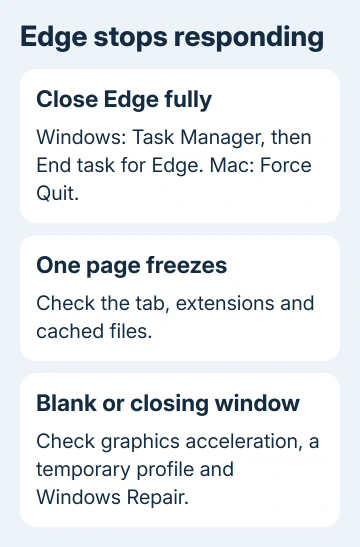
On a Mac, press Option + Command + Esc, select Microsoft Edge, and click Force Quit. Reopen it from Applications. The Windows Modify > Repair procedure later in this article doesn't apply to macOS.
If Edge opens, visit a simple page before restoring many tabs. If it freezes only after your old tabs return, one of those tabs could be causing it. If it still won't open, restart the computer and continue with step 4.
2. Reduce the load and install the browser update
Close all but the affected tab, pause downloads, and close other demanding apps. Reload the page. Microsoft lists limited available memory as a reason Edge can't load a site while other apps, extensions and tabs are running.
If the page responds after you close other things, bring your tabs back gradually. Watch for a site or app that brings the problem back. That is more useful than reopening everything together and ending up with the same frozen window.
Open Settings and more > Help and feedback > About Microsoft Edge, or enter edge://settings/help in the address bar. Let the check finish, then choose the restart option it offers. Restarting completes the browser update.
An Edge 155 update can trigger a known startup fault in existing profiles, fixed in 156.0.4314.42. Check the known-issue details. If Edge won't open, use step 6's repair route.
Version 153 had web-app freezes fixed in 153.0.4234.48. A separate freeze involving accessibility features lists 157.0.4341.42 as its fix. If that update isn't offered, ask IT about the release before changing assistive tools.
These steps follow the Edge recovery guidance. If updates fail on a work computer, give the error message to IT so they can check the managed browser.
3. Test extensions and clear only the data you need
Type edge://extensions into the address bar. Turn off extensions, restart Edge, then reload the affected address. If that fixes the freeze, enable one extension, check the page, then repeat for the other extensions until the freeze returns.
Leave that extension disabled, then check its update or support options. A problem that returns with a specific add-on doesn't call for deleting the rest of your browser data. Change only what helped the page work again.
For a page that loads incorrectly while the browser controls still work, clear its cached files. Our Edge cache instructions show the browsing-data controls and which boxes to leave unchecked.
Choose Cached images and files without adding passwords, cookies or history. Retry the page afterward.
Removing cookies ends your signed-in website sessions. Do that only when you need to reset the site's stored sign-in session.
Try a failing website in another browser. If it fails there too while other sites load, give that site's support the address and error. If every site fails across browsers, check the connection before repairing Edge.
4. Turn off graphics acceleration for a blank window
A blank window or startup crash can involve the graphics driver. If Edge stays open long enough, enter edge://settings/system and set Use graphics acceleration when available to off. Restart Edge to apply the change.
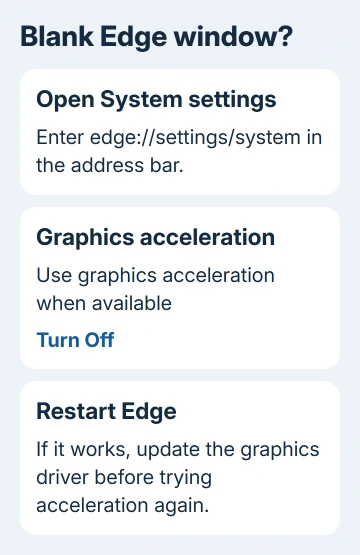
Graphics acceleration lets your graphics chip do some of the browser's work. Turning it off makes Edge handle that work differently.
If Edge works afterward, update the graphics driver through Windows Update or your computer maker's supported driver tool, then try acceleration again.
If Edge closes before you can reach this switch, continue to the next check. Don't spend time trying to click a control inside a window that closes immediately. A managed switch may also need your administrator to change it.
5. Try a temporary profile before changing yours
A profile holds browser settings, extensions and saved data. A temporary profile lets you try Edge without loading your usual settings, extensions or saved data. Close all Edge windows and remaining browser processes before this test.
On Windows, use Command Prompt for the command from the startup troubleshooting instructions:
"C:\Program Files (x86)\Microsoft\Edge\Application\msedge.exe" --user-data-dir="%TEMP%\edge-test-profile"The command uses the installation path in those instructions. If Windows can't find it, check your Edge installation location with IT rather than assuming that message means Edge crashed again. Don't substitute a path to WebView2.
Leave the test profile signed out. If it stays responsive, your usual profile or extensions need attention. Keep the existing folder intact and ask support about a replacement profile and recovering your data.
I'd keep this test separate from signing in and restoring everything. Restoring extensions and settings can bring the fault back before you've checked the fresh profile. Close the test window afterward.
6. Repair the Windows installation
On Windows 11, open Settings > Apps > Installed apps. Find Microsoft Edge, open its menu and select Modify, approve the prompt, then select Repair. Keep the computer connected to the internet while the repair runs.
On Windows 10, use Settings > Apps > Apps & features, select Microsoft Edge, then Modify > Repair. Close Edge for every signed-in Windows user before starting. Administrative permission is required.
The repair should keep your browser data and settings. Reopen Edge and retry the failed page. If Modify is missing, your organization may manage Edge; ask IT to repair it. Keep removing Edge separate from this repair.
When Edge still freezes
Use Microsoft Support's Contact Support route, or your workplace IT team. Provide the Windows or macOS version, whether the temporary profile opened, and whether the blank window, one page or the whole browser fails.
If Edge opens, copy its full version from edge://version. Include repair or update errors and whether changing graphics acceleration helped. Include those results to help explain the remaining startup or freezing problem.
The Short Version
End the stuck browser processes, reopen Edge, then check tabs, updates and extensions. For a blank window, test graphics acceleration and a temporary profile. Use Windows' Modify > Repair if the installation still fails.
Checked November 10, 2026.