A Cloudflare verification loop in Chrome often comes from extensions, blocked JavaScript or the connection. Try switching extensions off first. Access denied or error 1020 can need a security-rule change by the website owner.
These steps cover website verification, including the small Turnstile checkbox. A disconnected Cloudflare WARP app is a separate network problem.
In this guide
1. Read the page before changing Chrome
A repeating Verifying you are human check means the browser hasn't completed verification. A blank verification area can mean the scripts never loaded. Those are the cases where browser and connection changes are useful.
An Access denied, 1020, or 403 Forbidden message can mean the website's access rules are blocking the request. Copy its error code and Ray ID, the request identifier often printed near the page's bottom, before leaving it.
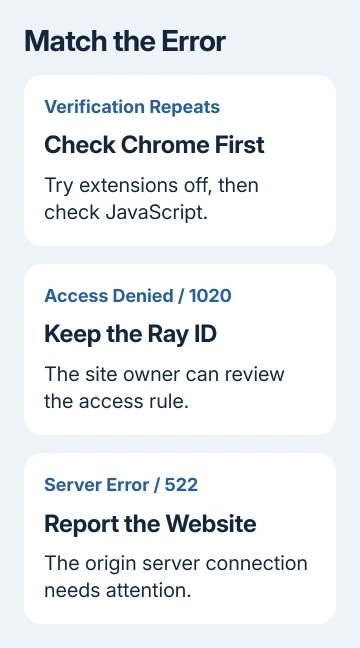
An origin-server error such as 522 points to the connection to the server that hosts the site. Clearing Chrome's settings won't restore the site's unavailable server. Wait and report the address to its owner if the failure continues.
For a plain forbidden response, use the Chrome 403 access checks. Chrome can send the request correctly and still be refused access to a particular page or account.
Cloudflare's challenge troubleshooting lists extensions, disabled JavaScript, VPNs and network problems among the causes of failed verification.
2. Turn off extensions for one clean attempt
Enter chrome://extensions in Chrome's address bar. Switch extensions off temporarily, especially ad blockers, script blockers, fingerprinting tools and browser VPNs. Reload the failing website in its original tab.
Give verification time to complete before another click. If the website opens, turn extensions back on individually and retry the same address. That tells you which extension is involved without removing your whole setup.
When one extension triggers the loop, use its site-specific allowance if it offers one. That lets verification run on the trusted site while keeping your protection elsewhere.
I'd try this before deleting browser data. It takes little time and preserves your current sign-ins, which helps if the affected page is part of a purchase or an account session.
For a quick comparison, open an Incognito window with Ctrl+Shift+N on Windows or Command+Shift+N on Mac. Enter the site address directly. An extension can remain active in private windows if its Incognito permission is enabled.
If the site opens in Incognito, check your regular profile's extensions or stored site data. If it still fails, keep checking: private browsing handles cookies differently, but you're still using the same connection.
3. Let the trusted site run JavaScript
Open chrome://settings/content/javascript. Check the default JavaScript choice and the lists of site exceptions. If the website is blocked, remove that block or add permission for the trusted site.
Reload the website after changing its permission. JavaScript is the code the verification needs to run inside Chrome. A visible checkbox doesn't help if that code is blocked before it can complete the check.
For an individual page, the site controls button beside the address opens Site settings. Review JavaScript there instead of guessing from another site's permissions. Chrome can have a general allowance and a separate block for one address.
Google's site permission controls explain how to change those exceptions. If the setting is locked by work or school, ask the administrator to review the site and its verification resources.
Don't enter commands pasted from a verification page into PowerShell, Terminal or the Run dialog. A normal browser challenge doesn't need that action. Leave a page that asks you to run a command to prove you're human.
4. Remove only the affected site's stored data
Open Settings > Privacy and security > Third-party cookies and choose See all site data and permissions. Search for the affected domain and delete its saved data. Use Settings search to find that list if the labels differ.
Removing its stored data ends that site's sign-in session and clears local preferences. Finish or save any work in its other tabs first. Leave saved passwords and browsing history in place for this comparison.
Reopen the site's main address and complete verification again. If the page opens now, its old session data was likely involved. If the loop remains, deleting the same data again won't help you check a different cause.
Verification needs cookies. Review any cookie block for that site, without turning off every privacy setting. If normal permissions don't resolve the loop, compare the connection next.
5. Keep the connection consistent during verification
Pause a personal VPN or proxy, then reload the website from the start. Keep that connection unchanged until the check finishes. A challenge received from one public IP address can fail if its answer arrives from a different address.
If allowed, connect your computer to a phone hotspot and retry the same page. If it opens only through the hotspot, check whether the original network is filtering requests or its public IP address is being blocked.
Keep workplace connection requirements in place. Ask IT for an allowed comparison rather than bypassing a company VPN. Tell them the domain, when the error happened and what happened on the other allowed network.
If Chrome also fails to load unrelated sites, follow the general Chrome connection repairs. A browser that can't reach the internet needs that connection restored before a verification check can succeed.
6. Update Chrome and compare another current browser
Open Chrome's three-dot menu and select Help > About Google Chrome. Let the update finish and select Relaunch if offered. Return to the original page after Chrome restarts.
Try that address in a current copy of Edge, Firefox or Safari on the same network. If it opens there, you can use that browser to reach the site while you work on the Chrome setup that's failing.
If every current browser fails only on that website, send its owner the URL, time, error code and Ray ID. Explain which networks and browsers you compared. The owner controls the site's security rules and can review the matching request.
The Short Version
For a verification loop, check extensions and JavaScript, refresh the site's stored data, then compare a consistent connection. Send Access denied errors and their Ray IDs to the website owner when browser checks don't change the result.
Checked November 10, 2026.