

Chrome often won't launch because an old process is still running. End that process and reopen Chrome. If a tab crashes, free some memory and reload; if the page fails in another browser too, check the website or connection.
1. Close Chrome completely when it won't launch
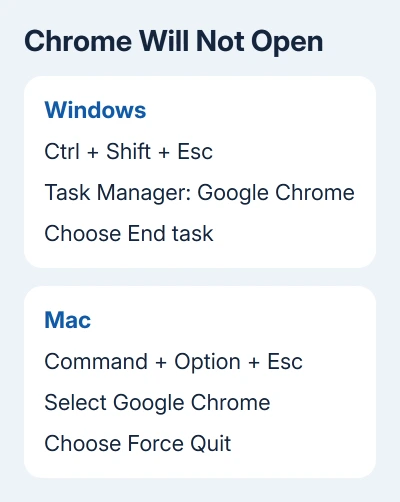
On Windows, press Ctrl + Shift + Esc to open Task Manager. Select Google Chrome or chrome.exe under Processes and choose End task, then launch Chrome again. Save anything you can in an open browser window first.
On a Mac, press Command + Option + Esc, select Google Chrome, and choose Force Quit. Open it again from Applications. Both Intel Macs and models with Apple silicon use this shortcut.
If Chrome opens, the old process was blocking it. If nothing appears, restart the computer. When Chrome asks permission on a child's Windows account, use the Family Safety browser settings instead.
2. Free memory when tabs crash or show an error
Close unused tabs, leaving the failing page open. Quit apps you aren't using, then reload the page. A demanding website can run out of available memory even though Chrome itself still opens.
Google recommends freeing memory and restarting the browser in its Chrome crash checks. Note the exact error code if the tab crashes again. Different codes need different follow-up checks.
When the message is Aw, Snap!, the Chrome crash-code guide covers memory errors and other named codes. If new tabs work and only one website fails, check that page before reinstalling Chrome.
3. Compare the page and remove an extension conflict
Open the same address in Edge, Safari, or Firefox. If it fails there too, try another website. One failing address points toward that website; several failing addresses in both browsers need a connection check.
If the address works elsewhere, open Chrome's three-dot menu and choose New Incognito window. On a computer, Ctrl + Shift + N, or Command + Shift + N on Mac, opens that window too.
If the page works in Incognito, something in your normal browsing session may be causing it. That could be an extension or the site's saved data; this check doesn't tell you which.
Open Extensions > Manage Extensions from the three-dot menu. Turn extensions off, retry the page in a normal window, then enable them individually. Update or remove the extension that makes the problem return.
4. Update Chrome and check its graphics setting
Open Help > About Google Chrome in the three-dot menu. Wait for the update check, then choose Relaunch if offered. On a Mac, the Chrome > About Google Chrome menu also opens the version page.
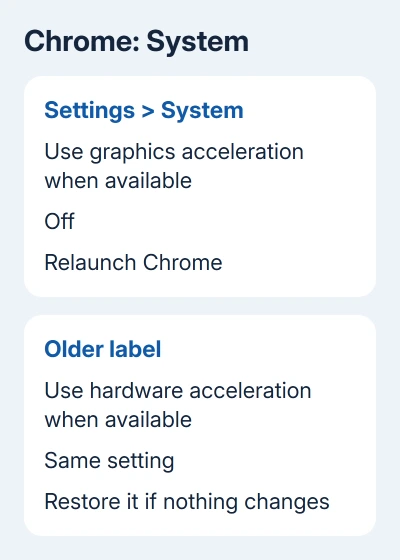
Test the page after Chrome restarts. If the browser stays open but crashes while displaying pages, open Settings > System. Switch Use graphics acceleration when available off, then relaunch when prompted.
Some versions call this Use hardware acceleration when available. This changes how Chrome uses the graphics hardware. If it makes no difference, restore the setting before moving to a settings reset.
5. Restart the app on Android, iPhone, or iPad
On Android with gesture navigation, swipe up and hold to open recent apps, then swipe Chrome away. With navigation buttons, tap Overview or Recent apps, then dismiss Chrome. Open it again and reload the address.
On an iPhone or iPad without a Home button, start a swipe at the bottom edge and pause halfway up. With a Home button, double-click it. Swipe the Chrome preview upward, then reopen the app.
Close extra tabs and pause downloads if pages keep crashing. Restart the phone or tablet if reopening Chrome doesn't help. Use the browser comparison from step 3 before removing the app.
On a phone or tablet, check for Chrome updates in the app store. The Extensions and System menus are only on desktop Chrome.
6. Reset desktop settings, then consider reinstalling
When Chrome opens, go to Settings > Reset settings, select Restore settings to their original defaults, then confirm Reset settings. This changes startup pages, site permissions, and extensions, so review those settings afterward.
I'd try the settings reset before deleting your browser profile.
If a restart hasn't restored Chrome, consider reinstalling. Save important bookmarks and passwords somewhere you can access first. Uninstalling with the option to remove browsing data can erase your local copy.
Use the Chrome Help Community linked from the crash page if the failure continues. Include your operating system, Chrome version when available, exact error, and whether another browser opens the same address.
The Short Version
End a stuck process for launch failures. For crashes, reduce memory use, compare another browser, and check extensions and graphics acceleration. On a phone, dismiss and restart Chrome before considering app removal.
Checked November 7, 2026.

Isaac Smith is the founder and editor of PC Glance, a website that covers computers, laptops, and technology. He is a tech enthusiast and a computer geek who loves to share his insights and help his readers make smart choices when buying tech gadgets or laptops. He is always curious and updated about the latest tech trends.