

Change an iPad's unlock passcode in Settings under Face ID & Passcode or Touch ID & Passcode. Enter the current code, then choose Change Passcode and set the replacement.
For iCloud, change your Apple Account password instead. For a website, change the password through that site and update its saved entry. Neither is the code that unlocks your iPad.
Open the passcode page for your iPad
Open Settings, then Face ID & Passcode on a Face ID model, or Touch ID & Passcode on a model with a fingerprint sensor.
The fingerprint sensor can sit in an iPad's top button or its Home button. The button's position doesn't change the name of its Settings page. An older iPad without either biometric feature can show Passcode instead.
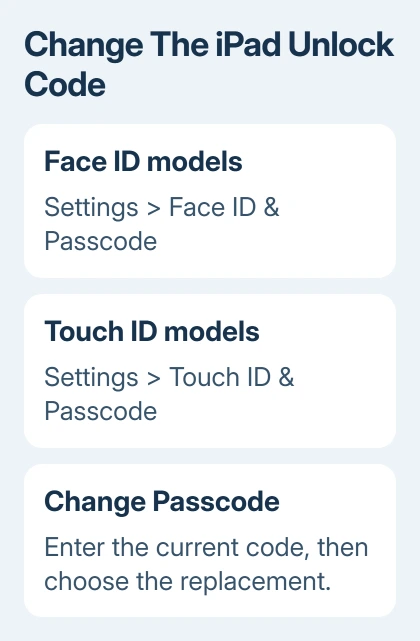
Enter the code you currently use to unlock the iPad. Apple describes these controls in its passcode instructions.
If the code isn't accepted, stop before making repeated guesses. A forgotten passcode needs recovery; the normal change page requires the current code.
For a shared iPad, let the person responsible for it know you're changing the code. Anyone who unlocks it with a passcode will need the replacement.
Enter and confirm the replacement code
Tap Change Passcode. Enter your old passcode again if requested, then type the new one. Enter it a second time when asked so the iPad can confirm the replacement.
The standard choice is a six-digit numeric code. Before typing a different format, tap Passcode Options. The available choices include a four-digit numeric code, a custom numeric code and a custom alphanumeric code.
A custom numeric code lets you choose its length. A custom alphanumeric code can include letters and numbers, so you'll type it like a password to unlock the iPad.
I'd choose a code you can recall without relying on Touch ID or Face ID. The iPad still asks for its passcode in situations such as restarting, even when biometric unlocking is set up.
After confirming, press the top button to lock your iPad, then wake it again. Enter the replacement when the passcode screen appears to check that it works.
If you're changing how quickly the display turns off as well, use the separate iPad screen-lock settings. Changing the code doesn't choose an Auto-Lock time.
End the old-code recovery period early when needed
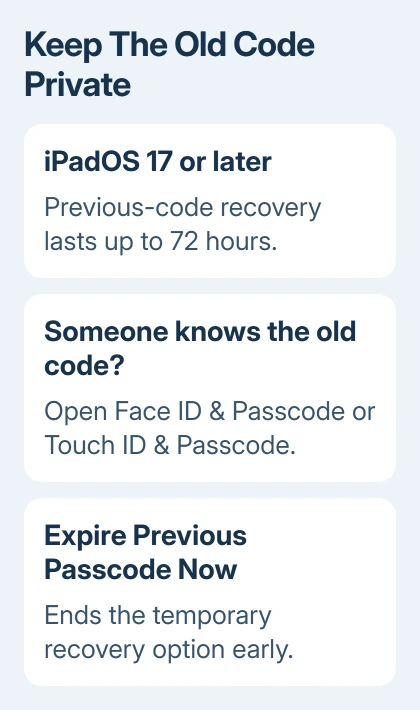
On iPadOS 17 and later, you can use the previous passcode to recover access for 72 hours after a change. It won't work for ordinary screen unlocking.
If someone else knows the old code and should lose access now, return to Face ID & Passcode or Touch ID & Passcode in Settings. Enter your current code when asked and tap Expire Previous Passcode Now.
The previous-passcode control removes that temporary recovery option early. Keep it available only when the old code is still private and you'd benefit from the recovery period.
To recover access during that period, follow the Passcode Reset prompts using the previous code. You'll have to set a new passcode immediately.
Choose the account route when iCloud needs a new password
For your Apple Account password, open Settings > your name > Sign-In & Security > Change Password. Follow the prompts to confirm your identity and change that account's password.
The Apple Account password guide covers that process and its account-security prompts. Use it when the password you want to replace signs you into iCloud, the App Store or your account on another device.
For a website login, open Passwords on current iPadOS and find the saved account. Changing a saved entry won't update the website's password. Complete the password change through that site too.
Handle a forgotten code or a restricted setting
A forgotten current passcode can't be replaced through the normal Change Passcode page. If the recent-change recovery option doesn't apply, use Apple's iPad passcode-reset instructions to find the recovery method available for your device.
Recovery can require erasing the iPad, so check which backup you can restore before continuing.
If a school or workplace manages the iPad, tell its administrator which passcode control is unavailable and any message on screen. Their settings can require a particular code format.
For a personal iPad whose controls still don't work, ask Apple Support for help with changing its device passcode. State whether the current code unlocks the screen and whether the issue is a rejected code or an unavailable setting.
The Short Version
Use Settings, then Face ID & Passcode or Touch ID & Passcode, and choose Change Passcode. Pick Passcode Options for another format. On iPadOS 17 or later, expire the previous passcode immediately if someone else knows it.
Checked November 7, 2026.

Isaac Smith is the founder and editor of PC Glance, a website that covers computers, laptops, and technology. He is a tech enthusiast and a computer geek who loves to share his insights and help his readers make smart choices when buying tech gadgets or laptops. He is always curious and updated about the latest tech trends.