

Apex can miss a working controller because of its input settings. Connect it by USB, then try the game's Steam Input override. If Windows can't see it either, fix the connection first; wrong button symbols or actions need their own checks.
1. Connect the controller directly before opening Apex
Quit Apex, then connect your controller to the PC using a data-capable USB cable. Leave out a USB hub for this check. A lit charging indicator doesn't confirm that button presses reach the PC.
If detection fails, compare a second cable and a different port. Disconnect extra gamepads so you know which controller Apex is using.
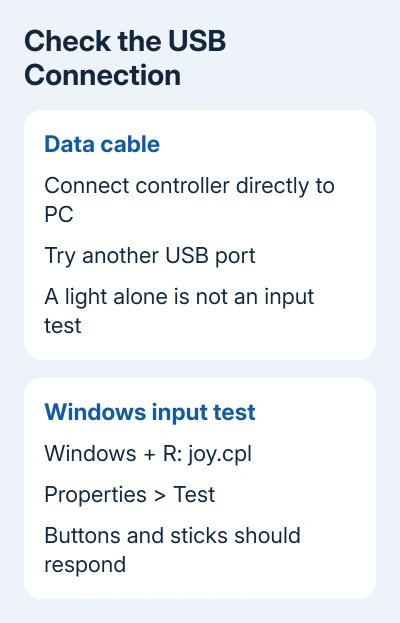
On Windows 10 or 11, press Windows + R, enter joy.cpl, and press Enter. Select the controller, open Properties, and check the Test tab. Buttons and stick indicators should react as you use them.
If they don't, work on the connection before changing Apex settings. A controller that fails this check also needs its maker's connection instructions. The Windows controller connection guide covers compatible wired and wireless devices.
For a wireless comparison, Windows 11 uses Settings > Bluetooth & devices > Add device > Bluetooth. Windows 10 uses Settings > Devices > Bluetooth & other devices > Add Bluetooth or other device > Bluetooth.
Put the controller into its own pairing mode before selecting it. Follow the Windows Bluetooth pairing steps if it doesn't appear. A controller working through USB but failing wirelessly needs that connection fixed.
2. Check Steam Input for Apex, rather than every game
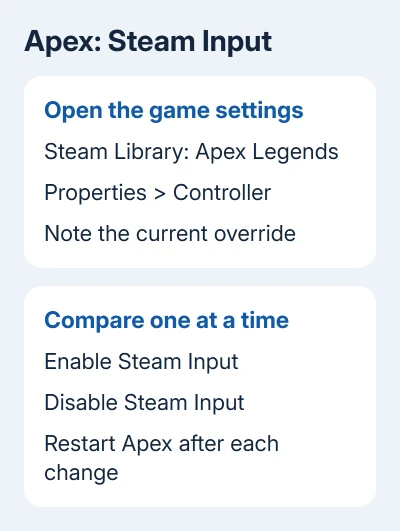
For the Steam edition, close Apex and open your Steam Library. Right-click Apex Legends > Properties > Controller. Note the existing override before changing it.
Steam Input translates your controller's button presses into controls a game understands. It can help Apex recognize a pad, but it can also get in the way when the game already supports that controller.
Compare Enable Steam Input with Disable Steam Input, relaunching Apex after each change. In the Firing Range, test movement and buttons. Keep the setting that makes the controls work, even if the button symbols look wrong.
If neither setting helps, restore the original override. Adjust settings separately, testing after each change.
The general PC controller checks cover a pad failing across games. If it works in other games, keep checking Apex's settings.
3. Treat Xbox symbols on a PlayStation pad separately
Press buttons and move the sticks before deciding that a controller with Xbox symbols is disconnected. Wrong symbols can appear while your controller is working.
One owner on Steam's Apex discussion fixed the PlayStation button-display problem by turning the game's Steam Input override off, then restarting Apex.
The global PlayStation support switch failed for other owners in that thread. Compare the game's override from step 2 instead. That fix changed the button symbols; it wasn't a fix for missing input.
4. Restore the actions Apex assigns to each button
When movement works but jump, crouch, or another action is wrong, open Apex's Settings > Controller > Button Layout. Check whether a preset or Customized layout changed the actions you expect.
Select Default to compare the standard layout, or edit the customized assignments you use. Exit the settings menu, then test the affected action in the Firing Range.
The Apex controller controls list the presets and default actions. If a button performs the wrong action, change its assignment. Stick sensitivity won't fix that.
For an Xbox controller with unusual assignments in several games, check its active Xbox Accessories profile too. I'd compare the default profile before replacing a controller whose buttons still register in Windows.
5. Keep the EA app launch separate from Steam settings
Apex launched through the EA app doesn't use the Steam Library override described earlier. Start with the direct connection and Windows test, then check the in-game layout.
If another controller program is running, close it and relaunch Apex. Conflicting controller software can cause strange input, so test with one input setup at a time.
Don't install a new remapping utility just to hide an unresolved connection problem. For a PlayStation pad that works by cable but not Bluetooth, keep using the cable while checking that model's PC support.
The PC game-controller setup advice also explains why the layout and connection path matter, though Apex uses its own game settings.
6. Send EA the result that narrows the problem
If Windows sees every input and other games work, open an Apex technical-issues report through EA Help. Include the controller model, USB or Bluetooth, Windows version, Steam or EA app, and whether changing the per-game override helped.
If Windows can't receive the controller either, ask its maker about connection or hardware service first. Tell them whether it works with another data cable or computer, if you can try one.
The Short Version
Start with USB and watch Windows receive the button presses. Compare Apex's per-game Steam Input override, distinguish wrong symbols from missing input, and check Button Layout when only certain actions fail.
Checked November 7, 2026.

Isaac Smith is the founder and editor of PC Glance, a website that covers computers, laptops, and technology. He is a tech enthusiast and a computer geek who loves to share his insights and help his readers make smart choices when buying tech gadgets or laptops. He is always curious and updated about the latest tech trends.