
Windows game controller settings open with Windows + R, followed by joy.cpl. Select the controller and open Properties for the driver's input tests. Check what Windows receives before changing a game's controls.
Button remapping, sensitivity and force feedback may belong in the game or the manufacturer's app. The Windows panel is a useful starting point, but its controls differ between devices.
Open the controller list with joy.cpl
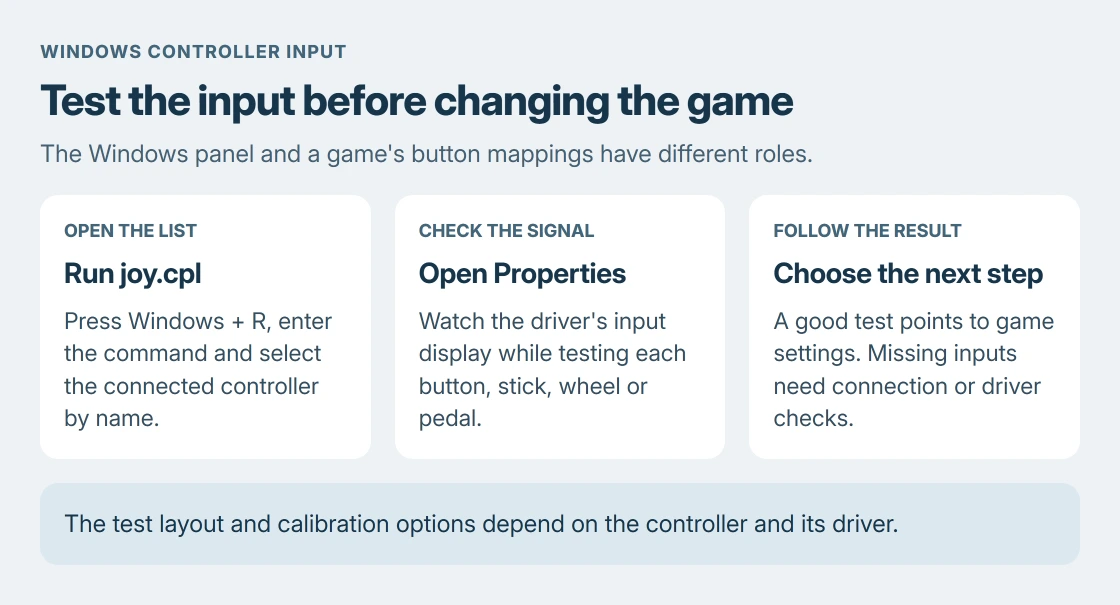
Connect the controller using its supported PC connection, then press Windows + R. Enter this command and select OK:
joy.cplThe Game Controllers window lists recognized controllers. Select the intended device, then Properties. With several devices connected, check the name before moving a stick or changing a setting.
Status: Thrustmaster and Microsoft controller documentation checked 24 October 2026. The Windows panel file exists locally; no controller was connected or tested.
Thrustmaster documents this route in its T80 test instructions. Its wheel examples also demonstrate why the controls in Properties can look different with a different driver or operating mode.
Watch each input instead of judging from a game alone
Open Test, Test Device, or the input display supplied by that controller's driver. Move each stick, wheel or pedal through its travel, then press buttons individually. Watch which indicators respond.
A basic gamepad shows buttons and axes. A wheel's driver can display a different layout. Thrustmaster's examples test steering and pedals too, so do not expect an identical panel on every device.
Let go of the controls and watch their resting state too. A signal that continues moving without input helps explain unwanted movement. Our stick-drift guide covers that separate repair decision.
Working inputs here send the next check to the affected game's support and controls. Missing or erratic signals call for checking the controller's connection and driver first.
Change game controls in the place that owns them
Open the affected game's input menu and select its controller option or layout where available. Games can require a supported controller type, so a successful Windows test cannot establish compatibility with every title.
Microsoft documents different capabilities for XInput and DirectInput, the interfaces games use for controller input. A device's input mode matters to compatibility.
A controller with a documented input-mode switch may need the mode specified for the game. Follow its own manual before switching. Changing modes can change the device name and what appears in the test panel.
Use the game's controls or the manufacturer's supported configuration app for button assignments, sensitivity and force feedback. Do not expect one Windows Properties page to offer every feature for every controller.
Why do two triggers share one axis?
Microsoft states that XUSB controllers combine the triggers when read through DirectInput. One trigger moves the shared axis one way; the other moves it the opposite way. Test each separately before calling that display a fault.
Microsoft says separate trigger values require XInput. A combined display in an older input test does not prove that the controller cannot provide independent triggers to an XInput game.
Calibrate only through a procedure for that model
Some drivers expose a calibration page; others provide their own tool or app. Use the controller maker's instructions when a calibration option is available, rather than assuming every gamepad has the same wizard.
Record the existing settings first, then check the inputs again after completing the documented procedure. Calibration cannot establish that a physically damaged stick, pedal or wheel is repaired.
Leave registry calibration resets to a procedure explicitly written for the affected model and symptom. They are unnecessary merely to open the input display or change one game's button assignments.
If the controller does not appear
Confirm that the model supports PC use and its current connection method. Use its required driver or receiver, and a data-capable cable for a wired connection. A charging light alone does not demonstrate input communication.
For an Xbox pad that will not pair, the Xbox connection guide covers the model and connection distinctions. Reopen joy.cpl after Windows recognizes the device.
If it remains absent, or the same input fails outside the game, contact the manufacturer with the model, connection type and test result. Those details are more useful than repeatedly changing unrelated in-game graphics settings.
The Short Version
Open joy.cpl, choose the device and test its inputs in Properties. Use the game for its mappings and the maker's procedure for calibration. Check connection and PC support if the controller is absent.

Isaac Smith is the founder and editor of PC Glance, a website that covers computers, laptops, and technology. He is a tech enthusiast and a computer geek who loves to share his insights and help his readers make smart choices when buying tech gadgets or laptops. He is always curious and updated about the latest tech trends.