

Madden NFL 26 has a Windows PC version that you install through a PC store such as the EA app or Steam. Check your processor, graphics card and available storage first, then install the game using the account that owns the PC copy.
Steam purchases still need the EA app and an EA Account. Sign in carefully when the accounts are linked on first launch, since owning a console copy isn't the same as having the Windows game in your library.
Compare your hardware with the published requirements
EA lists the minimum hardware and software in its Madden NFL 26 requirements. Check the actual model names in your PC; an Intel or NVIDIA sticker alone won't tell you enough.
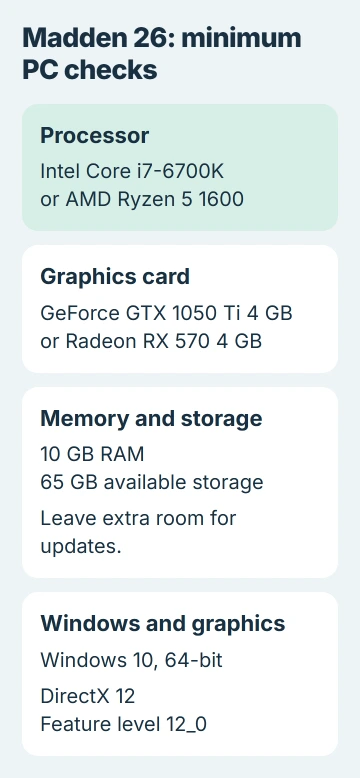
- Processor: Intel Core i7-6700K or AMD Ryzen 5 1600.
- Memory: 10 GB RAM.
- Graphics: NVIDIA GeForce GTX 1050 Ti 4 GB or AMD Radeon RX 570 4 GB.
- Graphics support: DirectX 12 with feature level 12_0.
- Storage: 65 GB available, plus room for updates.
- Operating system: Windows 10, 64-bit, with the latest updates listed in the published requirements.
- Connection: Broadband internet.
The recommended list rises to an i7-8700K or Ryzen 7 2700X, 12 GB RAM, and an RTX 3060 8 GB or RX 6600 XT 8 GB. The published storage figure remains 65 GB.
Press Windows + R, enter dxdiag, and press Enter. The System tab shows the processor, memory and operating system. The Display tabs identify the graphics hardware, which may include both integrated and dedicated graphics.
Our PC specification checks show other ways to find those details. For a newer processor with a different name, compare its performance. Core i7 alone doesn't tell you the processor's generation or speed.
In File Explorer, open This PC and read the available space for your intended installation drive. Keep some space beyond the listed requirement because game updates can need additional room.
I'd check these details before paying for a copy or starting a large download. Installing the launcher successfully doesn't mean your computer meets the game's graphics requirements.
Get the Windows edition on the account you'll use
Choose a legitimate PC store and confirm the product is EA SPORTS Madden NFL 26 for Windows. On its Steam listing, review the edition, included content and account requirements before purchasing.
If you already have access, open that store's library and look for Madden NFL 26 there first. Use the login associated with your purchase receipt. Buying another copy won't fix being signed into the wrong library.
If you use a subscription, check its current listing for this exact PC game and whether you get a trial or the full game. A subscription logo alone doesn't tell you which version your account can play.
Steam requires a linked EA Account to play. Use the EA Account you plan to keep with that Steam account. The store says access is limited to one EA and one Steam account, and you can't transfer it after purchase.
If the wrong account appears while linking, stop and contact EA's account support. Unlinking accounts or creating several new ones isn't a quick fix for a missing game or purchase.
Install through the store where you have access
For an EA app purchase, install the Windows EA app from its official site and sign in. Open Library, find Madden NFL 26, and choose its download control.
Confirm the installation location and language, accept the displayed terms, and start the download. The EA app installation instructions describe these library and download choices.
For a Steam purchase, open Steam > Library, select Madden NFL 26, and choose Install. Pick your installation drive and wait for completion. The EA app is still needed for the game's account and launch steps.
Once the store shows the game is ready, start it from that same library. Follow the EA sign-in or account-linking steps and any remaining installation prompts. Let pending game updates finish before trying to enter a match.
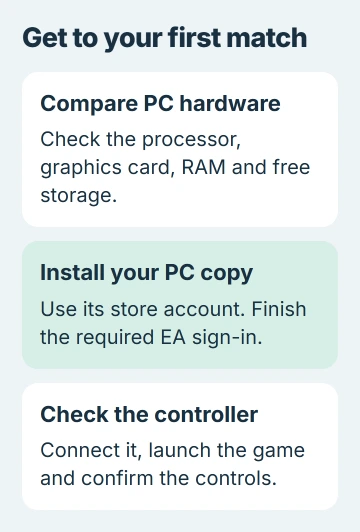
A console game file, video stream or shortcut from another computer won't install the Windows game on your PC. Check that the game installed on this PC reaches its menu once the launcher finishes.
Connect the controller and check the button prompts
Connect a compatible controller with a USB data cable before opening the game. Start Madden from your library and check the control prompts and controller options once its menu appears.
If Windows sees the controller but Madden doesn't respond, close the game, connect the controller again, then relaunch. Use a direct USB port for this comparison rather than a dock or several connected controllers.
The Windows game-controller settings let you check whether Windows detects button presses. If that test works, check the game's input settings next rather than the controller connection.
For wireless play, follow your controller's Windows instructions. Depending on the model, it may use a receiver or Bluetooth pairing. Try USB first if you're unsure whether its wireless connection is supported.
Handle a security prompt before changing game settings
If launch stops at a Secure Boot message, press Windows + R, enter msinfo32, and press Enter. In System Summary, find BIOS Mode, then Secure Boot State.
You should see UEFI and On. If Secure Boot is Off or Unsupported, follow your computer maker's instructions and the Windows Secure Boot guidance.
Don't switch a Legacy installation to UEFI on a guess; the Windows disk setup has to match. Our Secure Boot preparation guide covers that distinction before you change firmware settings.
If the error names anticheat, the software that checks for cheating, save its full text and code. Use EA Help to find its repair. Lowering graphics settings won't help when a security check stops the game before its menu opens.
When the game still won't launch after its required setup, contact EA support with your storefront, PC specifications and exact message. For a Steam purchase missing from your library, check the purchase history and Steam support as well.
The Short Version
Check the hardware requirements and install the Windows game through the store account that owns it. Finish EA sign-in, then test your controller. If a security check blocks launch, use the exact error message to find the right repair.
Checked November 5, 2026.

Isaac Smith is the founder and editor of PC Glance, a website that covers computers, laptops, and technology. He is a tech enthusiast and a computer geek who loves to share his insights and help his readers make smart choices when buying tech gadgets or laptops. He is always curious and updated about the latest tech trends.