
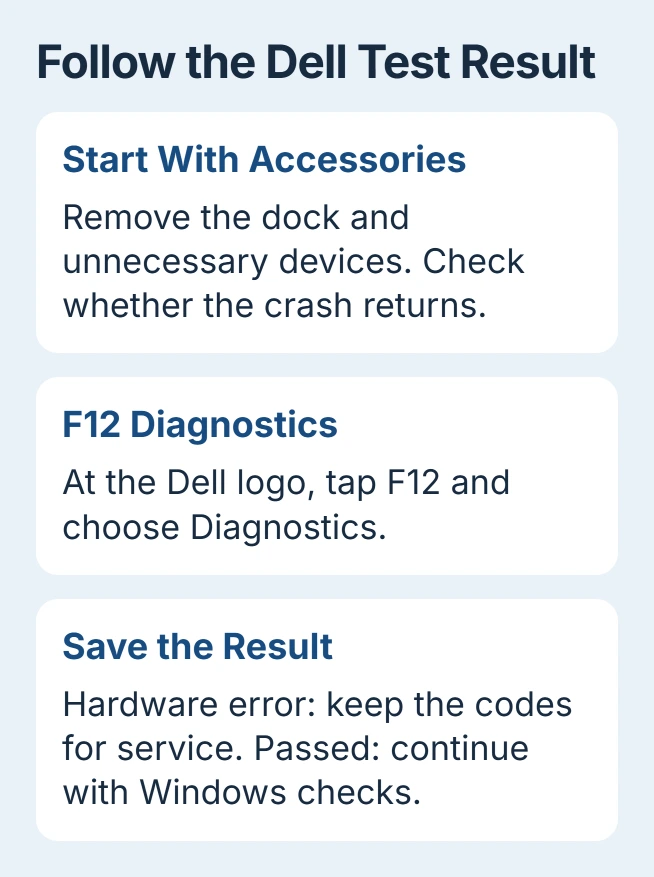
A Dell laptop blue screen can come from a driver, Windows files or failing hardware. Disconnect docks and unnecessary accessories first; if the crash returns, use F12 > Diagnostics at startup to check the hardware without loading Windows.
Save both the Windows stop code and any error from Diagnostics. They come from different tests, and together they tell support much more than the screen's color alone.
1. Remove the dock and check whether the crash returns
Shut down your laptop, then unplug external drives, printers, docks and other unnecessary accessories. Keep its power adapter connected and use the built-in screen, keyboard and touchpad for this check.
Start it again and repeat the task that made it crash. If it runs normally, plug each accessory back in separately and check for another crash. If one triggers it, check that device, its connection or its driver next.
If it crashes again without the accessories, photograph the stop code and any What failed filename. Note whether Windows reaches sign-in or stops before it. Newer Windows versions can show the stop message on a black screen.
The Windows crash-code explanation helps you find those details after a restart. For a blank screen without a stop message, use the Dell display test instead.
2. Run F12 Diagnostics outside Windows
Restart your laptop and tap F12 repeatedly as the Dell logo appears. When the one-time boot menu opens, select Diagnostics. This checks your laptop's hardware before Windows loads.
Let the test run and respond to any on-screen prompts. Keep the charger connected during Diagnostics. If Windows loads before the menu appears, try again and start tapping F12 as soon as you see the Dell logo.
Dell's blue-screen guide lists this test. Depending on your laptop, you may see the name SupportAssist Pre Boot System Assessment or ePSA.
If the test reports a failure, save its error code, validation code and Service Tag. Take a photo so you don't copy a long code incorrectly. Give Dell those details when asking them to check the problem or arrange service.
I'd run that hardware test before resetting Windows. Reinstalling Windows can't fix a part that fails your laptop's own test, and it can take time you need to save your files.
If the test passes, try the Windows and driver repairs next. Faults that come and go may still need support to review your crash history, even after a pass.
3. Use the blue-screen repair inside SupportAssist
If Windows opens, search Start for SupportAssist and launch it. Open Support, find View Common Issues, then choose Get Started. Look for My PC stopped responding or restarted unexpectedly.
Choose Fix my PC if you see it, then Fix now. Follow the checks and repairs it offers, and save the result before restarting. The wording can vary between SupportAssist versions.
This crash troubleshooter runs in the Windows app. It's a different tool from startup Diagnostics and SupportAssist OS Recovery. Check which one you've opened, since they do different jobs.
Afterward, repeat the same task with the same accessories connected. If your laptop works, keep the scan result with your notes. If it still crashes, choose the update or recovery steps that fit what you can open.
If SupportAssist isn't installed or won't open, use the Windows checks in the next section. You can still record a stop code and run the startup hardware test without that optional app.
4. Check the driver change and available updates
In Windows 11, check for updates in Settings > Windows Update. On Windows 10, use Settings > Update & Security > Windows Update. Restart if asked before checking whether your laptop still crashes.
In SupportAssist, Home > Update software > Start checks for Dell updates. Review the ones offered for your laptop. For a BIOS update, follow your model's power and preparation steps before starting.
If the crashes began right after a device driver changed, open Device Manager, select that device and open Properties > Driver. Use Roll Back Driver if the previous version is available, then restart if asked.
You'll need administrator access for the driver rollback procedure. If the rollback button is grayed out, you can't use it for that driver.
Base your changes on a named driver or an update you know happened. Don't load BIOS defaults or change storage mode just because another Dell owner had a blue screen; a different storage setting can stop Windows from starting.
5. Use Startup Repair when Windows won't start
When Automatic Repair appears after failed starts, select Advanced options to open Windows recovery. Choose Troubleshoot > Advanced options > Startup Repair and follow its prompts, including Restart if shown.
If your drive is encrypted, have its matching BitLocker key ready. Startup Repair may ask for it to work on Windows. The Startup Repair instructions explain when it's needed.
Startup Repair fixes problems that keep Windows from loading, such as damaged startup files. If only a game crashes and the rest of your laptop works, check its driver and crash details too.
If it succeeds, restart into Windows and try using your laptop normally. If it can't repair Windows, save the result and move to the recovery options for your model instead of repeatedly forcing the laptop off.
6. Choose software repair before a destructive recovery
Back up important files before using recovery tools. If your model supports it, F12's boot menu may offer SupportAssist OS Recovery. Choose Repair or Repair software, then Start Repair. Enter the BitLocker key if asked.
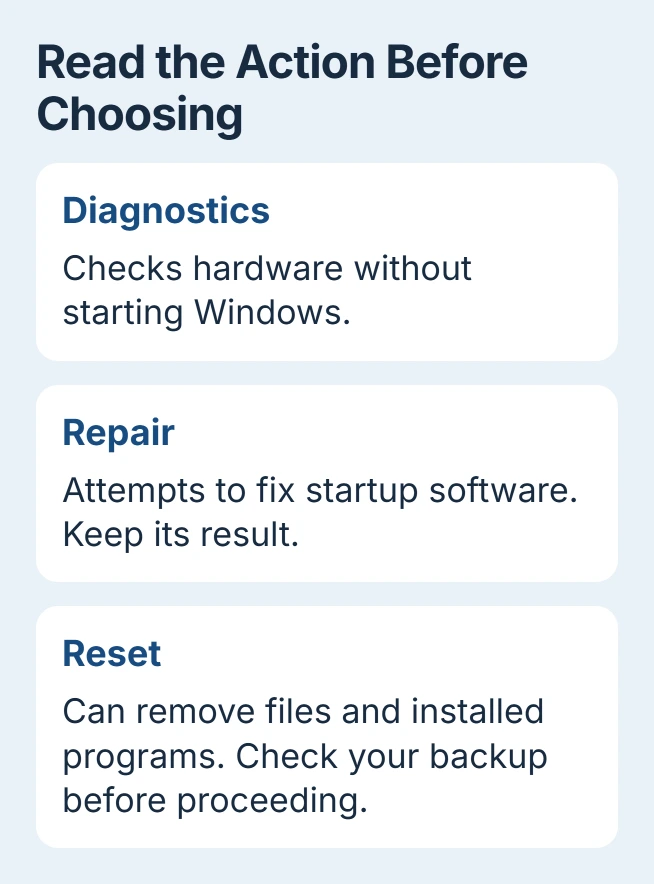
Use the Dell recovery choices to check your backup options and what a reset removes before continuing. Repair and Reset are separate actions; a reset can remove your personal files and programs.
If OS Recovery isn't listed, ask Dell which recovery method your model supports. If crashes continue, send the stop code, failed filename, hardware-test result and recent changes. A failed hardware test needs service.
The Short Version
Remove accessories, save the stop code and run F12 Diagnostics. Contact Dell for hardware errors; use SupportAssist, driver checks or Startup Repair for the Windows problem you've found. Check your backups before choosing a reset.
Checked November 5, 2026.

Isaac Smith is the founder and editor of PC Glance, a website that covers computers, laptops, and technology. He is a tech enthusiast and a computer geek who loves to share his insights and help his readers make smart choices when buying tech gadgets or laptops. He is always curious and updated about the latest tech trends.