
Resetting a Dell laptop can mean reinstalling Windows with personal files retained, or restoring a Dell factory image that deletes the system's data. Choose the intended result before starting either process.
Use Windows Reset this PC when the desktop opens. On supported Dell models, F12 > SupportAssist OS Recovery provides repair, backup and reset tools when Windows will not start. Dell's Qualcomm laptops use the Windows reset route instead.
Protect the files and identify the reset method
Copy important files to separate storage and verify the copy opens. Keep the charger connected. If device encryption is enabled, obtain the matching BitLocker recovery key before entering recovery.
Dell says SupportAssist OS Recovery is available on supported computers, with Qualcomm models excluded. Installing a newer Windows version does not add model support.
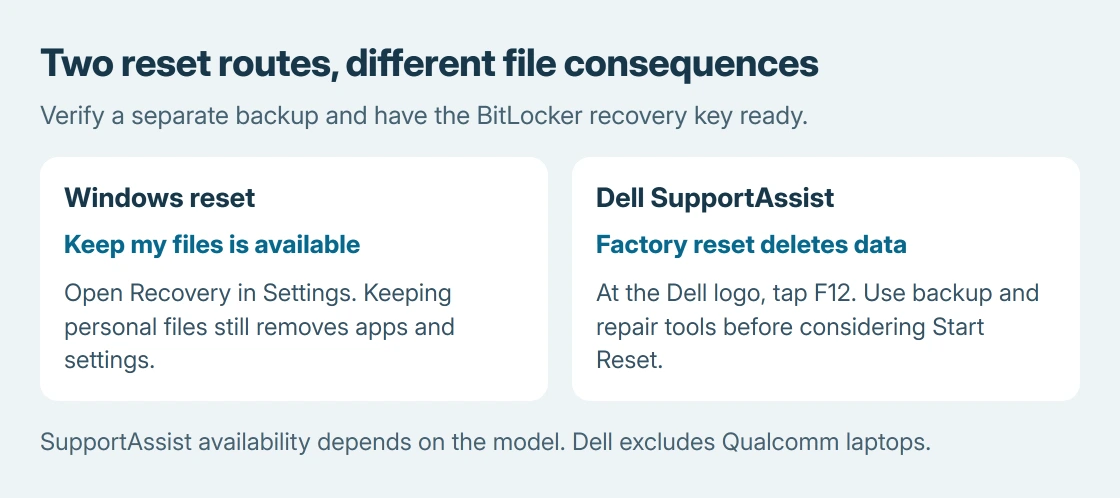
Status: Dell SupportAssist and Microsoft reset procedures checked October 26, 2026. SupportAssist excludes Qualcomm models. No computer was reset or erased.
For a startup failure, try the recovery tool's repair option before accepting an erase. A failed hardware scan also needs attention first. Reinstalling Windows does not replace a damaged storage drive.
Reset from Settings while Windows still opens
On Windows 11, open Settings > System > Recovery, then select Reset PC. Windows 10 uses Settings > Update & Security > Recovery, with Get started under Reset this PC.
Microsoft documents the choices on its reset page. Keep my files retains personal documents while removing apps and settings. Remove everything also deletes personal files.
Choose the installation source next. Cloud download gets installation files over the internet; Local reinstall uses files already on the laptop. Neither label changes the file-retention choice made earlier.
Review the final summary before confirming. Keep the laptop powered while it works. Microsoft says a reset can show a black screen and restart automatically; forcing it off during that process can cause failure.
Open Dell's recovery tools at the logo
Restart the laptop and tap F12 repeatedly when the Dell logo appears. In the one-time boot menu, select SupportAssist OS Recovery if it is listed. Approve the system-information prompt when presented.
If Windows loads instead, use its Settings route when possible. If SupportAssist is missing, check model support and the recovery image rather than changing unrelated firmware settings to make an entry appear.
Dell's recovery walkthrough includes Scan Hardware. Run its scan and retain any error, validation code and Service Tag for support.
Use Back up Files / Disk Cloning when files still need saving. Choose the file-backup option and review its folder selection and total size. Select an external destination with enough free space and let the backup finish.
Dell states that this file backup does not save installed programs or system settings. Have application installers and license information ready for the restored system.
For a boot fault, the Repair software tile opens the repair procedure. Back up before using it, then choose Start Repair. A successful result lets you restart and test Windows before deciding whether a reset is still necessary.
Read the two SupportAssist reset choices carefully
If repair cannot resolve the fault, select Start Reset. The available choices depend on the computer and its recovery image. When prompted for a connection, choose a working network.
Reset to factory settings restores the operating system and software supplied by Dell. Reset and update downloads an operating system with critical drivers and applications. The second choice is not a promise of eligibility for a different Windows edition.
Dell warns that both reset choices delete system data and personal files and remove installed programs. Accept the backup or transfer prompts as appropriate, then inspect the deletion confirmation before proceeding.
These Dell choices do not act like Windows Keep my files. A backup or transfer step comes before the reset; it is not permission to assume all files survive inside the reinstalled system.
Follow the displayed restart and setup prompts after completion. Restore the saved files, install needed applications and check updates. Try the activity that failed before the reset to check whether recovery addressed it.
If the recovery image is missing or the reset fails
Manually formatting the drive can remove SupportAssist's recovery environment. Dell provides BIOSConnect on compatible models to recover it, plus an OS Recovery Image route for creating USB media on another Windows computer.
Use Dell support with the Service Tag to select the correct recovery option. Do not erase partitions to repair a missing menu entry. For a failure inside Windows Reset, the reset-error checks address that separate route.
If files remain inaccessible and have no verified backup, arrange data-recovery help before approving a factory reset. Give support the exact error and which recovery method produced it.
The Short Version
Choose Windows file retention or Dell factory recovery deliberately. On supported models, F12 opens SupportAssist's repair and backup tools. Read the deletion summary before Start Reset and retain the backup separately.

Isaac Smith is the founder and editor of PC Glance, a website that covers computers, laptops, and technology. He is a tech enthusiast and a computer geek who loves to share his insights and help his readers make smart choices when buying tech gadgets or laptops. He is always curious and updated about the latest tech trends.