
The power button on a Dell laptop can do nothing in Windows because its short-press action is configured that way. If the laptop is already running, check that action first. A laptop that cannot start at all needs a different power check.
Some Dell models can start when the lid opens if the feature is enabled. Lid-start is unavailable on models without that firmware option. A physically failed button still needs repair.
Decide whether the button fails during use or startup
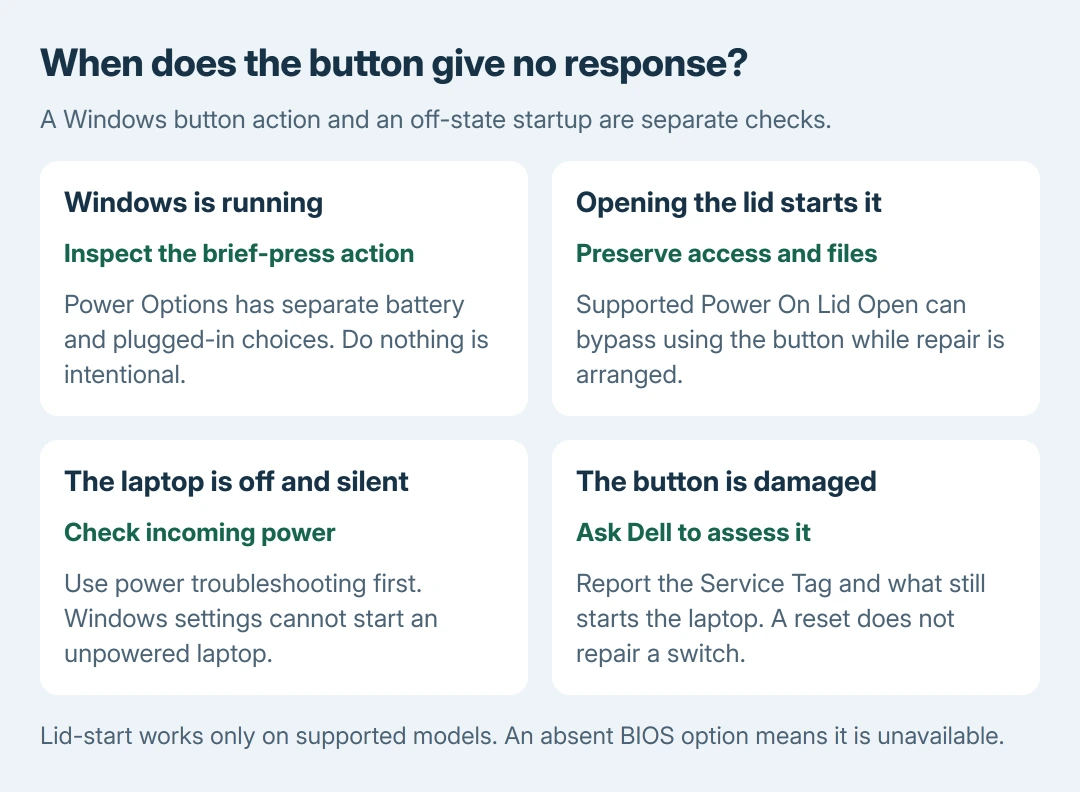
While Windows is responsive, save work and note what a normal brief press does. Does it sleep, shut down, or appear to do nothing? Avoid holding the button down as the first test; that can interrupt work.
Microsoft documents different power-button actions in its power-state instructions. The Windows action applies during use; changing it cannot make an unpowered machine start.
Status: Microsoft power-button settings and Dell Power On Lid Open instructions checked October 27, 2026. Lid-start support varies by model. No laptop button or firmware setting was tested.
If the laptop is completely dark and silent from an off state, follow the computer power-supply checks. Those checks address missing power and startup response; this page concentrates on the button and its assigned behavior.
Set the brief press to an action that can be observed
Search Start for Control Panel. Open System and Security > Power Options, then open the link on the left for power-button behavior. In icon view, Power Options is directly available.
Find When I press the power button. Check both On battery and Plugged in, because the selected actions can differ. If it says Do nothing, a press with no visible response is the configured behavior.
Select Sleep where available, then Save changes. Microsoft says this assigns sleep to the power button. With documents saved, test one brief press and check whether the laptop enters sleep.
Change only the relevant row, and note its old selection first. If an employer manages the setting, ask IT about a locked control. A missing option should not be replaced with an unrelated registry command.
If the action already matches the intended result but the press is ignored, use Start > Power for the immediate sleep or shutdown request. A working menu gives a usable alternative while the button is assessed.
Use lid-start only on a Dell model that supports it
Dell says Power On Lid Open can wake or power on supported laptops when the lid opens. If it is already enabled, opening the lid can provide access without using the power button.
If Windows is currently accessible and this feature is wanted, save work and restart from its menu. Press F2 at the Dell logo to enter firmware setup. Open Power or Power Management, depending on the firmware layout.
In Dell's lid-start instructions, enable Power On Lid Open, then choose Apply or Apply Changes, confirm if prompted and exit. Do not change other firmware settings for this purpose.
Dell states that a missing Power On Lid Open option means the computer does not support that feature. There is no universal keyboard shortcut established by this source that substitutes for a failed power button on every Dell laptop.
Enabling the option requires access to setup. A laptop that is off and has no working way to start cannot use these instructions to enable it remotely or retrospectively.
Our recommendation is to treat successful lid-start as temporary access: back up important files and arrange button assessment.
It demonstrates that this startup method works; it does not establish which switch, cable or board needs replacement.
Keep a factory reset separate from button repair
A Windows reinstall and a power-button repair are different jobs. The Dell recovery and reset guide explains file-retention and deletion choices when software recovery is actually needed.
Do not erase Windows to repair a sunken, loose or physically damaged button. A mechanical fault needs the correct model's service procedure and parts, rather than a reset that removes apps or files.
Likewise, a long button hold is a separate firmware or forced-shutdown action, not the brief Windows press configured here. Avoid copying a timing from another model and assuming it verifies the switch.
Ask Dell to assess a button that still gives no response
Provide the Service Tag, the button's physical condition, its selected Windows actions and whether it responds during startup. Explain whether opening the lid can start the laptop and whether the menu can shut it down.
Check warranty coverage with Dell before arranging a repair. Ask for an assessment of the button and its connection; several faults can produce the same lack of response.
Avoid ordering a keyboard, fingerprint reader or motherboard solely from that symptom.
If power itself is missing, report that separately. Keeping those observations distinct helps support choose the appropriate test rather than assuming the visible button must be the failed component.
The Short Version
For a running laptop, inspect the power button's battery and plugged-in actions. Supported lid-start may provide temporary access.
Check incoming power when startup gives no response. Continued button failure needs Dell service.

Isaac Smith is the founder and editor of PC Glance, a website that covers computers, laptops, and technology. He is a tech enthusiast and a computer geek who loves to share his insights and help his readers make smart choices when buying tech gadgets or laptops. He is always curious and updated about the latest tech trends.