

Fast Startup can leave a Dell laptop running after Shut down. Save work, choose Restart once, then try shutting down again; a laptop that powers off and later returns needs wake-device checks instead.
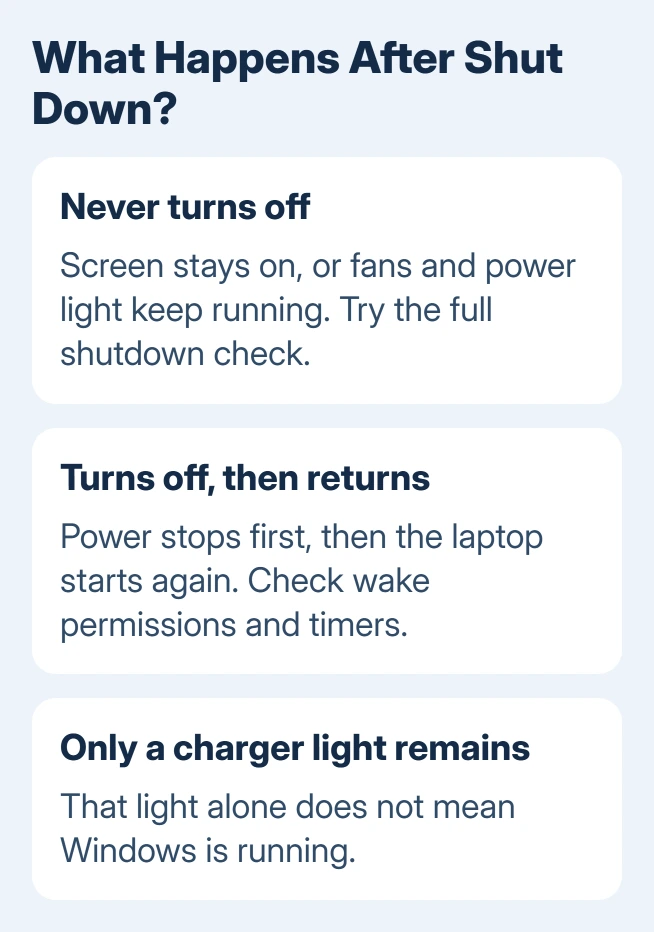
A frozen Shutting down screen differs from a black screen with fans still running. Watch the power light and fan: a charger indicator alone doesn't show that Windows remains active.
In this guide
1. Finish the shutdown without losing open work
Close your programs and save anything important. Choose Start > Power > Restart, let Windows reach the sign-in screen, then sign in and choose Shut down. Restart starts Windows afresh instead of saving its running system with Fast Startup.
Dell's incomplete shutdown guidance explains that Fast Startup saves part of Windows' running system for the next boot. That speeds startup, but it can also preserve a problem that a restart clears.
If Windows remains usable but still won't turn off, open Start, type cmd, and open Command Prompt. After saving and closing everything, enter shutdown /s /f /t 0. The command shuts Windows down immediately and forces open apps to close.
The /f part can discard unsaved work. Use this only after saving, rather than as a shortcut around an application's save prompt. If the command shuts the laptop down while the usual menu doesn't, check Fast Startup next.
If Windows is completely frozen and can't accept a command, press and keep holding the laptop's power button until power stops.
The Dell shutdown procedure says this can take 15 to 30 seconds, then advises waiting at least 30 seconds before starting again.
Keep that forced power-off for a stuck machine. Don't interrupt power during a firmware update, which updates the laptop's built-in software. If that screen reports an error, keep the exact message so Dell can give you recovery steps.
2. Turn off Fast Startup when a normal shutdown fails
Check Fast Startup when Restart works but Shut down leaves the laptop running. Turning it off changes how Windows shuts down; it doesn't remove your documents or reset the laptop.
I'd change this setting before disabling wake devices. It changes how the laptop shuts down while keeping your keyboard and mouse wake functions available.
The Control Panel route works in both Windows versions:
- Search Start for Control Panel and open it.
- In Category view, choose Hardware and Sound > Power Options.
- Select Choose what the power buttons do.
- Select Change settings that are currently unavailable if needed.
- Clear Turn on fast startup (recommended) and select Save changes.
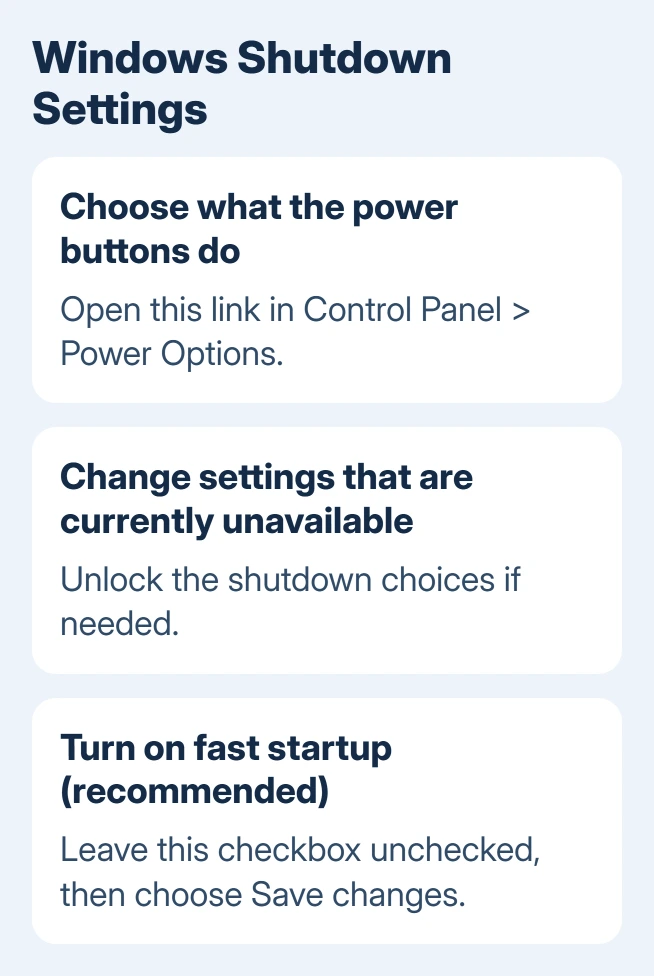
Choose Shut down again and watch whether the power light and fan stop. If that solves it, leave Fast Startup off and check the next few shutdowns. Windows can take longer to start, but you'll keep its normal features.
If the option isn't listed, don't change registry entries just to make it appear. Available power controls vary with the system's configuration.
Watch what the laptop does when you shut it down, and mention the missing option if support asks about it.
The restart versus shutdown explanation covers why the two commands behave differently. If this laptop stays on with Fast Startup disabled too, the next useful question is whether it ever powers off at all.
3. Find a device that turns the laptop back on
Use these checks when the laptop turns off completely, then comes back on. A mouse, keyboard or network adapter with permission to wake it can explain that pattern. It doesn't explain a laptop that never finishes shutting down.
Open Start, type cmd, right-click Command Prompt and select Run as administrator. Enter powercfg -devicequery wake_armed.
The command lists devices allowed to wake the computer. A device being on that list doesn't mean it caused the problem.
Note the names. Open Device Manager, locate one listed device, right-click it and choose Properties. If it has a Power Management tab, clear Allow this device to wake the computer, then select OK.
Change the permission for one device, then watch the next shutdown. That lets you keep useful wake functions while checking which device matters. Pay attention to the network adapter's setting if you turn the laptop on remotely.
Some devices don't have that tab. Skip those instead of disabling unrelated hardware. If the laptop stays off after one change, you've found a setting that affects the unwanted wake. If it still returns, check scheduled wake activity.
4. Check scheduled wake activity when the timing repeats
A laptop that wakes around the same time each day needs its scheduled maintenance checked. In Control Panel > System and Security > Security and Maintenance, expand Maintenance and select Change maintenance settings.
Clear Allow scheduled maintenance to wake up my computer, if that option is available. Save the change and compare the next scheduled period. If that stops the wake, this permission was the cause. Maintenance itself can still run.
For wake timers, open Control Panel > Hardware and Sound > Power Options. Choose Change plan settings beside the active plan, then Change advanced power settings. Expand Sleep > Allow wake timers if the computer offers it.
Set On battery and Plugged in to Disable, then select Apply and OK. That stops those timers from waking the laptop. It isn't a repair for an app holding the shutdown screen open, so keep the two cases separate.
If those controls aren't present, give support your model and Windows version rather than following instructions for a different Dell. Your laptop's hardware and power settings determine which sleep and wake features it offers.
5. Take persistent fan or power problems to Dell
If the screen goes black but the fan and power light remain on after the full shutdown check, record that exact result. Mention whether it happens on battery, with the charger connected, or only through a dock.
Those differences help support choose the next hardware or driver check.
Give Dell support your laptop's Service Tag and ask for help with its failure to power off fully. Have the Windows version, recent update history and results of Fast Startup and wake checks ready.
Keep any diagnostic error code that appears.
If the physical button itself fails to respond, use the Dell power-button checks. A button fault needs different advice from Windows ignoring the Shut down command.
For the normal Windows controls, the shutdown, sleep and hibernation instructions explain each action. Don't treat closing the lid as confirmation that the laptop has shut down before putting it away.
The Short Version
Save work, restart Windows and try a full shutdown. Disable Fast Startup if the normal command still fails. Check device wake permissions and timers only when the Dell switches off and then returns.
If the fans or power lights stay on, ask Dell to check your model's shutdown problem.
Checked November 15, 2026.






