

An ASUS laptop power button that does nothing while Windows is running can be set to Do nothing. Change its action in Power Options first. If it won't start at all, check the charger and power light, then try the ASUS controller reset.
A lit power indicator with a black screen means the laptop has responded to power. Treat that as a startup or display problem, rather than assuming the button itself has failed.
In this guide
1. Match the symptom to the laptop's power state
Decide whether the problem happens while the laptop is on, asleep or fully shut down. Windows decides what a normal press does while it's running. Starting from fully off also depends on the laptop's power hardware.
With Windows open, save your work, choose Start > Power > Restart and let the restart finish. If that works, the computer can restart without relying on the physical button. Check the button's configured action next.
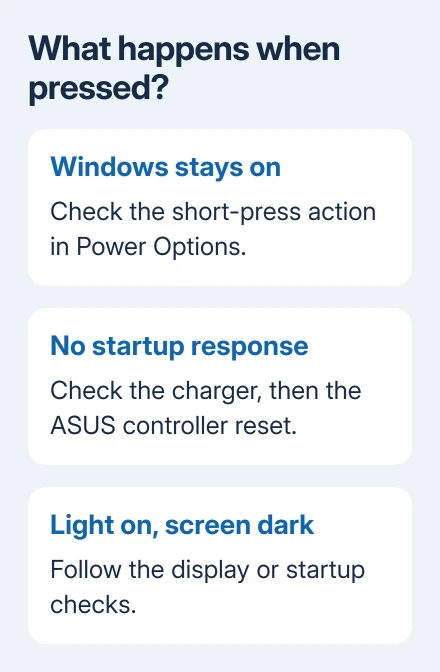
For a laptop that appears off, connect its original adapter directly to a working wall outlet. Press the power button once normally. Watch for an indicator, keyboard lighting, fan activity or the ASUS logo.
A lit charging indicator tells you the laptop is responding to the adapter. It doesn't mean Windows has started. When a button press lights the power indicator, the laptop is responding even if you can't see anything on screen.
If the ASUS logo appears, the button has started the laptop. A freeze after that belongs to startup troubleshooting. If only the screen stays dark, use the ASUS black-screen checks.
2. Give a short press an action in Windows
For either Windows 11 or 10, find Control Panel through Start search. Open System and Security > Power Options, then choose Choose what the power buttons do.
Find the row for the power-button action. On a laptop, check both On battery and Plugged in. A button can appear to work on the charger and ignore you on battery because the two choices differ.
Choose Sleep where that option is offered, then select Save changes. Save your open files, then give the button a short press. The display should turn off as the computer enters sleep, rather than staying on with no response.
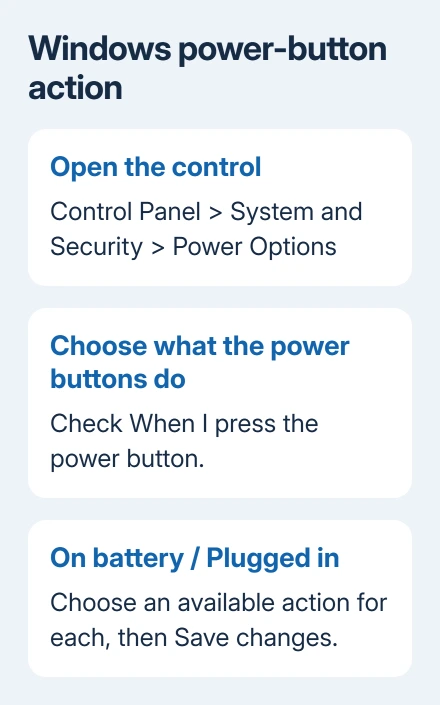
Microsoft's power-button settings explain this route. The available actions depend on the PC, so don't force a missing option with a registry change.
This setting changes a normal press while Windows is running. It won't repair a broken switch or make an unpowered laptop start. If the setting was already suitable and a brief press still fails, check the adapter and power controller next.
3. Check the adapter before repeating power presses
Reconnect the adapter at the wall, its power brick and the laptop. Use the original ASUS charger or a replacement approved for your exact model. A plug that fits isn't enough to show the charger supplies what the laptop needs.
For a running laptop whose battery won't fill, check ASUS charging limits and adapter power before treating the start button as faulty.
Disconnect USB accessories, memory cards, external monitors and docks. A direct charger connection removes the dock and its cable from the startup attempt. Try starting the laptop with only its adapter attached.
For an ASUS model that charges through USB-C, use a port that supports charging and a suitable USB-C power adapter. Don't assume every USB-C socket on every ASUS laptop accepts charging.
Compare the charging indicator before and after reconnecting the adapter. If the light never appears, check another working outlet and, when available, a known compatible adapter. This is more useful than pressing harder on the button.
Stop using a damaged charger or a laptop with swelling, unusual heat or a burning smell. Those symptoms need a repair assessment before another power attempt.
If another compatible adapter lets the laptop start, ask for the correct replacement charger. If power reaches the laptop but it remains unresponsive, the next useful step is the ASUS controller reset.
4. Use the ASUS reset sequence for a stalled power controller
The embedded controller manages hardware functions including power behavior. ASUS provides an EC and RTC reset procedure for power-related problems. It isn't a Windows factory reset.
Save open files if the laptop is still usable, then shut it down. Remove external devices and connect the power adapter. Keep the adapter connected for this procedure; generic unplugged reset instructions aren't the ASUS sequence here.
Hold Power continuously for 40 seconds, then let go. Some models use a 20-second design: the power indicator begins flashing rapidly around the 15-second point and continues for about 3 to 5 seconds. Release it when that flashing stops.
After completing the reset, press the button normally to start the laptop. Watch for the power indicator and logo. If the laptop starts, the reset got the controller responding again without erasing your files.
I'd try this before arranging a button replacement when the switch feels normal and the charger is known to work. A stuck controller can resemble a failed button from the outside.
If a light now appears but the screen remains black, don't keep resetting it. Follow the startup and display checks instead. The button now gets a response, so the dark screen is the next problem to check.
5. Allow memory training after a reset or hardware change
After a BIOS update, battery disconnection, memory replacement or an EC/RTC reset, the next boot can require memory training. The laptop prepares its memory for use before the normal startup screen appears.
For a lit power indicator in this situation, leave the adapter connected and allow about 5 to 10 minutes. Some newer models display Working on Memory Training; other models can keep a blank screen during the process.
Avoid forcing it off during that wait. Repeated shutdowns can interrupt the very startup work you're waiting for. A blank display immediately after the reset isn't enough reason to assume the button stopped responding again.
For a logo followed by Windows recovery, keep Windows reset and ASUS Cloud Recovery separate from a power-controller reset. They address different problems and can affect your installed software or files.
6. Ask for a switch and power-circuit check
If the correct adapter and controller reset leave no response, request an ASUS hardware assessment. Describe whether charging lights appear, whether the button feels stuck and whether it ever starts from a fully shut-down state.
Include the full model number and the result on battery versus adapter power. Ask the technician to check the button assembly, its connection and the power circuit before approving a Windows reinstall.
When Windows still runs but only the button fails, keep the laptop available for backup and diagnosis. A button that has become loose, jammed or intermittent needs physical inspection rather than another setting change.
If normal typing also fails after Windows starts, the ASUS keyboard response checks cover Filter keys and keyboard software.
The Short Version
For an ASUS already running Windows, inspect its short-press action. With no startup response, check the original charger and EC/RTC reset. A lit power indicator with a dark screen needs startup checks and possibly the training wait.
Checked November 10, 2026.






