Support and Protection during Windows 10 setup on a Dell PC asks for contact details. Fill in the manufacturer's form, then check antivirus protection and updates once you reach the desktop. Registering the PC doesn't check its security.
In this guide
Identify the setup screen before changing anything
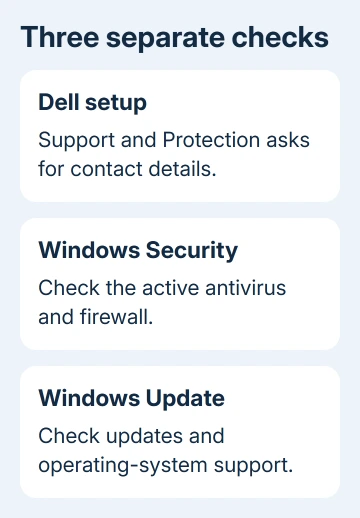
Dell says to enter contact details on Support and Protection in its Inspiron 5593 setup manual. It also lists separate registration and support apps available from Start after setup. The form and those apps do different jobs.
Check the heading and company name before following any fix. Virus & threat protection, an antivirus renewal offer and a Windows end-of-support message need different decisions from this manufacturer setup form.
A rebuilt PC may use a Windows image without the original manufacturer pages. That doesn't mean Windows Security is missing. Follow the screens your installation displays rather than trying to reproduce an older setup sequence.
These steps apply to an older Windows 10 setup sequence. Windows 11 can use different account requirements and pages. An old setup screenshot can't tell you which controls must appear on a newer installation.
Complete the contact and consent choices on that PC
Read each field label and enter the requested details if you're registering. Check each consent choice, especially permission to contact you. Giving a contact address and agreeing to offers are separate decisions.
Use the button shown on your setup screen to continue. A skip or later option, when offered, lets you postpone that part. The setup guide doesn't promise an identical Skip button across all models and installation images.
If the form won't continue, look for a highlighted field, required-field message or consent prompt. Correct the item it points to. Changing unrelated Windows account settings won't fix a message about a missing or incorrect form entry.
Keep the power adapter connected while finishing setup. I'd leave driver removals and recovery commands out of this stage; a contact-information form isn't a reason to erase a working Windows installation.
For an organization-owned computer, follow the organization's setup instructions before registering it to a personal contact. The person responsible for the device should decide which contact details belong on a company-owned PC.
Check protection after the desktop opens
Open Start > Settings > Update & Security > Windows Security, then choose Open Windows Security. Open Virus & threat protection from the status cards. That page reports antivirus status; the Dell form doesn't.
The Windows Security app instructions describe the built-in protection dashboard. Check what it reports on your own PC before assuming that registration switched protection on or off.
For Microsoft Defender Antivirus, use Manage settings under Virus & threat protection settings. Another active antivirus can supply different controls. Use the controls for the antivirus provider named in Windows Security.
Check the active security provider before renewing a preinstalled antivirus trial. A renewal offer and product registration are separate matters. Look for active protection and any action requested by the security app.
With Microsoft Defender active, choose Quick scan under Virus & threat protection for an initial check. Read its result when finished. A completed scan doesn't tell you whether Windows itself is getting current security updates.
Check the firewall and update status separately
Return to Windows Security and open Firewall & network protection. Check the active network's status and follow any action Windows asks you to take. Don't switch the firewall off to get past a manufacturer registration page.
Then open Settings > Update & Security > Windows Update. Read the update status and any message about the Windows version or support. Install applicable updates through the normal controls and restart when Windows requests it.
If Windows already lists an update but hasn't finished installing it, the pending-update guide covers that stage. Keep a stalled Windows update separate from a setup page asking for contact information.
Ordinary Windows 10 support reached its end on October 14, 2025. A computer can still start and run after that date. Registering the PC with Dell doesn't extend Microsoft's operating-system support or enroll it in a security-update program.
For a PC set up now, check the supported upgrade path and current Extended Security Updates eligibility. An old installation image or an active antivirus doesn't mean the operating system still receives security fixes.
Use the right support tool for the remaining problem
Look in Start for the supplied Dell apps. Product Registration registers the computer; Dell Help & Support opens help resources. SupportAssist checks hardware and software health on supported systems.
Not every reinstall includes every Dell app. Choose tools that support both your PC model and its installed Windows version. Don't download a repair utility from an advertisement just because a Dell shortcut is missing.
For a Dell support request, keep the model and Service Tag ready and describe the exact setup screen. If the form won't advance, report its visible field message or error and whether the mouse and keyboard still respond.
If a reset brought you back to setup, the Dell reset guide explains the reset choices and their effect on files. Don't repeat a reset just to change a registration answer without first asking about that specific field.
If the form stays stuck without a useful error, give Dell Technical Support the Service Tag and explain which setup screen you're stuck on. For a later Windows Security alert, report its exact wording and the named security provider.
The Short Version
Dell's Support and Protection page collects contact details. Finish its form, then check Windows Security and Windows Update at the desktop. Registration, antivirus status and operating-system support need separate attention.
Checked November 13, 2026.