Windows 10 can't add a separate password to an ordinary folder. Create an encrypted 7z archive for a password-protected copy, or use Windows file encryption for a working folder protected through your account.
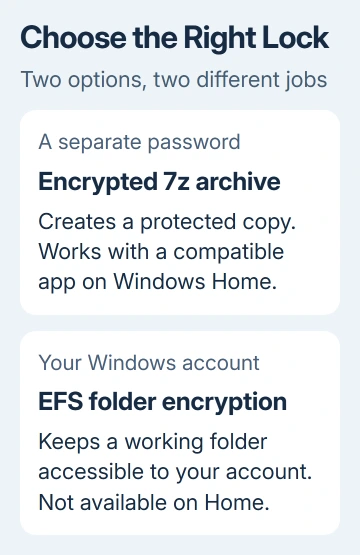
Those choices protect different things. An archive is useful when you're storing or sending a private copy. Windows file encryption keeps a working folder accessible to your account without asking for another password each time.
In this guide
Choose the protection that matches the job
I'd use an encrypted archive when a folder needs its own password. With an app such as 7-Zip installed, this works on Windows 10 Home too. It creates a new file containing your folder, rather than locking the original.
Windows file encryption, called EFS, uses an encryption key associated with your account. Microsoft says file encryption isn't available in Windows Home.
Open Start > Settings > System > About and look under Windows specifications for your edition. Checking the edition saves you a search for an encryption option it doesn't have.
Neither choice protects files from someone already using your unlocked account. Lock the PC with Windows key + L when you step away, and give other people their own Windows accounts instead of sharing your sign-in.
Create a password-protected copy with 7-Zip
Start with a folder containing the files you want to protect. Close any documents inside it so your archive contains the saved versions. Leave your original folder in place until the protected archive opens with your password.
- Right-click the folder in File Explorer.
- Choose 7-Zip > Add to archive.
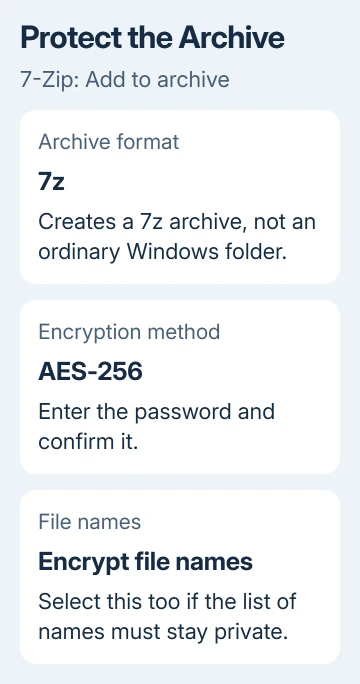
- Set Archive format to 7z.
- Under Encryption, enter the password and confirm it.
- Check that Encryption method shows AES-256.
- Select Encrypt file names if the names should also stay private.
- Choose OK and wait for the archive to finish.
AES-256 protects the files inside the archive. The file-name option has a separate job: without it, someone might see the list of names even though they can't open the files. The 7z format supports both kinds of protection.
Use a password you can keep in a password manager. Don't leave your only copy of an important file in an archive whose password you could lose.
If the 7-Zip menu is missing, open 7-Zip File Manager, browse to the folder, select it, and choose Add. The missing 7-Zip menu guide covers restoring the Explorer shortcut.
Verify the password before removing any original files
Close the archive, then reopen the .7z file. With file-name encryption enabled, 7-Zip should request the password before listing its contents. Enter it and extract a file to a temporary location to check that it opens.
A finished progress bar only tells you the archive was created. Opening it checks that you used the password you intended. Compare its contents with the original too, so you know you included the right folder.
The original folder is still unencrypted. So are files you've extracted for editing. Creating an archive doesn't silently protect every other copy in Downloads, email attachments, cloud storage or a backup.
Decide which working copies you still need. Files you delete normally remain in the Recycle Bin. Deleting those files doesn't securely erase every trace that existed on the drive.
To send the archive to someone else, check that they have an app that supports encrypted 7z files. Give them the password through a different channel from the archive. Renaming the extension to .zip won't change its format or compatibility.
Encrypt a working folder with the Windows account
EFS suits a folder you still need to work in on your own PC. It protects access through an encryption key; it doesn't turn the folder into a package with a password field.
- Open the folder's right-click menu and select Properties.
- On the General tab, select Advanced.
- Enable Encrypt contents to secure data.
- Select OK, then Apply.
- When Windows asks how widely to apply the change, choose the folder, subfolders and files if all its contents need protection.
Wait for Windows to finish applying the change. Open a file while signed into the same account: it should work without a separate password prompt. That's expected, because your account has access to the key.
If the encryption box is unavailable, first check the Windows edition and drive format. EFS uses NTFS, the Windows file system that supports this protection. Don't reformat a drive containing your files just to enable a checkbox.
Back up the encryption certificate and private key when Windows prompts you. Store the backup away from the encrypted folder. Without the key, the contents can become unreadable after an account or Windows reinstall.
The file-encryption-key backup guide explains that prompt. Copying the encrypted folder somewhere else doesn't back up the key you need to open it.
Keep hidden folders and password scripts out of the decision
The Hidden property changes whether Explorer normally displays a folder. Anyone who enables hidden items can see it again. It doesn't encrypt its contents or check a password before reading them.
A batch file that hides or renames a folder has the same problem. If its password is written inside the script, opening the script exposes it. Choose actual encryption rather than a folder that only disappears from the usual view.
For a work PC with encryption controls blocked, ask IT which approved method to use for the recipient and type of data. Tell them your Windows edition and whether you need to send a password-protected copy or keep a private working folder.
The Short Version
Create an encrypted 7z archive for a folder with its own password, then verify it before handling the original copies. Use EFS on a supported Windows edition for account-based protection, and save its encryption key separately.
Checked November 13, 2026.