

DRIVER_IRQL_NOT_LESS_OR_EQUAL on Windows 10 usually points to a driver using memory incorrectly. Start with the driver named beside the stop message, especially when the crashes follow a recent update or a new device connection.
A .sys filename points toward a particular driver, so record it before changing anything. When no filename appears, compare the first crash with recent driver, security-software, and hardware changes.
In this guide
1. Record the stop code and the recent change
Take a photo of the blue screen if it stays visible long enough. Record DRIVER_IRQL_NOT_LESS_OR_EQUAL, any What failed filename, and what the PC was doing. Windows also identifies this error by the bug-check number 0x000000D1.
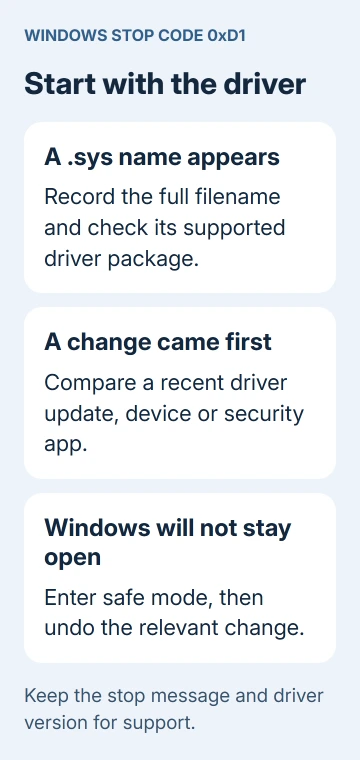
Microsoft's 0xD1 troubleshooting guidance recommends working on the identified driver and checking its maker's updates. This isn't a message that automatically means your RAM needs replacing.
Drivers connect Windows to its hardware. Graphics, network, and storage devices need them, and some security software installs drivers too. Different PCs can show this stop message for different reasons.
Don't download a replacement .sys file from a file-download site. Repair the driver package or application it belongs to. Replacing just one file by hand can leave it out of step with the other files it needs.
Disconnect a recently added nonessential USB device before the next normal startup. If crashes stop without it and return when it reconnects, concentrate on that device, its compatibility, and its supported driver.
If the desktop stays usable, continue with the driver changes. If it crashes before you can reach them, use the startup route in the next section first.
2. Open safe mode if the desktop will not stay usable
At the Windows sign-in screen, hold Shift while selecting Power > Restart. In the recovery menu, choose Troubleshoot > Advanced options > Startup Settings > Restart.
After the restart, press 4 or F4 for Enable Safe Mode. Use 5 or F5 for networking only when you need that option. Keep your BitLocker recovery key nearby; recovery can request it.
Sign in with your account password. Safe mode doesn't offer the usual PIN or biometric sign-in. Your Wi-Fi adapter may still be unavailable in safe mode with networking.
Windows 10 also offers the recovery restart through Settings > Update & Security > Recovery > Advanced startup > Restart now. That's useful when the desktop opens but won't stay stable for long.
At Automatic Repair, select Advanced options to reach recovery, then follow the Troubleshoot and Startup Settings route. Without that screen, use the failed-startup instructions in the safe-mode guide linked later.
Safe mode loads only a small selection of Windows files and drivers. If the crash stops there, something loaded during normal startup could be responsible. Safe mode can't name the faulty driver for you.
Use the stable session to roll back or remove the recent change. If safe mode crashes as well, keep the stop details for the repair technician rather than repeatedly changing unrelated drivers.
3. Undo the recent driver update
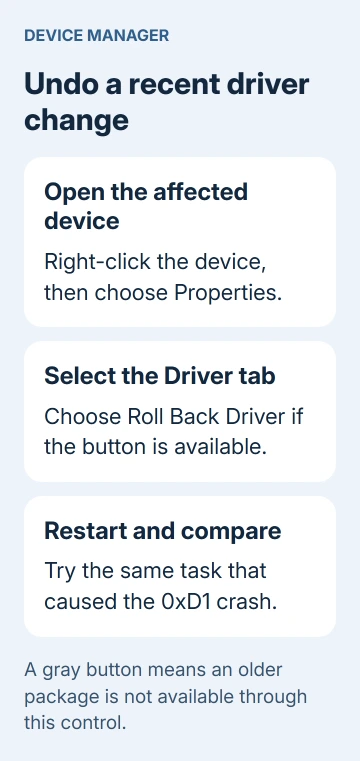
Right-click Start, open Device Manager, and expand the category for the affected device. Right-click that device, select Properties, then open the Driver tab.
Choose Roll Back Driver if the button is available. Follow the prompts and restart. This returns that device to its previous installed driver, which is useful when the first crash followed a driver update.
Start with the wireless adapter if crashes began just after updating its Wi-Fi driver. Leave the display driver alone unless the crash points to it; graphics drivers aren't responsible for every blue screen.
A gray Roll Back Driver button means that Windows has no older package ready to restore there. Ask the manufacturer for an earlier compatible package, or get its current release if yours is old.
After restarting, go back to the task that made Windows crash. Record which driver version you tried and whether it crashed again. Leaving the PC idle won't tell you whether that task now works.
4. Match the replacement driver to your hardware
Find the PC's complete model and the Windows version before choosing a download. For a separately installed graphics card or USB adapter, use that device's exact model as well.
Use the manufacturer's Windows 10 instructions. Check the laptop maker first, because similarly named components can need model-specific packages. Avoid driver sites that choose a package from the stop code alone.
Device Manager offers Update driver > Search automatically for drivers too. If it offers nothing newer, compare the maker's download list with your installed version. The maker may offer another supported release.
The free-support deadline for Windows 10 was October 14, 2025. Available updates depend on your device and its extended support. A newer supported Windows version helps maintain the PC, but the failing driver still needs attention.
If the failing filename belongs to a VPN, antivirus, or another installed application, update or uninstall that application using its maker's instructions. Closing its window may leave its driver running.
5. Use the crash record when the filename isn't clear
Press Windows + R, type eventvwr.msc, and press Enter. Open Windows Logs > System and check errors around the crash time. Look for a device or driver error immediately before the restart.
A Kernel-Power entry after the restart records an unexpected shutdown. That entry alone doesn't identify the responsible driver. Keep the earlier errors and repeated driver names together with your blue-screen photo.
For a wider mix of stop messages, the general blue-screen checks cover the broader problem. Stick with the driver named in this error when the same name keeps returning.
If you need help getting back out of the limited startup environment, the Windows 10 safe-mode guide explains that route separately.
If crashes continue after a supported driver change, ask the PC maker or a Windows repair technician to examine the crash dump, the saved crash details, for bug check 0xD1.
Include the failing filename, driver versions, recent changes, and whether safe mode also crashed.
I'd leave Driver Verifier to that technician. It's a tool for developers that puts drivers through extra checks and can cause more crashes. It isn't the first repair step for a PC you need to keep using.
The Short Version
Record the failing driver, undo the recent change, and install its supported package. For a startup loop, reach safe mode first. Request dump analysis if the same 0xD1 crash continues.
Checked November 16, 2026.
 If you have any business, I can build it online






