To start Windows 10 in Safe Mode, use its recovery menu: hold Shift while selecting Restart, then open Troubleshoot > Advanced options > Startup Settings > Restart. Press 4 or F4 on the numbered screen for ordinary Safe Mode.
That route works from the desktop or the sign-in screen. When Windows won't reach either, use its automatic repair environment instead. All these routes lead to the same Startup Settings screen.
In this guide
Before restarting, have your password ready
Safe Mode starts Windows with only a small set of drivers and background services. It's useful when an app, driver, or recent change makes normal Windows crash, freeze, or refuse to sign in.
Your usual PIN, face recognition, or fingerprint isn't available for Safe Mode sign-in. Have the account password ready. A PIN that unlocks Windows every morning isn't interchangeable with that password.
An encrypted PC may request a BitLocker recovery key to open recovery tools. This is separate from your Windows password. If asked for it, get the key from the account or organization that manages your PC.
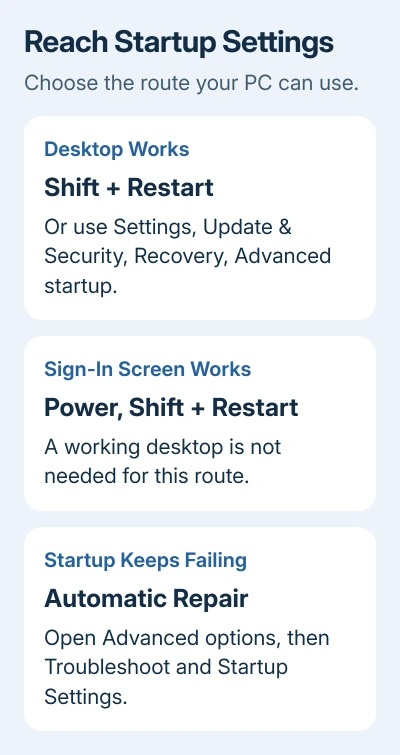
I'd use the one-time Startup Settings route for this job. It avoids setting Windows to request Safe Mode every time the PC boots, which is easy to forget when you're concentrating on the original fault.
Open recovery from a working desktop
Save your open work first. This procedure restarts the whole computer; it doesn't open a special mode inside your current Windows session.
- Select Start > Power.
- Hold the Shift key while selecting Restart.
- Keep holding it until Windows starts opening recovery, then wait for Choose an option.
- Select Troubleshoot, then Advanced options.
- Select Startup Settings, then Restart.
There is also a Settings route in Windows 10: open Settings > Update & Security > Recovery. Under Advanced startup, select Restart now. After the restart, use the same Troubleshoot sequence.
Windows 11 puts its recovery page under Settings > System > Recovery instead. If your PC has that layout, follow that route rather than looking for Windows 10's Update & Security category.
The first restart opens recovery options. Selecting Restart in Startup Settings restarts the PC again, this time to show the numbered startup choices. Seeing two restarts during this process is expected.
Start from the sign-in screen when you can't log in
The password box doesn't have to work before you can request Safe Mode. At the Windows sign-in screen, select the Power button, hold Shift, and select Restart.
After the recovery menu opens, choose Troubleshoot > Advanced options > Startup Settings > Restart. Continue with the numbered option described in the next section.
This route is useful for a login failure, but Safe Mode will still ask for an account password afterward. If the message names a damaged profile, the User Profile Service sign-in steps address that specific fault.
When a black screen hides all sign-in controls, use the failed-startup route later in this guide. Repeatedly entering a password into an unseen screen won't open the recovery menu.
Pick the right numbered startup option
Microsoft's Startup Settings page lists three Safe Mode choices. The number keys work as well as the matching function keys, which helps on laptops whose F keys control brightness or volume.
- 4 or F4: Enable Safe Mode. Start here for a basic check without networking.
- 5 or F5: Enable Safe Mode with Networking. Adds the network drivers and services needed for network access.
- 6 or F6: Enable Safe Mode with Command Prompt. Opens a command prompt instead of the usual desktop interface. Choose it when the repair instructions you're following require it.
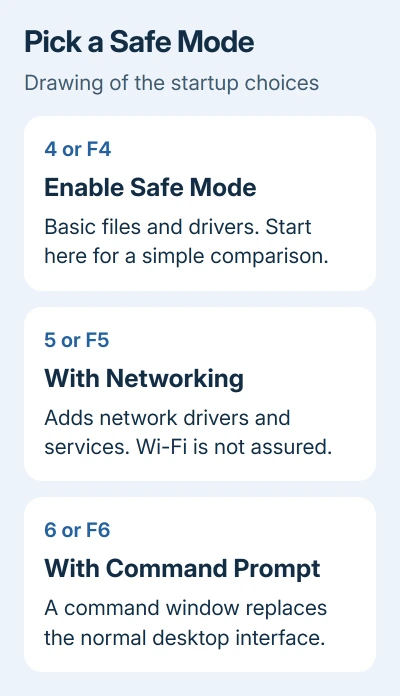
Even with networking selected, some Wi-Fi adapters and apps that need a connection won't work. Safe Mode still loads a limited system. Use ordinary Safe Mode unless the job needs a network connection.
If you reach Startup Settings and decide to stop, press Enter to start Windows normally. You don't need to choose another troubleshooting option just to leave that screen.
After signing in, the desktop may have a lower resolution and show Safe Mode in its corners. Some hardware features and apps won't run because Safe Mode loads less of Windows. Check whether the problem you came to fix still happens.
Reach recovery when Windows can't finish starting
Windows can enter automatic repair after repeated failed starts. If it already displays Automatic Repair, select Advanced options and continue to Troubleshoot > Advanced options > Startup Settings.
When normal startup keeps failing without reaching that menu, you can interrupt startup twice to open recovery:
- Turn on the computer and wait for the Windows or manufacturer logo.
- Before Windows finishes loading, switch the PC off by holding its power button.
- Start it again, then interrupt this second startup in the same way.
- For the third start, leave the power button alone. Windows should display automatic repair.
- Select Advanced options, then follow the Startup Settings route.
Use forced shutdowns only when normal startup is already failing, never while a BIOS or firmware update is running. For a working desktop or sign-in screen, the Shift and Restart method is the right choice.
If recovery is missing or damaged, a recovery drive or Windows installation media can provide recovery tools. Follow the vendor's recovery instructions and choose the repair option rather than starting a new installation.
Use the result, then return to normal startup
Repeat whatever was failing during ordinary startup. If it works in Safe Mode, something loaded during normal startup needs attention, such as an added driver or startup program. It won't name the driver or program you need to fix.
For a display that stays blank in ordinary startup, the black screen startup checks explain what to compare next. Follow the fix for the actual symptom rather than removing unrelated drivers.
To leave a one-time Safe Mode session, select Start > Power > Restart. Windows should return to normal mode. Once you've compared how the PC behaves and made the repair, check whether normal startup works again.
If every restart returns to Safe Mode, press Windows+R, enter msconfig, and open Boot. Clear Safe boot, select OK, and restart. Leave the other boot settings alone.
If both modes fail, use the computer maker's support channel with the stop code or startup message and whether recovery opens. Ask about startup repair and data-preserving recovery before choosing a reset that could remove apps or files.
Windows 10 passed its free-support end date on October 14, 2025. Safe Mode remains available, but getting the PC working again doesn't restore support for its operating system.
The Short Version
Use Shift and Restart to enter recovery, open Startup Settings, and press 4 for Safe Mode or 5 when networking is needed. Sign in with your password. Restart normally when finished; clear Safe boot in msconfig only if it keeps returning.
Checked November 10, 2026.