Windows 11's PIN not available message means the current Windows Hello sign-in isn't working. Use Sign-in options to try your account password, or choose the PIN setup or reset option on the sign-in screen to create a new PIN.
A PIN belongs to this device; it isn't your Microsoft account password. The recovery route differs for a Microsoft account, a local account, and a work-managed PC, so match the recovery steps to the account you use.
In this guide
1. Try the password sign-in option first
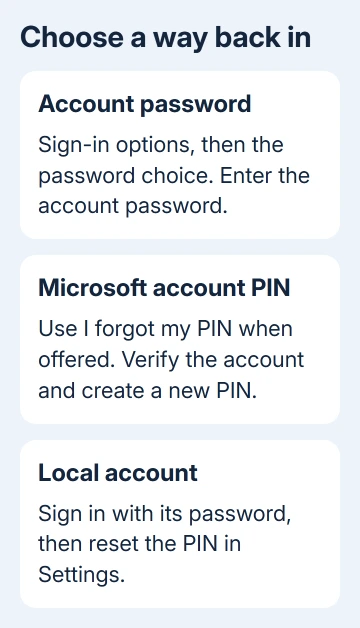
Select Sign-in options under the sign-in box, then choose the password option, usually shown with a key icon. Enter your account password, not the PIN that Windows has just rejected.
For a Microsoft account, that's the password for the email account shown on the screen. For a local account, use the password created for that Windows account. Check the selected account if several people use the PC.
If the password opens the desktop, your account still works. Go to step 3 and repair the PIN from Settings, keeping your Windows installation.
If there isn't a password option, don't keep entering the password into the PIN box. Some configurations only offer Windows Hello sign-in. Use the PIN reset route when it appears, or your organization's help desk for a managed account.
I'd try the password before changing firmware settings. It can get you back to your files immediately. Changing the TPM, the PC's security chip, or another security setting can complicate recovery.
2. Reset the PIN from the sign-in screen
Connect to the internet using the sign-in screen's Network icon. Choose a Wi-Fi connection and enter the network password, or connect an Ethernet cable if that's available.
Choose I forgot my PIN if that option is shown. A screen reporting that the PIN isn't available may instead offer Set up my PIN. Follow the account verification prompts before choosing a replacement PIN.
Microsoft's PIN reset instructions say the forgotten-PIN option at sign-in is for Microsoft accounts. Local accounts need their password.
Complete the verification using an available method for that account. When Windows asks for a new PIN, enter it, confirm it, and finish the dialog. Use the new PIN when the sign-in screen returns.
If the setup window closes, loops, or can't reach your account, check the network connection and restart once using Power > Restart. Select Update and restart if Windows offers it, so an unfinished update can complete.
If the same failure returns, move to password recovery or Safe Mode as appropriate. Repeatedly choosing Set up my PIN won't fix an account verification method you can no longer access.
3. Create the replacement after reaching the desktop
Open Start > Settings > Accounts > Sign-in options. Expand PIN (Windows Hello). Choose I forgot my PIN and follow the verification process to create the replacement.
Change PIN is the option for someone who knows the current PIN. The forgotten-PIN route is the useful one when the old PIN can't be used. If Windows offers Set up instead, complete that setup.
After the new PIN is accepted, press Windows + L to lock the computer. Enter the replacement PIN to check that Windows accepts it before treating the repair as finished.
If password sign-in works but PIN creation still fails, note the exact error code in the setup window. Give support both the original sign-in message and the error code from PIN setup. The code helps narrow down the failure.
The PIN Remove button grayed out steps are for removing Windows Hello after signing in. Those settings are only available once you've reached the desktop.
4. Recover the password when that is the blocked route
For a Microsoft account, choose I forgot my password if the sign-in screen offers it. Otherwise, use the account's password reset process from another phone or computer and follow its identity checks.
A changed account password doesn't itself create a replacement device PIN. After recovering the account, return to the Windows sign-in screen and use the password or PIN setup option that is available.
For a local account, switch to password entry. If an incorrect attempt offers Reset password, select it and answer the security questions set up for that account. A previously created password reset disk is another supported route.
Local-account security questions and Microsoft-account recovery are different systems. Use the account type shown on your PC instead of trying to recover an unrelated online account.
For an organization-managed PC, ask its help desk to check Windows Hello enrollment and PIN reset for your device. Mention any BIOS update, repair, or change to your organization's sign-in process that happened before the failure.
Don't clear the TPM or delete protected sign-in folders as a shortcut. Those changes can affect credentials and recovery, while doing nothing to restore access to the account verification method you're missing.
5. Use Safe Mode only when you have a password
Safe Mode starts Windows with a limited set of services and drivers. It can help when normal sign-in is being disrupted, but PIN and biometric sign-in aren't available there. Have your account password ready.
- At the sign-in screen, hold Shift while selecting Power > Restart.
- Choose Troubleshoot > Advanced options > Startup Settings > Restart.
- Press 5 or F5 for Safe Mode with Networking.
- Sign in with the account password.
If recovery presents a BitLocker key request, use the key for this PC before continuing. That request is separate from both the Windows password and the Hello PIN.
If your password works in Safe Mode, you can check available Windows updates and account settings. Restart normally afterward and check sign-in again. It doesn't mean a new PIN has already been created.
If Windows accepts the password and immediately returns to sign-in, follow the checks for Windows signing out right after sign-in.
That's a different failure from a rejected PIN.
Get help with the recovery step that actually fails
If neither supported route gets you in, use Microsoft Support's account sign-in helper for a personal Microsoft account. State whether account verification fails or Windows refuses PIN creation after verification succeeds.
For a local account with no working recovery option, ask the PC maker about recovery options that preserve your files before approving a Windows reset. A managed PC should go through its IT team so device access policies stay intact.
The Short Version
Try the account password through Sign-in options, then reset the Hello PIN. Use online account recovery or local security questions when the password is also lost. Safe Mode needs a password.
Checked November 10, 2026.