

You enter your password or PIN, and Windows says Welcome. A second later it shows Signing out. Then the sign-in screen returns, with no error and no desktop.
I would ask one question first. Does it happen to one account, or to every new account you make? The answer splits the two causes owners found. One is a damaged profile file, the other a startup value that points at the wrong program.
Back in August 2017, a Super User asker found their third account would not stay signed in, and that question has 54,065 views. A 2020 Microsoft Q&A post from an owner hit by it after every feature update shows 70+ people with it.
Two things Windows reads as you sign in
Every account keeps its own registry file, NTUSER.DAT, in its folder under C:\Users. Yours is there too.
A brand-new account starts from the copy in C:\Users\Default. Microsoft says the default profile settings "are applied to all new users who log on to the computer".
So a damaged Default file breaks every account you create from then on. The old ones keep working. The author of the accepted Super User answer tested this by damaging a copy on purpose.
In their words, Windows shows "that specific logout behavior only in case NTUSER.DAT's header is corrupted". Admin accounts sometimes get further. The asker's test account did sign in as an admin, but its desktop looked strange.
The second thing is Userinit. It is a registry value naming the program Windows runs to start your session. Point it at a missing file, and your session ends before the desktop appears.
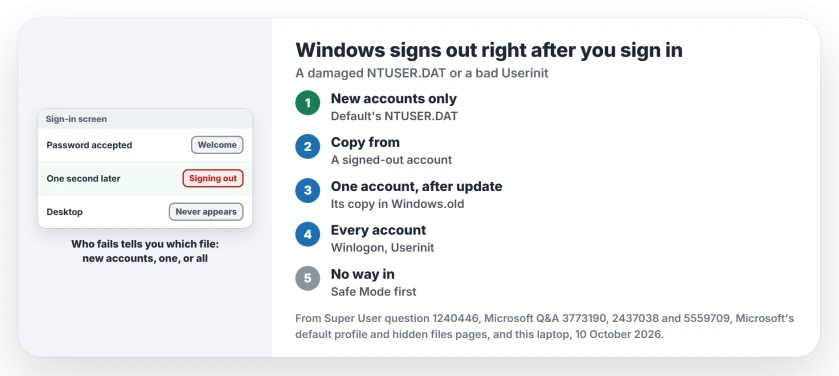
Status: two Super User fixes, one Q&A fix and Microsoft's default profile and hidden files pages, checked 10 October 2026. Replacing NTUSER.DAT or fixing Userinit worked.
1. Only new accounts fail: replace the Default NTUSER.DAT
Sign in with an account that still works and has admin rights. Then show hidden items in File Explorer. Microsoft's hidden files page shows how, since C:\Users\Default is hidden.
Rename C:\Users\Default\NTUSER.DAT to NTUSER.DAT.old, then copy NTUSER.DAT from the folder of another account that is signed out, and paste it into Default. Windows locks the file of any account in use, yours included.
The asker's own fix was exactly this: "I copied NTUSER.DAT from the existing non-administrator account to Users\Default". A fresh account made after that signed in normally.
Delete your broken new account first. Its folder already holds the damaged copy. Then create it again; adding a user account in Windows walks through it.
I have one caution. Microsoft calls Sysprep's CopyProfile "the only supported method" of customizing the Default profile, so this copy is an owner's workaround. New accounts you make may also start with some of that other user's settings.
2. Your own account fails after an update: use the copy in Windows.old
The 70+ owner hit it after each feature update. Their PIN was accepted, then Signing out appeared. They got in through Safe Mode, which kept working for them, and you may find the same.
In Safe Mode, they copied NTUSER.DAT from Windows.old\Users\Default over the one in Users\Default. Next came a helper account. They started Safe Mode with Command Prompt and typed two lines, with a name and password of your choice.
net user /add helper TempPass1
net localgroup administrators helper /add
Signed in as that helper account, they copied NTUSER.DAT from Windows.old\Users\YourName over the file in Users\YourName. Then they signed out. Their old account worked again, and the helper could go.
Windows.old exists only for a short while after a feature update, and its copy of your file is from before the update, so any settings changed after it go back too.
3. Every account fails: check Userinit
From an admin account or Safe Mode, start Registry Editor. Then browse to this key.
HKEY_LOCAL_MACHINE\SOFTWARE\Microsoft\Windows NT\CurrentVersion\WinlogonDouble-click Userinit. Ours: on this laptop it reads C:\Windows\system32\userinit.exe, with a comma at the end, and the comma is normal. The asker saw it too and noted it "does not appear to cause an issue".
Anything after that comma is suspect. An owner with a whole batch of laptops found an HP security tool's program left there. The tool had been uninstalled.
They cut the value back to userinit.exe alone. Afterwards it "would login to all users normally".
An old answer on a 2010 Q&A question with 100+ people blamed malware that swapped userinit.exe for its own file. The fix is the same: put the plain path back.
When nothing brings the account back
One owner on Super User could not repair theirs and in the end deleted and re-created the user. I would rescue your files before that, since they survive only if you copy them out of C:\Users\YourName first.
Does Windows show an error naming the User Profile Service, instead of a silent sign-out? That related fault has its own steps on the User Profile Service page.
Rule out a full drive C: as well. One 2025 Q&A asker had 0 bytes free when their new account would not let them in.
The Short Version
- Signing out right after Welcome points to a damaged NTUSER.DAT or a bad Userinit value.
- Only new accounts fail: replace C:\Users\Default\NTUSER.DAT from a signed-out account.
- One account after an update: copy its NTUSER.DAT back from Windows.old.
- Every account: Userinit should read C:\Windows\system32\userinit.exe, and nothing more.
- Safe Mode is the way in when no account works.
Where to Next
Signed in again? Drop me a comment naming the cause on your PC, one of the three or a new one. If another program sat in your Userinit, name it so others can spot it.

Isaac Smith is the founder and editor of PC Glance, a website that covers computers, laptops, and technology. He is a tech enthusiast and a computer geek who loves to share his insights and help his readers make smart choices when buying tech gadgets or laptops. He is always curious and updated about the latest tech trends.