
You need UEFI and Secure Boot for Windows 11. Your Windows disk turns out to be MBR. Reinstalling would sort it, but you would rather keep your files and apps where they are.
I would run Microsoft's own tool, MBR2GPT, in validate mode before you change anything. Validation writes nothing. In one line, it tells you whether your disk can be converted in place.
A Microsoft Q&A question about MBR2GPT failing to find the OS partition shows 200+ people stuck at that point. On Super User, the question about switching without losing data, asked in September 2017, has 217,983 views.
What MBR2GPT does, and what it will not do
MBR2GPT ships with Windows 10 and 11. Microsoft says on its MBR2GPT page that it converts a disk "without modifying or deleting data on the disk". One extra switch lets it run inside Windows.
It only works on the disk Windows starts from. The tool "can't be used to convert non-system disks", in Microsoft's words. For a second disk, Disk Management's Convert option needs that disk empty first.
The other half is the firmware, because your PC must then start in UEFI mode. Microsoft's advice is to confirm the device supports UEFI before you begin.
Ours: this laptop's only disk already reads GPT. Get-Disk in PowerShell shows the PartitionStyle column without admin rights, so you can check yours in seconds.
Status: checked 10 October 2026 against Microsoft's MBR2GPT and disk conversion pages and nine Q&A threads. Validate, convert, then UEFI worked for owners.
Before you start
Make a backup image of the drive first. One answer on Q&A put it bluntly: the writer "ran MBR2GPT on three computers without a single issue" and still kept proper backups.
Open your firmware setup and look for a UEFI boot mode, or a CSM switch you can turn off. One owner converted first and found their board had no UEFI option. The PC then showed only a blinking cursor.
Using BitLocker? Suspend it before you convert. Microsoft notes the protectors then need deleting and creating again afterwards.
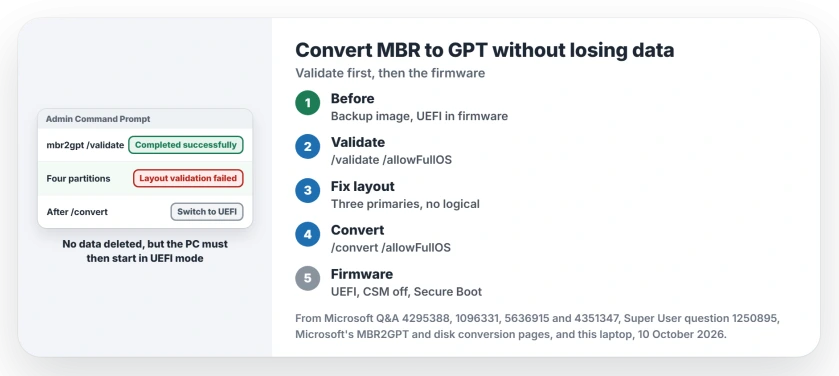
1. Run the validation
Start an elevated Command Prompt, the Run as administrator kind, and type this line.
mbr2gpt /validate /disk:0 /allowFullOSWithout /disk, Microsoft says the tool picks the system disk anyway; Disk Management shows its number. /allowFullOS lets it run from normal Windows instead of the recovery environment. The line you want is Validation completed successfully.
Microsoft lists what it checks, and two of its rules matter most in the owner threads. The disk can hold "at most three primary partitions", and it must not have "any extended/logical partition".
2. Fix what validation trips on
Disk layout validation failed came down to one of those two in each thread I read. Open Disk Management and count your partitions, since they are easier to read there than in diskpart.
A fourth partition is what one owner on Q&A had. A helper walked them through moving Windows' recovery tools off it with reagentc /disable, deleting that partition in diskpart, then running reagentc /enable.
After that, "It converted and booted (after BIOS change)", in their words. Check which number your recovery partition has before you delete anything, because the numbers differ on every PC.
A logical partition needs to become a primary one. Disk Management cannot do that in place.
Another owner used a third-party partition tool, removed the recovery partition and rebuilt the boot files. Then "it validated right away", they wrote. Their conversion still failed at the next step, so a pass is not the finish line.
Cannot find OS partition(s) for disk 0 is the 200+ question. Its top answer rebuilds the boot files with bcdboot, but the asker came back saying it did not change much. I would treat that one as a try, not a fix.
3. Convert, then switch the firmware to UEFI
Once validation passes, run the same line with /convert:
mbr2gpt /convert /disk:0 /allowFullOSIt adds an EFI system partition and updates the boot files. Microsoft's sample output ends with a reminder that "you need to switch the firmware to boot to UEFI mode".
Restart into your firmware setup straight away. An adviser on Q&A gave the usual three changes: switch to UEFI, disable CSM support and enable Secure Boot, though the labels differ from one maker to the next.
Windows 11 on an unsupported PC explains why Secure Boot and UEFI matter even when other checks are skipped.
Won't start after the conversion?
An April 2026 Q&A asker converted successfully, then got error 0xc0000001 at every start. Switching the OS type to Windows UEFI changed it to 0xc0000098. The thread ended without a fix.
Going back to Legacy mode will not help. A GPT disk needs UEFI to start Windows. Your backup image is the clean way back, which is why I would never skip it.
Can you go from GPT back to MBR?
Not in place with Windows' own tools. Disk Management and diskpart convert only an empty disk, so Microsoft says to back up or move the data off first.
On Super User, the accepted answer uses gdisk from a Linux USB stick. Its own comments warn that the boot loader is lost, and one owner's disk was no longer bootable afterwards.
Do my apps and other disks change?
No. The partitions keep their contents, so installed apps stay as they are. A Q&A answer about this confirms that only the Windows disk needs converting.
The Short Version
- MBR2GPT converts the Windows disk to GPT without deleting data.
- Make a backup image, and confirm your firmware offers UEFI.
- Run mbr2gpt /validate /disk:0 /allowFullOS as administrator.
- Three primary partitions at most, and no logical ones.
- Convert, then switch the firmware to UEFI and turn on Secure Boot.
Where to Next
Converted and booting? Leave a comment with what validation complained about on your PC. A new one goes onto this page.

Isaac Smith is the founder and editor of PC Glance, a website that covers computers, laptops, and technology. He is a tech enthusiast and a computer geek who loves to share his insights and help his readers make smart choices when buying tech gadgets or laptops. He is always curious and updated about the latest tech trends.