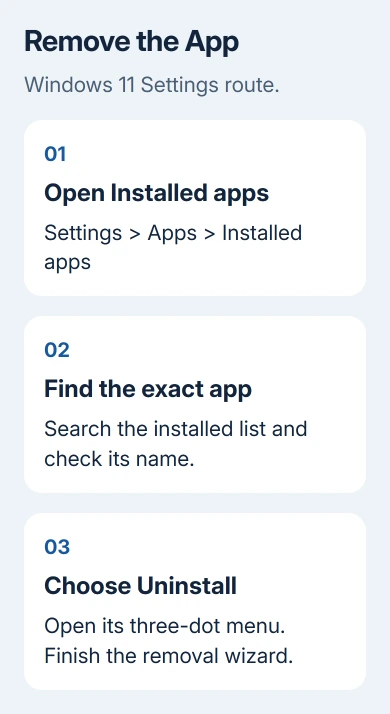
To delete an app from a Windows 11 laptop, open Settings > Apps > Installed apps. Find the app, open its three-dot menu, and choose Uninstall.
Deleting a desktop shortcut only removes the shortcut, so the app can still occupy storage and run afterward.
In this guide
Choose what to keep before removing the app
Start with the app's name and the reason you're removing it. Unused software can go; a crashing app might need a repair instead. Removing the app and deleting your documents are separate decisions.
Save open work and close the app. If it keeps notes, projects, game saves, or other information only inside its own storage, use its export or backup feature first. An uninstaller can remove app data as well as the program.
Uninstalling an app doesn't cancel its subscription or close your account with the service. If the reason is an unwanted charge, sign into the account that purchased the subscription and handle the billing there.
If you're unsure which apps you need, I'd remove them one at a time. That makes it easier to notice whether you removed something you still need, especially on a laptop that arrived with several manufacturer utilities.
Remove the app through Installed apps
Open Start > Settings > Apps > Installed apps. Use the search box in that page to find the app by name. This searches your installed software. The taskbar search also finds websites and documents.
Check the result carefully. Some products install several entries with similar names, such as the main editor and a separate helper. Choose the actual app you intend to remove rather than deleting every entry from the same company.
Open the three-dot menu beside the entry and choose Uninstall. Confirm when Windows asks. A desktop program can open its own removal wizard, so follow it until it confirms removal is complete.
If Windows asks for administrator permission, approve it only when the named program matches the removal you started. A work or school laptop can require an administrator's login to complete this step.
Follow a restart request from the uninstaller after saving your other work. Some files remain in use until Windows restarts; manually deleting them midway through removal can leave the program in a broken state.
Search Installed apps again when removal finishes. If the app is gone, continue with the storage check. If it stays or produces an error, note the exact message before trying another way to uninstall it.
Use Start when the app is easier to find there
Open Start and find the app in the installed-app list, which some Windows 11 layouts label All apps or All. Right-click the app's entry and select Uninstall.
This can lead to another confirmation or to the traditional program-removal window. Follow the screen that opens. Starting here won't fix a failing uninstaller if it opens the same removal wizard.
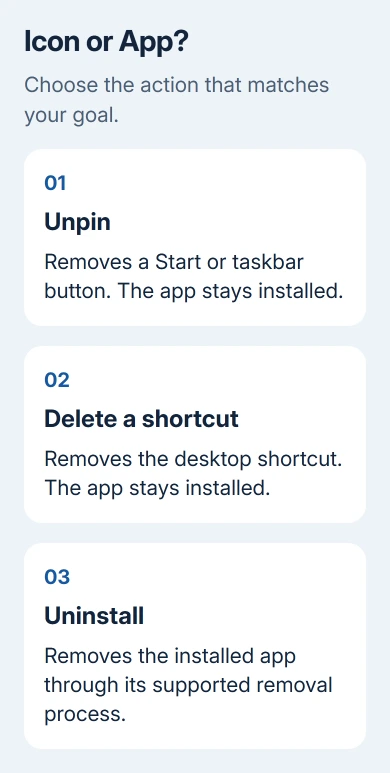
Be careful with Unpin from Start. It changes the Start layout but leaves the app installed. Similarly, Unpin from taskbar removes the taskbar button without uninstalling the software.
A desktop icon can also be just a shortcut. Deleting it is useful when you want a tidier desktop, but the installed app can remain in the Start list and on the drive. Use Uninstall when you want to reclaim the app's storage space.
Try Control Panel for a traditional desktop program
Some apps can't currently be removed from Settings. Microsoft says Settings can't remove every app and offers Control Panel in its Windows uninstall instructions.
Type Control Panel in the taskbar search box and select the result. Choose Programs > Programs and Features. Find the program, right-click it, then select Uninstall or Uninstall/Change and follow its prompts.
This list can differ from Installed apps. A Store app that doesn't appear here should be handled through Settings or Start. Its absence from Programs and Features doesn't mean Windows has lost it.
If the program offers Change, read the choices in its wizard. Some installers combine repair, modification, and removal in one window. Pick the removal option rather than changing components when you want the whole program gone.
Don't delete the program's folder from Program Files as a replacement for its uninstaller. That can leave services, startup items, and registration entries pointing at files that no longer exist.
When Uninstall is unavailable or removal fails
Some Windows components are built in and can't be uninstalled through the standard controls. A grayed-out or missing Uninstall option isn't permission to remove system folders or run an unfamiliar removal script.
On a managed laptop, ask the administrator whether the software is required. If an entry reappears after a restart or sign-in, the organization's deployment settings may be reinstalling it.
For an ordinary app with a failing uninstaller, close it, restart Windows, and try its supported removal route again. If the error persists, use the publisher's support page for that product and include the full error and version.
Security software and some large software suites can have a cleanup tool from their publisher. Use that tool only for the matching product, from its publisher. A general-purpose registry cleaner isn't the next step for a failed uninstall.
If PC App Store is the unwanted program, use the specific removal procedure for its prompts and background behavior. Don't confuse that third-party program with Microsoft's Store.
Check what was removed and what still uses space
Reopen Settings > Apps > Installed apps and search for the program. Then open Settings > System > Storage if storage was your reason for removing it. Compare available space after any required restart.
Your downloads, exported videos, installers, and personal documents can remain after the app goes. Decide whether you still need those files before removing them. Their presence doesn't mean the app is still installed.
A leftover entry needs different treatment from a working app. The stale Installed apps entry guide covers software that was removed but remains listed.
If an unfamiliar app appeared without your consent, run a Windows Security scan and review what else was installed at the same time.
If the app keeps reinstalling or removal keeps failing, send the publisher the app name, Windows version, and exact error.
The Short Version
Choose Uninstall from the app's menu in Installed apps, then finish its wizard. Start and Control Panel offer other routes. Unpinning leaves the software installed; uninstalling doesn't cancel a subscription.
Checked November 10, 2026.