Windows 11 KB5083769 issues include a BitLocker recovery prompt on certain managed PCs and a broken Remote Desktop warning. Later updates address both. Use Windows Update to get the newer cumulative release for your version.
Backup software failures need a different fix: update the backup app if it relies on a driver blocked by the update's security changes. A failed installation or a PC that won't boot also needs its own recovery path.
In this guide
1. Confirm the update and the symptom
Open Settings > Windows Update > Update history and check the installation date. Released on April 14, 2026, KB5083769 brings 24H2 to build 26100.8246 and 25H2 to 26200.8246.
A later cumulative update can replace that build while KB5083769 remains in the history. Press Windows + R, enter winver, and compare the version and build with the history rather than treating an old entry as the current installation.
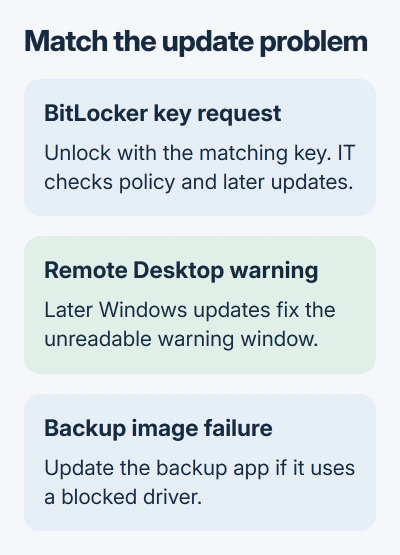
Microsoft's KB5083769 release notes list the affected configurations and later remedies. Match what you see on your screen to the fix for that problem before removing a security update.
I'd start with the latest offered update on a PC that still reaches the desktop. That gets you the available fixes. Removing an old update may take away security fixes without solving the problem you're seeing now.
Open Settings > Windows Update > Check for updates, install the offered cumulative update and restart when prompted. If that fails, record the error code; the Windows Update repair steps cover the installation problem separately.
2. Unlock a BitLocker screen, then have IT check policy
The confirmed BitLocker problem affects PCs with a specific set of settings, mainly organization-managed computers. BitLocker is drive encryption; its recovery screen requests the recovery key before Windows can unlock the system drive.
Use another device to find the BitLocker recovery key. Match the screen's key ID to the saved key, then enter the matching 48-digit recovery number.
Check your Microsoft account, your organization's account, a printed copy or a USB file for the key. For a managed work laptop, contact IT with the key ID instead of trying unrelated passwords at the recovery screen.
For this update issue to affect your PC, all the listed conditions must apply. They include BitLocker on the system drive, a custom TPM validation policy containing PCR7, and an incompatible PCR7 binding state.
The PC also needs the Windows UEFI CA 2023 certificate and can't already be running the 2023-signed Windows Boot Manager. These settings control startup security. They aren't settings every home PC owner needs to change.
This particular prompt happens at the first restart. After entering the correct key, it shouldn't return unless the policy configuration changes. If the recovery screen keeps coming back, have IT check why.
KB5089549 addresses the issue by preventing the incompatible configuration from installing that newer boot manager. IT should also check Event ID 1032 in the System log, which identifies the blocked Secure Boot update.
For affected managed systems, the release notes give administrators a policy correction under Computer Configuration > Administrative Templates > Windows Components > BitLocker Drive Encryption > Operating System Drives.
The policy is Configure TPM platform validation profile for native UEFI firmware configurations. IT should choose Not Configured, apply it and use the release note's steps to refresh BitLocker's links to startup-security settings.
Don't clear the TPM or reset the PC simply to dismiss the recovery screen. If the key can't be located, ask the organization or person who set up encryption before taking a recovery action that can remove files.
3. Update Windows for a broken Remote Desktop warning
KB5083769 added stronger warnings when opening Remote Desktop connection files. The confirmed display problem concerns the warning window, which can have overlapping text or partly hidden buttons.
It can happen with multiple monitors using different scaling settings, such as 100% on one screen and 125% on another. That display problem doesn't explain every Remote Desktop connection failure or sign-in error.
The release notes identify KB5083631 as the remedy. On a normally updating PC, get the current cumulative release through Windows Update rather than starting with an older standalone package.
After updating and restarting, reopen a trusted connection file and check whether the warning is readable. Only approve options you can read, rather than clicking past an unreadable warning.
If the warning is now correct but the remote PC still won't connect, record the connection error separately. The Remote Desktop connection guide checks the host, permissions and connection requirements.
4. Update backup software that uses a blocked driver
The update also blocks known vulnerable low-level drivers. A backup program using one of those drivers can fail when it mounts or manages disk images, even though ordinary Windows applications still open normally.
The reported messages can mention a VSS timeout during snapshot creation or the code VSS_E_BAD_STATE. VSS is the Windows service used to make snapshots while files are in use.
Update your backup app to a version that includes a newer protected driver. Ask its vendor which version supports the April 2026 driver-blocking changes, then repeat the same backup or image-mount task.
Check that the backup job actually completed; updating the app alone doesn't mean you now have a usable backup. Opening a backup image and creating a backup are different stages, so tell support exactly which one fails.
5. Use recovery only when Windows can't run normally
For a new failure that prevents normal startup, open Windows Recovery Environment. Choose Troubleshoot > Advanced options > Uninstall Updates, then the option to uninstall the latest quality update when available.
Follow the Windows update removal instructions for a PC that starts normally: Settings > Windows Update > Update history > Uninstall updates.
Some updates can't be removed. BitLocker may also require its recovery key before recovery tools can access the drive, so keep the key available before proceeding.
If startup still fails, tell IT or the PC maker your Windows build, the update dates, any stop code and how the PC responded to recovery. For a backup-only failure, report the app version and driver error to its developer.
The Short Version
Use the newer Windows updates for the BitLocker and Remote Desktop problems, and update backup apps affected by blocked drivers. Removing an update is a recovery option when a recent installation prevents normal use.
Checked November 11, 2026.