
You uninstalled a program, or deleted its folder by hand, and it still sits in Settings, Apps, Installed apps. Click Uninstall and Windows says it cannot find the file. The program is gone. Only its entry stayed behind.
I would let Control Panel's classic list remove that entry before opening the registry. On a Microsoft Q&A question from June 2019, 300+ people clicked Same question, and the asker cleared it with one registry key.
Where the list comes from
Desktop programs list themselves through an Uninstall key in the registry. There are three of them: one for 64-bit programs, one under WOW6432Node for 32-bit ones, and one in your own user hive for programs installed only for you.
Microsoft documents the main one and says "The values are stored in a subkey identified by the application's product code GUID". Each subkey holds a DisplayName and an UninstallString, the command that removes the program.
Delete the program's folder and that subkey stays. Installed apps keeps showing it. Uninstall then points at a file that no longer exists.
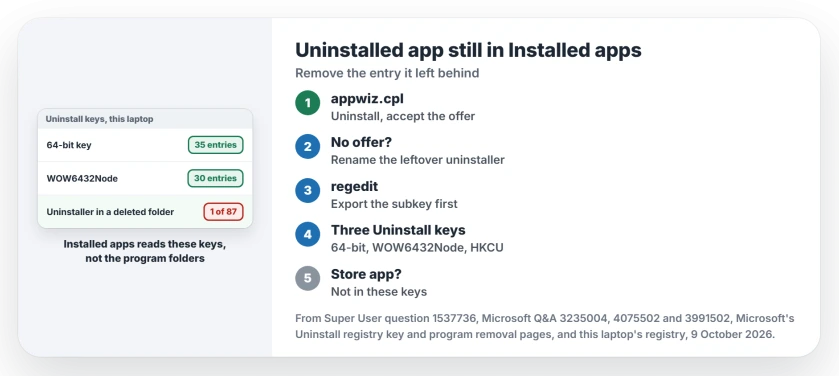
Status: counted 9 October 2026 on Windows 11 25H2: 1 of 87 visible entries pointed at an uninstaller that no longer exists. Control Panel and the registry both clear such entries.
Ours: that entry pointed into a Desktop folder that had since been deleted. Two more looked broken but were fine.
Their uninstall line starts with winget uninstall --product-code, since winget installed them and winget removes them.
1. Let Control Panel offer to remove it
Press Windows key + R, type appwiz.cpl and press Enter. You get Programs and Features, the classic uninstall list. Our page on where Control Panel went covers the rest of that window.
Find the program, right-click it and choose Uninstall. If Windows cannot find the uninstaller, this list offers to remove the entry instead. Say yes, and the entry leaves Installed apps as well.
That offer is the accepted fix on a Super User question with 99,140 views, where one answer says that when "the uninstaller cannot be found then it will ask if you simply want to remove the entry instead".
A commenter on Windows 11 agreed that "it will still prompt you to just remove the entry". On Microsoft Q&A in 2024, an owner with your exact error tried it and replied "that helped thank you so much".
2. No offer? Hide the leftover uninstaller
Sometimes part of the uninstaller survives on your drive. Control Panel runs it, it finishes, and the entry stays put. Owners report that the offer to remove the entry only appears once Windows cannot find that file.
One owner solved it that way: they took the uninstaller's path from the permission prompt and deleted the file. "The key is that to get this option the uninstaller must be unfindable by control panel", they wrote.
I would rename the file instead. That owner also said renaming would have been safer. Then run Uninstall in appwiz.cpl again and accept the offer. The program left their Windows 11 apps list too.
Does your entry offer Repair? Try that first. Another owner had to repair Python before its uninstall would run at all.
3. Delete the entry in the registry
When neither works, you can remove the subkey by hand. Export it first, so a double-click on the saved file puts it back. Press Windows key + R, type regedit, press Enter, and paste one of these into the address bar:
HKEY_LOCAL_MACHINE\SOFTWARE\Microsoft\Windows\CurrentVersion\Uninstall
HKEY_LOCAL_MACHINE\SOFTWARE\WOW6432Node\Microsoft\Windows\CurrentVersion\Uninstall
HKEY_CURRENT_USER\Software\Microsoft\Windows\CurrentVersion\Uninstall
Many subkeys are long GUIDs, so press Ctrl + F and search for your program's name. Check that DisplayName on the right matches. Then right-click the subkey on the left and choose Export. Save it, then choose Delete and restart.
The asker of the 300+ question found their program under WOW6432Node, deleted it, and wrote that it "does not show in Apps and Features anymore".
On a 2023 question with 90+ votes, an owner cleared a game the same way: "thanks dear it solved".
Another owner found nothing left in the main key for a game mod. So search all three before you give up. A program installed for one account lives under HKEY_CURRENT_USER and nowhere else.
Some subkeys refuse to go and Registry Editor answers with an error box. A stuck key usually comes down to one of four causes, and a hidden character is one.
Before you delete a key
Look at InstallLocation and UninstallString in that subkey first. Does that folder still exist? Then the program may still be installed, and its own uninstaller is your way out.
Removing parts of programs you still use is how a cleanup goes wrong. Our debloating page lists three things Windows needs that look safe to remove.
What happened to Microsoft's fixer?
Microsoft once answered this with a downloadable Program Install and Uninstall troubleshooter, and its support page still offers it, but only under Windows 10.
There, Microsoft says it "can automatically fix common issues such as corrupted registry keys or incomplete uninstall data".
The Windows 11 part lists a restart, Repair or Reset, and Uninstall from Settings. It offers no download.
Is it a Microsoft Store app?
Store apps do not sit in those three keys, so the registry route will not find them. Microsoft's page says "Use these steps for Windows programs" before it sends Store apps to a separate fix of their own.
Is a leftover entry harmful?
No. It is a line in a list, and nothing runs from it. It slows nothing down either. I would still remove it. The next time you look for that program, the list should tell you the truth.
The Short Version
- Windows key + R, appwiz.cpl, Uninstall, then accept the offer to remove the entry.
- No offer? Rename the leftover uninstaller and try again.
- Still listed? Export, then delete the program's subkey under one of the three Uninstall keys, and restart.
- Store apps are not in those keys.
- Microsoft's uninstall troubleshooter is now offered only for Windows 10.
Where to Next
Which program left its entry behind on your PC? Tell us in a comment, and whether Control Panel offered to remove it.

Isaac Smith is the founder and editor of PC Glance, a website that covers computers, laptops, and technology. He is a tech enthusiast and a computer geek who loves to share his insights and help his readers make smart choices when buying tech gadgets or laptops. He is always curious and updated about the latest tech trends.