File Explorer's Failed to load resource DLL popup can come from a broken add-on. Disable added Explorer extensions in Autoruns, restart, and retry the file operation before replacing Windows files.
Use this check when Explorer opens, copies files, or extracts a ZIP after you dismiss the alert. A message naming a particular application or missing Windows component needs its own repair.
In this guide
1. Get Autoruns and record the Explorer extensions
Download Autoruns and Autorunsc from Microsoft's Sysinternals Autoruns page. Extract the ZIP into a folder, then run the Autoruns application that matches your Windows system as administrator.
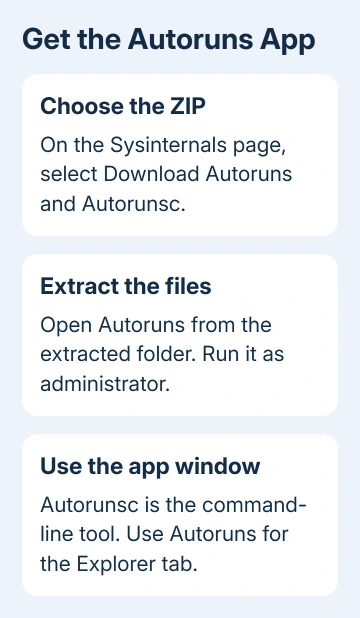
Autoruns lists programs and add-ons configured to load automatically. A shell extension is an add-on loaded by File Explorer, often to supply a right-click command or another file-management feature.
Open Options and enable Hide Microsoft Entries. Then select the Explorer tab, not Logon or Services. This shows the added Explorer components without turning off unrelated startup programs.
Record which entries are enabled, including their names, publishers and paths. Save a screenshot or written list now; you'll need it to find the checkboxes you changed when you turn them back on later.
An owner stopped this ZIP-extraction alert by disabling their Explorer extensions and restarting. Before that change, extracting still worked once they closed the popup.
The owner also reported an empty Explorer tab afterward. Keep that detail in mind: a saved record matters when you need to restore an extension and the list doesn't look the same on reopening.
2. Disable added Explorer components without deleting them
In the Explorer tab, clear the checkboxes for the displayed non-Microsoft extensions. Use the checkbox rather than Delete. That lets you turn the extension back on without setting it up again.
Don't apply this change to the full Everything list. Autoruns includes drivers, services, sign-in components and other startup locations; those are outside this focused Explorer check.
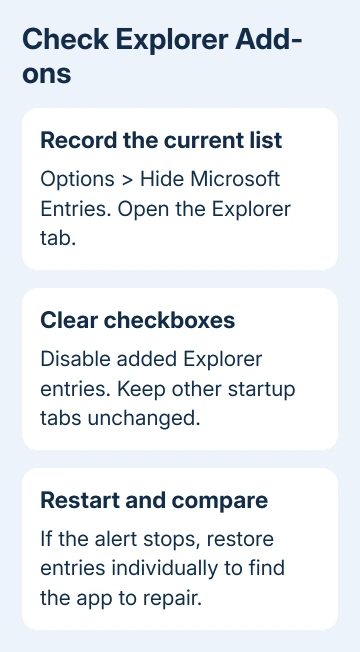
Restart Windows and repeat one operation that previously raised the popup. For example, open the same folder, copy a harmless test file, or extract the same ZIP into a new folder.
If the operation finishes without the DLL alert, one of the extensions you turned off could be responsible. Restore each entry separately to identify the app that needs repair.
If the message remains, restore the extensions you changed from your record before moving to broader repair. With unrelated components turned off too, you can't easily tell which change helped, and you can lose features you still need.
Autoruns supports current Windows 11 and Windows 10 desktop troubleshooting. On a managed PC, ask IT to make the extension changes, especially when a listed entry belongs to security or company file-management software.
3. Restore entries individually to find the responsible app
Reopen Autoruns as administrator, use the same Microsoft-entry filter, and return to Explorer. Enable one of the extensions you previously disabled, then restart and repeat the same file operation.
Keep working through that recorded set until the popup returns. The entry most recently restored is the first one to check. Disable it again and confirm whether the alert stops on another restart.
Restore the other extensions that didn't bring the error back. That lets you keep useful right-click commands instead of leaving every added Explorer feature turned off.
I'd do this with the original operation and file type each time. A ZIP-only error can disappear during ordinary folder browsing even though extracting files still causes the alert.
If the tab appears empty or your recorded entries aren't available, stop the changes there. Give the saved names and paths to the application's support team or a technician rather than guessing at another tab's settings.
Keep the application's folder intact when the extension list is empty. In the owner report, the listed applications still opened, but that didn't explain why the extensions were absent from the later view.
4. Update or repair the application behind that extension
Read the suspected entry's publisher and file path. Use those details to identify the installed application, then check its own update controls. The resource DLL is a supporting file; the displayed error alone doesn't name its owner.
On Windows 11, open Settings > Apps > Installed apps. Find the matching application and open its three-dot menu. Use Modify or Advanced options > Repair if that app offers it.
On Windows 10, locate the application under Settings > Apps > Apps & features. Whether you see Modify or Advanced options depends on how the app was installed.
If no repair option is offered, ask the publisher for its supported reinstall procedure. Save any licenses and app data you'll need before uninstalling. The Windows application removal guide explains removal routes.
After repairing the app, enable its extension and retry the operation. If the warning returns, leave that extension turned off. Request a compatible version from the publisher. Include its path and your Windows build.
5. Take a different route when the extension test changes nothing
An Explorer resource-DLL message isn't the same as every DLL startup error. The DLL initialization guide covers that separate wording; keep the exact message when choosing the next repair.
The recent owner had already run SFC, Windows' system-file checker, and still saw this alert. Repeating a system-file scan won't identify a third-party extension when its own application needs repair.
If disabling the added Explorer entries makes no difference, open Start > Get Help. Describe the resource-DLL popup and explain that changing the added Explorer extensions didn't affect it.
Include the affected operation, any named path, your Windows version from winver, and whether files still open after dismissing the message. Make clear whether the copy fails or finishes despite the popup.
The Short Version
Disable added shell extensions in Autoruns' Explorer tab, then restart and repeat the operation. Restore entries individually and repair the app tied to a returning alert. Keep a record in case the extension list changes.
Checked November 16, 2026.
 If you have any business, I can build it online