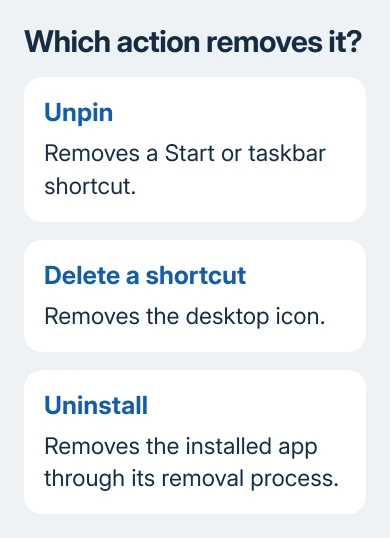
Windows 10 removes installed apps through Settings > Apps > Apps & features. Select the app, choose Uninstall, and complete the removal prompts. A desktop icon is just a shortcut; deleting it leaves the program installed.
You can also remove traditional desktop programs through Control Panel. Start with Settings for a normal app, then follow the program's own uninstaller if Windows opens it.
In this guide
Remove the app from Apps & features
Save your open documents, then quit the program. Export anything stored in the app itself, such as a local notebook or project library. Uninstalling can remove its settings and data as well as the software.
Open Start > Settings > Apps > Apps & features. Search the list for the program's name, select its entry, and click Uninstall. Confirm the second uninstall prompt if it appears.
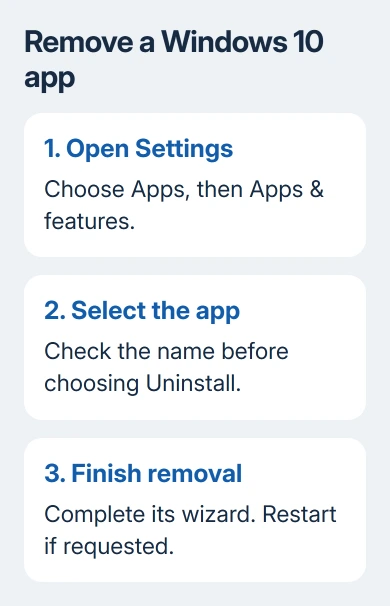
Some apps need only a confirmation. Others open a separate setup window with choices such as Remove, Repair, or Change. Choose the removal option and continue until the window says it's finished.
If the installer requests administrator permission, check the program name before approving it. A work PC may require an administrator's login. Ask IT to handle removal when the software or permission belongs to your employer.
If the uninstaller asks for a restart, let it finish. Windows can need that restart to remove files still in use. Then reopen Apps & features and search for the program again. Its entry should be gone.
The Windows 10 page is called Apps & features. Advice that sends you to Installed apps is describing Windows 11. For that version, use the Windows 11 app removal steps.
Use the Start menu for an app you already recognize
Open Start and find the program in the alphabetical app list. Right-click its name and select Uninstall. On a touchscreen, press and hold the entry to open its shortcut menu.
This is handy when you already know which app to remove. Windows can remove it after confirmation or open the desktop program list. Follow the removal steps in the window that opens.
Don't choose Unpin from Start or Unpin from taskbar when your goal is removal. Those commands change where an app's shortcut appears. The app can still start, take up space, and appear in the installed software list afterward.
A website shortcut can resemble an installed app. Check what that Start entry launches before removing a similarly named program. For a browser-installed web app, use the removal choices offered for its own entry.
Find a desktop program in Control Panel
Type Control Panel into the taskbar search box and open it. Choose Programs > Programs and Features. In icon view, open Programs and Features directly.
Select the desktop program, then choose Uninstall or Uninstall/Change. Follow its wizard. Microsoft says to use its Control Panel removal route for programs that Settings won't uninstall.
The list doesn't have to match Apps & features exactly. Control Panel mainly handles traditional desktop software; a Store app can be missing from this list while still being installed. Return to Settings or Start for that app.
Read a combined Change window carefully. Repair keeps the product installed and tries to fix it. Modify changes installed components. Remove or Uninstall is the choice that takes the product off the computer.
For a suite, the entry might use the suite's name rather than the individual app's name. Removing an Office suite, for example, can remove its other included applications too. Check the wizard's description before confirming.
Decide whether the item is an app, a file, or an update
An installer in Downloads is a file used to install software. Deleting that installer doesn't uninstall the resulting program. Remove the installed program through Windows, then decide separately whether you still need its installer.
Your personal documents are separate from the app. Removing a photo editor doesn't mean all exported pictures disappear. Review your own folders afterward instead of assuming an uninstall has cleaned up every file associated with the app.
An unwanted subscription also needs separate attention. Uninstalling an app isn't a billing cancellation. Use the service's account or subscription controls when you need to stop renewal as well as remove its Windows software.
Windows updates have their own removal controls. Don't remove an unfamiliar entry from Programs and Features just because its name includes Microsoft. Check what an unfamiliar component belongs to before removing it.
I'd remove familiar unwanted apps one at a time. If something you still use needs a shared component, changing one app at a time helps you trace a problem to the removal that caused it.
When Windows doesn't offer a working uninstaller
Some built-in Windows components don't offer normal removal. A missing or gray Uninstall button doesn't mean their folders should be deleted manually. Leave Windows system folders and shared components alone.
If a normal desktop program gives you an uninstall error, save the exact message. Restart the PC, then retry its supported uninstaller once. If the same error returns, use the publisher's removal help for that product and version.
Microsoft also provides help for blocked installation or removal. Follow its Windows 10 section for desktop installer problems, rather than applying a Windows 11-only repair step.
Avoid deleting the program's folder as a substitute for removal. That can leave a service or uninstall entry pointing at missing files. If the app is already gone but its name remains, use the leftover app entry procedure.
If removal still fails, send the publisher the program name, installed version, Windows 10 version, and full error. Ask for its supported cleanup tool or removal procedure. On an employer-managed PC, give your IT team that information.
The Short Version
Use Apps & features, Start, or Programs and Features, then complete the uninstaller. Check the installed-app list after any requested restart. Treat shortcuts, personal files, and subscriptions as separate decisions.
Checked November 16, 2026.