Another work or school OneDrive account can appear beside your existing OneDrive in File Explorer. Open the cloud icon's settings, choose Account > Add an account, then enter the additional account's sign-in details.
The desktop app supports multiple work or school accounts, but a single personal account. If both are personal, open the other account in a browser or use a separate Windows user.
In this guide
Check which kind of second account you have
A personal Microsoft account is different from an account your workplace or school gives you. OneDrive can sync a personal account alongside organizational accounts, with a separate local folder for each.
A company email address can suggest a work account, but some addresses have both account types associated with them. The address alone isn't enough. If sign-in asks which type to use, select the account you meant to add.
A matching address can also trigger OneDrive error 0x8004de85, which needs an account check before adding the missing work library.
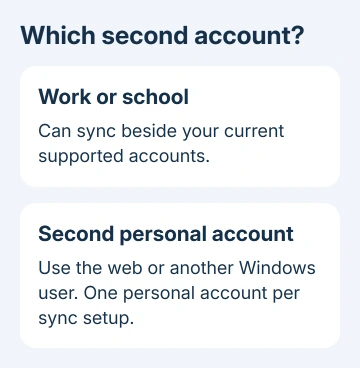
Adding an account doesn't merge its storage with the first one. It also doesn't move existing files to the new organization. Each account keeps its own files, access permissions, and storage space.
Microsoft says in its account-addition instructions that the personal-account limit applies even when adding a second account. Reinstalling OneDrive won't remove that limit.
For a second person's personal files, a separate Windows user is usually the better fit. Each person gets their own sign-in and OneDrive setup, rather than sharing access to everything synced under one Windows account.
Open the existing OneDrive's account settings
Find OneDrive's cloud symbol in the Windows notification area. If it isn't visible, expand the hidden notification icons. The cloud is generally white for a personal account and blue for work or school storage.
Select the cloud, open Help & Settings, then choose Settings. Open the Account section and select Add an account. Some app layouts use a gear-shaped settings control before the menu.
These are OneDrive's settings, rather than the general Windows account settings. Adding an email address to Windows or Outlook doesn't by itself create a synced OneDrive entry in File Explorer.
If there is no cloud icon, open Start and search for OneDrive. Launch the desktop app. If setup asks for the first account, finish that setup before returning to the Account section to add another.
If sign-in keeps returning to the same prompt, use the OneDrive sign-in checks before changing folders. An account that never completes sign-in won't produce a working second sync location.
Sign in and confirm the new folder location
Type the additional account's address and complete sign-in. For work or school files, sign in with the account from that organization. Complete any verification or device-access checks it requests.
Read the OneDrive folder location shown during setup. Keep it separate from the first account's folder. A similarly named organization or an old folder from an earlier setup makes this check especially useful.
Continue through the setup screens until OneDrive offers to open its folder. Open File Explorer and look for the new account entry. Work files normally appear under OneDrive - CompanyName, while personal files use OneDrive - Personal.
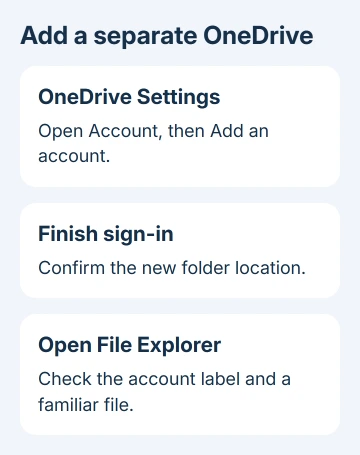
The exact name can differ with your Windows and OneDrive versions. Open the folder and check a file you recognize from that account. The account label and its contents matter more than matching one example name exactly.
Don't remove the first account just because setup has finished. Both accounts can remain connected when their types are supported. Unlinking an account stops its syncing on this PC, so keep it linked if you're still using it.
Keep the two libraries separate while you work
Before saving a document, read the folder path rather than relying on the word OneDrive alone. Similar filenames can exist in personal and work libraries, and a save dialog can remember whichever folder you used last.
An Excel sign-in banner can persist even with both folders connected; match the Office profile to the file account before removing either sync connection.
Create one harmless test document in the new account's folder. Let syncing finish, then open that same account online to confirm the document arrived. This checks the destination without moving any important files.
If you need a file in both accounts, copy it into the destination folder. A move can remove it from the source account through syncing. Check organizational rules before copying work material into personal storage.
The storage plans remain independent. Free space in the personal account doesn't give the work account extra room, and a Microsoft 365 subscription on one account doesn't automatically apply to another.
If File Explorer has duplicate entries for an old or unwanted account, follow the extra OneDrive entry guide. Two accounts you've chosen to connect are different from a leftover duplicate entry.
Use a browser or another Windows user for two personal accounts
For occasional access, open the OneDrive website with the other personal account. A separate browser profile can keep it distinct from the account already open in your everyday browser.
Check the account picture before uploading or downloading. A browser session can already be signed in to the first account, even though the address you meant to use belongs to the second one.
Browser access doesn't add that second personal library as another synced folder in this Windows user's File Explorer. The online library remains accessible while desktop syncing stays connected to the first account.
To let another person sync their own files, add a Windows user at Settings > Accounts > Other users. Windows 10 calls this Family & other users. Sign into that user and connect its personal OneDrive.
I'd keep those Windows users separate when the accounts belong to different people. It makes the ownership of local documents clearer and avoids treating a browser account switch as protection for downloaded files.
Resolve an organization restriction with its administrator
A work account may need approval before it can sync on a particular computer. If setup reports a policy or access restriction, note the full message and ask IT to confirm that OneDrive syncing is permitted on this device.
If the files open online but desktop setup fails, ask IT to check that restriction. Repeatedly entering the password won't change a device policy. Avoid unlinking the working account while the administrator checks the second one.
For a personal-account error, contact OneDrive support with your account type, app version, and exact setup message. Report whether online access succeeds and whether this is the first personal account or a second one.
The Short Version
Open Account in OneDrive settings, then Add an account. Confirm its folder after setup. Work or school accounts can join the existing personal account; another personal account needs a browser or separate Windows user.
Checked November 16, 2026.