A camera that works in Zoom but fails in Camera or a browser can be blocked by app permissions or antivirus webcam protection. Quit Zoom, then check the security app's camera rules before reinstalling drivers or replacing the webcam.
When both a USB webcam and the laptop's built-in camera fail in the same apps, look at the software they share. A working Zoom picture tells you the camera can produce video, even when another app reports a camera error.
In this guide
1. Release the camera and compare the Windows preview
Leave the Zoom meeting and quit Zoom from its notification-area icon near the clock. Close other video-call apps too. Then open Start > Camera and check whether the picture appears without a meeting app running.
If Camera now works, reopen the app that failed and select the correct camera in its video settings. If another app was using the camera or the wrong camera was selected, you can fix that without reinstalling Windows.
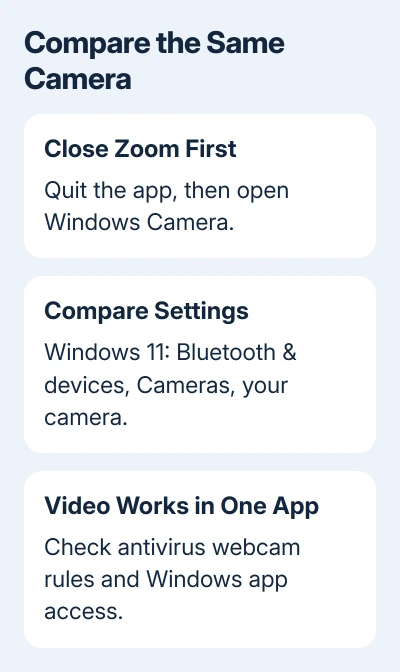
On Windows 11, also open Settings > Bluetooth & devices > Cameras, then select your camera. Compare that preview with the Camera app. Close the Settings preview before reopening another app to test.
The owner who reported this had working video in Zoom and Windows' camera settings, but the Camera app showed 0xA00F429F, WindowShowFailed and 0xC00D36BB. Both the external and built-in cameras were affected.
With those results, check app access and the Windows software handling video before replacing the USB hub: the owner tried a direct USB connection and said the problem remained.
If Windows doesn't detect the device at all, use the camera detection error guide instead. A missing camera and a camera that produces video in Zoom are different starting points.
2. Review webcam protection in your security app
Open the antivirus app installed on the PC and look for its webcam protection controls. These can allow one trusted program while blocking another, so Zoom working doesn't mean every application has access.
For AVG Internet Security, open Menu > Settings > General > Blocked & Allowed apps. Check whether the failing application is blocked from the webcam. Correct its rule, then close and reopen that application before testing again.
The AVG webcam protection instructions explain its Smart, Strict and blocking modes. In the current interface, open Personal Data, then the gear button to reach the protection settings.
Smart Mode automatically permits trusted apps and asks about untrusted ones. Strict Mode asks about access each time. A saved block can therefore affect your browser or Camera app while leaving a previously allowed meeting app usable.
If you temporarily turn off webcam protection for a test, turn it back on afterward and allow the app you need. Don't leave all antivirus protection disabled to keep a video call working.
One owner on Microsoft's forum restored camera access after an in-place Windows reinstall and disabling AVG webcam protection. They couldn't tell which change had helped most. I'd check app rules before attempting a Windows repair.
An antivirus without a webcam feature doesn't need this step. Continue with Windows permissions rather than searching for a control your product doesn't include.
3. Check Store-app and desktop-app permissions separately
On Windows 11, open Settings > Privacy & security > Camera. Enable Camera access first. Enable Let apps access your camera too, then check the Camera app's switch in the app list.
Further down that page, turn on Let desktop apps access your camera for applications such as browsers and many meeting programs. The desktop control is separate from the individual switches for Microsoft Store apps.
On Windows 10, open Settings > Privacy > Camera. Under Allow access to the camera on this device, use Change if needed, then enable Allow apps to access your camera and check the app switches.
Also check Allow desktop apps to access your camera on Windows 10. A desktop program might not have its own individual toggle. Searching the Store-app list for every installed program can send you in circles.
If a control is unavailable or managed by your organization, ask the administrator to review camera access. Resetting an app won't change a workplace policy.
For a browser-only failure, inspect the website's camera permission beside its address and the camera selected on the call page. Windows allowing the browser doesn't automatically give every website permission to use it.
Test Camera again after correcting permissions. A working picture there means you can return to the failing app's own settings; if several apps still fail, try the restart and updates next.
4. Restart and install the relevant updates
Save your work and choose Start > Power > Restart. Choose Restart even if the laptop has recently resumed from sleep. After signing back in, open Camera before opening Zoom.
On Windows 11, check Settings > Windows Update > Check for updates. Camera driver updates may appear under Advanced options > Optional updates. On Windows 10, use Settings > Update & Security > Windows Update.
Microsoft's camera troubleshooting page covers access, antivirus blocks and driver recovery. Use the laptop or webcam maker's model-specific driver when you need an installer.
Don't repeat repairs you've already completed with no change. In the source case, reinstalling camera devices, rolling back a quality update, repairing system files and resetting the Camera app had all failed before the final recovery.
For a different symptom that appears during recording, such as a pulsing picture rather than no picture, check the webcam flicker settings. That adjustment won't repair an app being denied camera access.
5. Repair Windows while keeping your installed apps
Before a Windows repair, back up files you need. On current Windows 11, open Settings > System > Recovery > Fix problems using Windows Update > Reinstall now if offered. This preserves apps, files and settings.
If that option is missing, the Windows 11 download page supplies installation media. Use media matching the PC's language, edition and processor type, then start its setup.exe from inside the running Windows desktop.
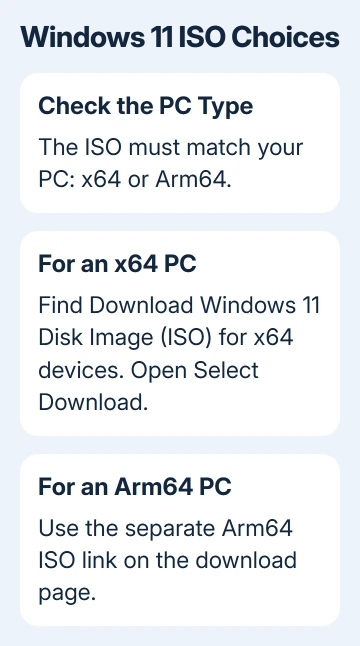
Mount the ISO through its right-click menu, then open it. In Setup, choose Change what to keep > Keep personal files and apps. Cancel if that choice is missing. Don't boot from the media for this app-preserving repair.
After the repair, test Camera before Zoom, then the browser or other failing app. If it still fails, send Microsoft Support the error codes, security product, camera model and which previews work. On a work PC, give those details to IT.
The Short Version
Close Zoom, compare Camera with the Settings preview, and inspect antivirus webcam rules. Check Store and desktop permissions separately. Keep an app-preserving Windows repair for failures that survive the access checks.
Checked November 17, 2026.