Error 0x80860010 can trap a Windows account prompt in repeated sign-in attempts. Stop pressing Retry, check whether the same account opens in a browser, and then repair Windows if sign-in still fails only in the PC's account window.
The code alone doesn't tell you that your password is wrong. A message about too many requests calls for a different first response from a forgotten-password screen, especially when the password immediately produces the same error again.
In this guide
1. Stop the retry loop and check the affected account
Close the account window. Note the email address and the exact message before trying again later. Trying again and again won't help you work out what's wrong if the window keeps returning the same code.
In the original Windows 11 report, Settings asked the owner to connect their Microsoft account to keep using apps across devices. The sign-in window then complained about too many requests and displayed 0x80860010.
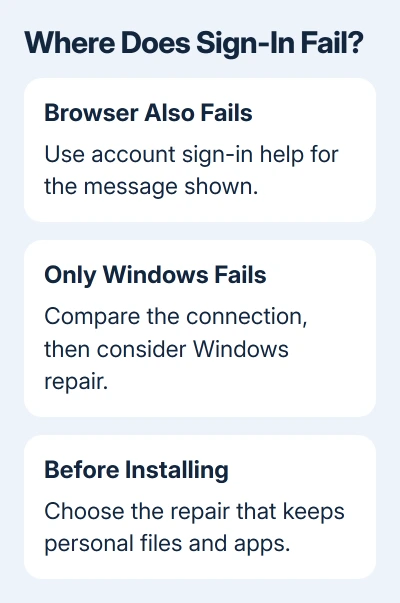
In a browser, open a Microsoft service you use. Test the account that triggered the Windows prompt. Read the address and account name carefully. A successful Windows PIN entry isn't an online account test; the PIN unlocks this PC.
If the browser also rejects the account, use the Microsoft account sign-in help for that message. A locked account or forgotten password needs the account recovery route before a Windows repair.
If the browser works, return to Windows Settings after closing the browser test. If the account works in the browser, focus on the PC's sign-in window. You still won't know which Windows component needs repair.
The Microsoft account notification guide covers ordinary verification prompts. Use this repair path when verification itself gets stuck on 0x80860010, rather than when Settings simply needs a password once.
2. Compare the connection before changing Windows
On a personal PC, temporarily disconnect a VPN using its own Disconnect button, then try the account prompt once. If your employer requires the VPN or manages the PC, have IT compare connections for you.
Try a trusted connection, such as your phone's hotspot, to see whether sign-in works there. Reopen the same Settings prompt on that connection. If it completes there, tell your VPN provider or network administrator which connection worked.
Don't remove an account to test a connection. That changes access to apps and data while leaving you unsure whether the sign-in service, connection or Windows installation caused the original failure.
In one owner's saved forum case, disabling VPN software and resetting the network were suggested first. The owner said those steps didn't work. Their success came only after they moved on to a Windows reinstall or reset.
Their final reply called it a reset, without recording the exact recovery option used. We know it worked for them, but not which option they chose. With the supported repair options, you can check what will stay on your PC before starting.
I'd use the repair that preserves apps before choosing Reset this PC. Reinstalling your programs is a separate job, and an account-window failure isn't a reason to start by removing them.
3. Use Windows 11's repair through Windows Update
Save open documents and create a current backup before you start recovery. This repair needs an uninterrupted internet connection and the laptop's power adapter plugged in.
Open Settings > System > Recovery. Find Fix problems using Windows Update and select its Reinstall now button. Review the confirmation. Selecting OK starts the repair download and installation.
This reinstalls your current Windows version and repairs its components while keeping your apps, files and settings. You'll keep using your existing account.
This option needs Windows 11's 2022 annual release or newer, with updates dating from at least the February 2024 optional release. Organization-managed update policies may hide it.
Let the repair finish and restart the PC when asked. From the desktop, reopen the failing account prompt. Complete verification and try the feature that failed. Judge the repair by that test, rather than an old notification.
If Fix problems using Windows Update isn't available, don't choose a similarly placed reset button as a substitute. The installation-media route offers another way to repair while retaining installed apps.
4. Start an in-place repair from inside Windows
Microsoft's installation-media repair instructions describe running Setup from your working Windows desktop. Start there to use the repair option that keeps your apps.
For Windows 11, get the appropriate installation media from the Windows 11 download page. Choose media matching your installed Windows language, edition and processor type.
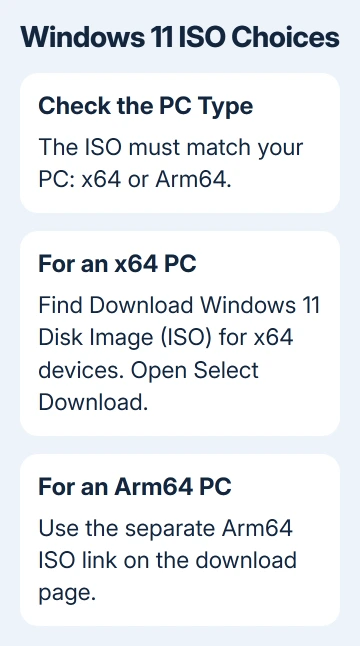
With a downloaded ISO, right-click the file and choose Mount. Open the mounted drive and run setup.exe. For installation media already on a drive, find the drive in Explorer, then start its setup.exe.
Follow Setup and inspect Change what to keep. Select Keep personal files and apps. At the final review, check that this is still the selected choice before clicking Install.
If that choice is unavailable, cancel. Have Microsoft Support compare the media with your installed Windows version. Booting from the media for a clean installation risks removing the apps and data you wanted to keep.
Windows 10 uses in-place Setup with matching Windows 10 media. It doesn't have Windows 11's repair-through-Windows-Update option. A Windows 11 error report doesn't make Windows 11 media appropriate for a Windows 10 repair.
Give support the browser and recovery results
If 0x80860010 remains, request help for Windows account sign-in through the Get Help app. Include the code, Windows version, browser result, what happened on each connection and the exact recovery method you completed.
For an organization-issued account, contact your organization's IT team with those details. Keep account recovery separate from Windows repair; the sign-in error guide helps identify messages that belong to the account itself.
The Short Version
Stop repeated retries and compare browser sign-in first.
Browser sign-in works but a connection change hasn't helped? Choose the Windows repair option that retains programs and personal files. The owner's reset worked; its exact option wasn't recorded.
Checked November 17, 2026.