Windows 11 can make a PDF look tiny even when the preview pane is wide enough. If the whole page stays shrunk inside gray margins, check which PDF app supplies the preview. Dragging the pane's edge may not change how that app fits the page.
A divider that won't move and a PDF that won't zoom are different problems. Try widening the pane once. If the pane grows but the page still looks wrong, move on to the PDF software instead of repeatedly resetting File Explorer.
In this guide
1. Separate the pane's width from the PDF's zoom
Select a PDF in File Explorer. In Windows 11, choose View > Show > Preview pane if the right-hand preview isn't visible. Alt+P also toggles it. Maximize Explorer so you have enough room to see what changes.
Move the pointer to the divider between the file list and preview. When the resize pointer appears, drag the divider left. Watch the width of the preview area, rather than just the size of the document on it.
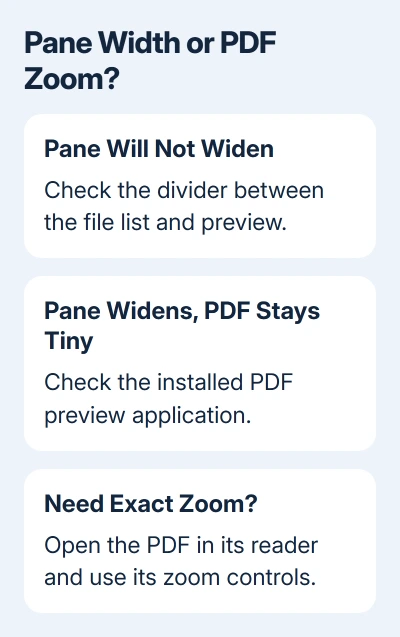
If the area widens, the divider works. If a complete sheet still has gray space around it, check how the page is displayed. The preview software may fit the whole page within the space available instead of filling its width.
If you're using Windows 10, Preview pane is on the View ribbon rather than the Windows 11 Show submenu. The same distinction between resizing the area and changing the page display applies.
Try another ordinary PDF in the same folder. If one file is unusually narrow, that document may have a different page size or large margins. If every PDF changed after installing another reader, pay attention to that installation.
For a different file type that produces a blank pane, the Explorer preview checks explain preview handlers. These preview components let an app display content inside Explorer.
2. Check what changed when another PDF app was installed
Open Settings > Apps > Installed apps and look for your PDF software. Older Windows 11 builds and Windows 10 use Apps & features. Note whether Adobe Acrobat or Reader and ABBYY FineReader are both installed.
The app that opens a PDF when double-clicked and the component that draws its Explorer preview can be handled by different software. Changing only the default PDF opener wasn't the fix that worked for the owner in this case.
One owner in a Microsoft forum discussion had recently installed ABBYY FineReader when their PDFs started showing as small complete pages with unwanted navigation controls. Restoring Explorer defaults didn't help them.
They then removed both ABBYY and Adobe, reinstalled Adobe, and confirmed the preview worked properly again. That fixed the owner's conflicting PDF installations. Leave a reader installed if it's working properly.
If the timing and installed apps match your PC, continue to the replacement step. If neither app is present, check the support instructions for the PDF application you do use; don't install two more readers to test the same problem.
Keep the file itself unchanged during this check. Cropping pages or printing a replacement PDF changes a document to work around its preview, when the original may already be perfectly readable in its own app.
3. Keep the PDF application you actually need
Before removing licensed PDF software, check that you can reinstall it and sign back in. Keep any custom settings or tools you rely on. The repair should restore a useful preview while letting you keep doing your normal document work.
Close Explorer preview windows and the PDF apps. In Settings > Apps > Installed apps, use the three-dot menu beside the unwanted PDF app and select Uninstall. Follow its uninstaller. On Windows 10, select it under Apps & features instead.
To follow the reported fix closely, the owner removed both ABBYY and Adobe and then installed only Adobe again. Use your official installer or your organization's approved installation method, rather than a third-party preview package.
If you need FineReader for text recognition or editing, I'd check with its support team about changing Explorer integration before removing it. A preview inconvenience isn't a reason to lose the tools you use a paid app for.
After reinstalling the chosen application, close and reopen File Explorer. Select the same PDF used for the comparison. Check the size, navigation controls and scrolling, then try the second PDF too.
If the preview has returned to the behavior you wanted, stop there. There is no benefit in adding registry edits or resetting Windows after the PDF application's installation has already corrected it.
4. Open the document when you need a particular zoom
Explorer's preview is useful for recognizing a file. For precise reading, double-click the PDF and use the reader's zoom and page-display controls. That gives you a direct way to choose how much of the page fills the window.
In current Acrobat for Windows, open the main menu and choose View > Zoom > Fit to width to enlarge the page across the window. Use the zoom controls for a particular reading size.
Adobe's PDF viewing instructions cover these document-window settings. Those controls apply inside Acrobat. The buttons available in Explorer's preview can differ.
Keep thumbnail options separate too. A PDF thumbnail in Explorer's file list and the larger right-hand preview pane serve different purposes. Turning on thumbnails doesn't necessarily change how the selected document fits in the preview.
If the document opens in Chrome and gets saved instead of displayed, the PDF browser-opening guide covers that setting. It won't change the size of Explorer's preview pane.
Send a persistent preview problem to the PDF app's support
When the preview still behaves incorrectly, contact the maker of the PDF app whose installation controls it. Provide the Windows version, app version, other installed readers and whether the divider moves normally.
Include whether all PDFs behave this way and look normal when opened. Support can check how the app draws Explorer previews without trying to fix an already readable document. Remove private document content from any example you share.
The Short Version
Widen the pane once and watch whether its area changes. If the PDF stays fitted to a whole page, check the installed reader. The owner removed ABBYY and Adobe, then reinstalled Adobe alone, after Explorer defaults failed.
Checked November 17, 2026.