

3D Viewer can open a model while Explorer shows a blank preview pane, because they use separate components. Check the preview settings and any downloaded-file warning first.
Keep a working 3D Viewer installed: the Microsoft Store removed it on July 1, 2026. Uninstalling it now risks losing your working viewer.
A blank side pane, a security warning, and a missing model thumbnail are different problems. Check what appears after selecting an STL or OBJ file before choosing a repair.
In this guide
1. Turn on the preview pane and its handlers
Open File Explorer and select one local model file. Press Alt + P to show the preview pane. In Windows 11, the command is also under View > Show > Preview pane; Windows 10 puts Preview pane on the View ribbon.
A PDF that stays tiny inside a wider preview pane needs a check of its PDF reader integration rather than the 3D model previewer.
A preview handler is the component that draws a file's contents inside Explorer. An app can open the file normally even when that component isn't available to Explorer. Changing the default app alone won't always get the preview working.
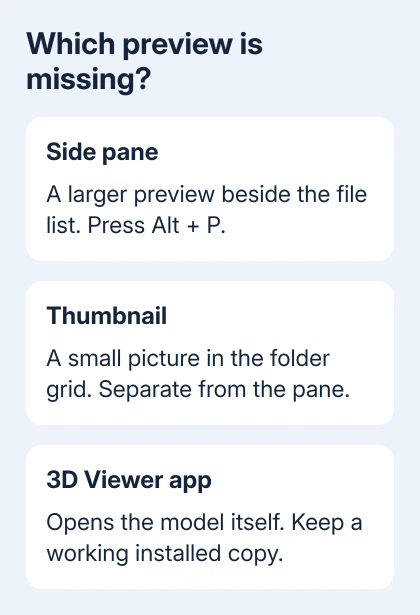
Press Windows + R, enter control.exe folders, and press Enter. On View, check Show preview handlers in preview pane, then select Apply and OK. Select the model again to check the result.
If the model now appears in the side pane, that setting was stopping the preview. If the pane stays blank, continue with a trusted local file and the download-block check. Avoid changing several file associations at once.
For a file whose extension is hidden, show the full file extension before comparing formats. A folder containing STL and OBJ files can have different preview support for each type.
2. Unblock a trusted downloaded model
Look at the message inside the preview pane. Since the October 2025 security changes, Windows can refuse to preview files marked as coming from the internet. The message warns that the file could harm the computer.
This is different from an empty pane with no explanation. Microsoft describes the original block in its downloaded-file preview guidance.
The September 2026 preview changes restore automatic previews for non-HTML files through a gradual rollout. Install current Windows updates first. Use Unblock only if the warning still appears.
For a model whose source and safety you trust, right-click that file and select Properties. On General, look for Unblock near the bottom. Select it, then Apply and OK. Don't unblock models from an unknown or suspicious source.
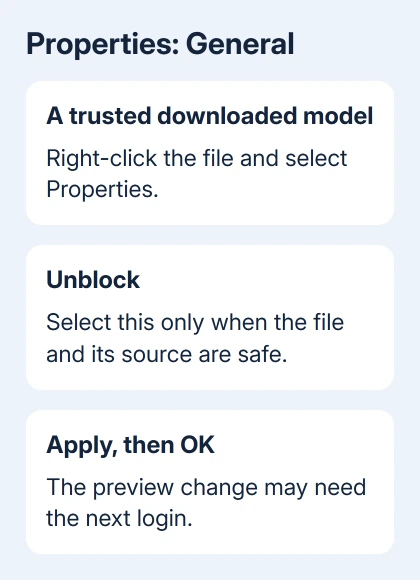
Select the file again. The change may not take effect until the next login, so save work then sign out if the warning persists and sign in again. If Unblock isn't present, don't search for a different security switch to force it.
Compare with a model created locally by your own modeling software. If that previews but a downloaded model doesn't, check where the download came from and its file format before reinstalling the viewer.
A network share treated as an internet location (the Internet Zone) can also trigger this protection. Ask IT to check its classification. Changing trust affects every file there; on a personal PC, unblock individual trusted downloads.
3. Keep the installed viewer and try Repair
Open the model directly in your installed 3D Viewer. If you can see and rotate it, keep that working copy while checking Explorer. You can still inspect models in the app while the Explorer preview isn't working.
The current retirement guidance says existing 3D Viewer installations continue working, but the app is no longer available from the Store. An old instruction to uninstall and download it again no longer fits November 2026.
On Windows 11, open Settings > Apps > Installed apps, find 3D Viewer, and check its three-dot menu for Advanced options. Windows 10 uses Settings > Apps > Apps & features, then the app's Advanced options.
If Repair is offered, use it and recheck the same local model in both the app and Explorer. I'd try Repair before Reset because it changes less. If the control isn't offered, skip it rather than uninstalling the app to reveal it.
If you later choose Reset, expect the app's saved settings and data to be cleared. Keep model files stored safely outside the app's private data. Reset may still leave the retired Explorer preview component unavailable.
If the app fails on just one model, compare another file of the same format. If only that file fails, check the model or ask its creator to export another copy. Keep the viewer if it opens your other files correctly.
4. Use STL thumbnails when the small preview is enough
The thumbnail is the little model image inside the folder's file grid. It is separate from the large side pane and from the rotatable model inside 3D Viewer. Decide which of those features you need before adding software.
For STL thumbnails, an existing PowerToys installation offers a supported alternative. Open PowerToys Settings > File Explorer add-ons, find the thumbnail preview settings, and enable Stereolithography (.stl).
Restart Windows if thumbnails don't appear after enabling the option. In Explorer, choose a larger icon view. If thumbnails remain hidden, open Folder Options > View and clear Always show icons, never thumbnails if it is selected.
PowerToys' File Explorer add-ons reference lists STL under thumbnail previews. It doesn't list a preview-pane handler for STL models. Thumbnails help you recognize files in a folder, but won't bring back the old interactive side pane.
The setting doesn't add OBJ thumbnail support simply because both formats contain 3D models. Check the supported extension instead of expecting one switch to cover an entire project folder.
If thumbnails work locally but fail in a cloud folder, compare a fully downloaded local copy. Cloud folders can get their thumbnails from a different source. Keep the original project files in place during the comparison.
5. Escalate a blank pane without repeating failed repairs
The original 3D Viewer report describes a working viewer app but a blank Explorer pane. Reinstalling the app, system-file checking, and testing another account didn't restore it for the asker.
The accepted response links another discussion without confirming that the asker's 3D preview returned. Those replies don't confirm a repair that works for every blank 3D preview. Keep the working app instead of repeating the same removals.
For more general folder failures, use the File Explorer repair checks. For only a blank 3D pane, send Windows support the file format, Windows build from winver, and whether the model opens in the installed app.
Include whether the pane is blank or shows a warning, and whether a local model behaves differently. Ask support to check whether the preview component is set up correctly and works with your Windows build.
If the retired component can't be restored, open models directly in the installed viewer or use supported STL thumbnails to identify files in a folder.
The Short Version
Enable the preview pane and its handlers, then unblock only trusted downloads when Windows shows the security warning. Keep an installed 3D Viewer. PowerToys can supply STL thumbnails, but it doesn't replace the interactive 3D preview pane.
Checked November 16, 2026.






