A Windows 11 taskbar clock stuck at 00:15 while Settings is correct can be a frozen display. Restart the Windows Explorer process through Task Manager. That fixed the reported case after reboots and time-server requests failed.
A clock that's wrong everywhere is a different problem. Check the time in Settings so you can choose between refreshing the taskbar and correcting Windows' actual date, time or time zone.
In this guide
1. Restart Windows Explorer to refresh the clock
Press Ctrl + Shift + Esc to open Task Manager. Under Processes, find Windows Explorer, right-click it and select Restart. On older Task Manager layouts, select More details first if only a short application list appears.
During the restart, the desktop and taskbar may vanish for a moment. Explorer handles those parts of Windows as well as file windows. Once the taskbar returns, watch its clock through the next minute change.
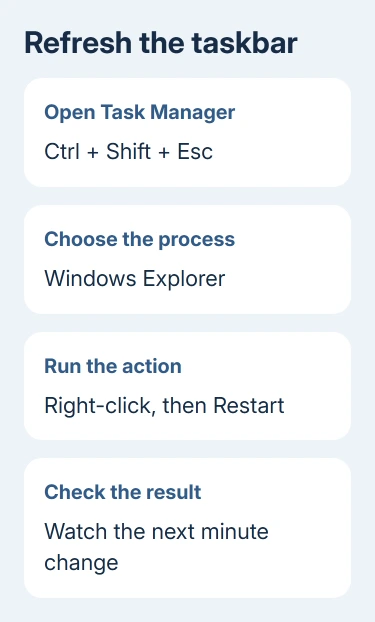
Microsoft's Explorer restart instructions use that same Task Manager action. If Windows Explorer isn't listed, use Run new task, enter explorer.exe, and press Enter.
On an older Task Manager, Run new task is under File. On current Windows 11 layouts it's a button near the top. That command starts Explorer, which runs the desktop and taskbar, when it isn't already running.
One owner confirmed that restarting Explorer fixed the 00:15 clock. If your clock now advances normally and agrees with Settings, leave the time service alone. Once the display works, further time-server changes aren't needed.
2. Compare the taskbar with Date & time
Right-click the taskbar clock and choose Adjust date and time. Alternatively, open Settings > Time & language > Date & time. Compare the date and time shown there with the taskbar and a reliable clock.
When Settings is correct but the taskbar stays at one minute, the problem is the displayed clock. Changing your time zone would change Windows' time instead of refreshing the stuck display.
If Settings also has the wrong time, use the synchronization checks next. A clock that advances normally but is hours off needs its time zone checked instead of a frozen-display repair.
The 00:15 format alone isn't an error: it means 12:15 AM in a 24-hour clock. Watch whether it changes. A change to 00:16 means the display is advancing; a clock that stays at 00:15 all afternoon isn't.
A moon beside the clock can relate to Focus assist or notification settings, depending on the Windows build. It doesn't turn the clock into a timer. Compare the clocks to check the problem; the symbol alone doesn't explain it.
I'd make this comparison before touching any deeper settings. It takes a moment and tells you whether to fix the taskbar or Windows' time settings.
3. Correct automatic time only when Windows is wrong too
In Date & time, turn on Set time automatically. Check Time zone as well. If automatic time-zone detection doesn't match your location, select the correct zone manually when Windows allows that change.
Use Sync now under Additional settings to request a time update. Windows needs an internet connection to reach an online time server. Afterward, compare the Settings time again and then check the taskbar.
If the taskbar catches up and continues changing, the clock is working. If Settings becomes correct but the taskbar remains frozen, return to the display problem rather than repeating synchronization.
A managed work PC can have time settings controlled by the organization. Tell IT how far off the time is and whether Settings agrees with the taskbar. Don't change company time-service policies to fix a desktop display.
On Windows 10, use Settings > Time & Language > Date & time. Its taskbar looks different, but restarting Explorer still refreshes the desktop and taskbar. Match these controls to the Windows release on your PC.
4. Check for a taskbar customization conflict if it returns
If restarting Explorer works only until the next sign-in, consider software that changes the taskbar, Start menu or desktop clock. Think back to when the clock first froze. Had you just changed one of those programs?
Use the program's own settings to disable its taskbar changes temporarily, then restart Windows and watch the clock. If normal timekeeping returns, update or remove that program through its usual controls.
When there isn't an obvious program, a clean boot can check whether background software is involved. Sign in as an administrator, press Windows + R, enter msconfig, and open System Configuration.
On Services, check Hide all Microsoft services before selecting Disable all. On Startup, choose Open Task Manager and disable enabled startup applications. Record which items you changed, then restart Windows.
On a work computer, get IT's help with this check because it temporarily turns off background features. Don't change anything under Boot, including its advanced options.
If the clock works in that state, reenable groups of the disabled services and startup apps, restarting between checks. Narrow the group until you identify which program brings the problem back, then contact its developer for an update.
After the test, reenable the background services and startup applications you turned off. Don't leave the computer in a reduced startup state and mistake missing background applications for a permanent clock repair.
5. Give persistent display failures the right next step
Open Settings > Windows Update > Check for updates, install the available updates, then follow any restart prompt. Keep a note of the Windows build from Settings > System > About, plus when the clock stops advancing.
If selecting the clock fails to open its panel but the time keeps moving, use the calendar-panel checks. Those steps address a panel that won't open, rather than a clock stuck on one minute.
The Windows 11 notification controls also explain where the calendar and notifications live. Those controls won't repair time synchronization, but they help separate a missing panel from a stalled clock.
For a clock that still freezes after these checks, open Get Help from Start and describe a taskbar clock that freezes while Date & time remains correct. Include the Explorer restart result, Windows build and any customization software.
I wouldn't start with the motherboard battery when Settings shows the correct time. If the actual date and time reset after the PC is powered off, report that separate symptom to the PC maker, particularly on a device still under warranty.
The Short Version
Refresh a frozen clock by restarting Explorer. Use synchronization or time-zone changes when Settings is wrong too. For recurring freezes, check taskbar software and report your Windows build and Explorer restart result.
Checked November 17, 2026.