
Webcam flickering under room lights often needs a 50 Hz or 60 Hz anti-flicker setting. The camera is capturing changes in the light's output. Match that setting to the local power frequency, then check the picture in the app used for calls.
Start with a lighting comparison if the cause is unclear. A feed that disconnects or goes completely black needs connection checks, while moving dark bands under a lamp fit the light-frequency problem.
Check whether the room lights cause the bands
Keep the camera and application unchanged. With enough daylight to see the picture, switch the room light off briefly and compare the preview. Restore the lamp's power and watch for the bands returning.
This comparison is ours; it changes one likely cause at a time. A clear daylight image supports trying the lighting controls before reinstalling a camera driver. A dark room is not a useful comparison.
Status: Logitech, Elgato and Windows Camera flicker guidance reviewed November 2, 2026. A Linux owner's outcome is identified separately. No webcam or lamp was tested.
Logitech says synchronizing the camera with the lighting frequency reduces visible flicker. Its BRIO anti-flicker instructions provide the two frequency choices.
Select the supported 50 Hz or 60 Hz control
For BRIO 105, 305, 505 or MX BRIO 705, open Logi Tune, select the webcam and locate its anti-flicker setting. Logitech's choices are NTSC 60HZ and PAL 50HZ.
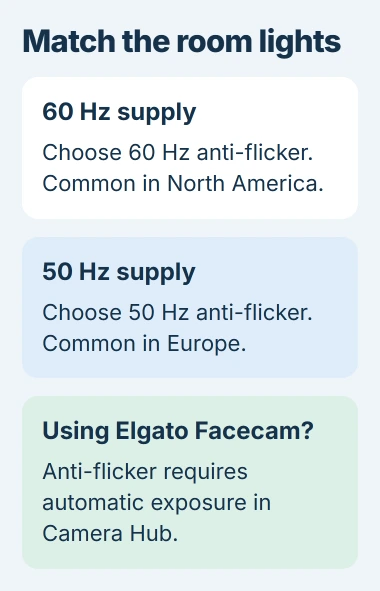
Use 60 Hz with a 60 Hz mains supply, common in North America, or 50 Hz with a 50 Hz supply, common in Europe. The relevant frequency is the lighting's, not the computer monitor's refresh rate.
Watch the same lit scene after selecting it. The useful result is a steady image without the previous moving bands. This Logitech document names specific models; it does not establish identical menus for every Logitech camera.
In Windows Camera, open its Settings control, expand Video settings, and look for flicker reduction. Microsoft documents that option in the Windows Camera guide.
Use a matching frequency when the control is available. If the camera does not expose it there, check the manufacturer's supported utility. Installing unrelated camera software will not add a control the device cannot provide.
Facecam needs automatic exposure for anti-flicker
Open Camera Hub for the Elgato Facecam and select automatic exposure. Under Processing, choose the appropriate Anti-flicker frequency.
Elgato's Camera Hub settings guide says anti-flicker applies only with automatic exposure. With manual exposure, shutter speed must be adjusted to address the light flicker.
Return to automatic exposure first if the manual shutter setting is unfamiliar. Keep the room light constant while comparing. This limitation explains why selecting 50 Hz or 60 Hz can appear ineffective in the wrong exposure mode.
Verify the result inside the meeting app
Close the camera utility's preview. In the calling app, choose that physical webcam and inspect the picture under unchanged lighting. Then save and replay a short camera recording if recording matters.
A utility preview alone does not prove that another app retained the same capture settings. One owner using a C920 on Linux reduced flicker at 20 fps in a camera utility, but reported that Zoom appeared to override that choice.
In that discussion, another owner reported a successful 50 Hz power-line setting through Linux camera controls. Their result supports frequency matching, without establishing 20 fps as a universal fix or supplying Windows-specific controls.
If only the meeting app fails, inspect its camera selection and report the app-specific behavior. A recording that is clean locally but bad for a remote participant also needs the call connection checked.
Persistent flicker needs a camera or lighting check
Try another suitable light source. If the picture remains unstable in daylight and across camera apps, follow the general webcam fault checks for the USB connection and device status.
For continued banding, give the camera maker the model, app, exposure mode and tested frequency. Include whether a different light removes it. That comparison helps support assess the picture before suggesting a driver reinstall.
The Short Version
Compare the light first, then match anti-flicker to 50 Hz or 60 Hz. Facecam requires automatic exposure for that control. Confirm the improvement in the actual calling or recording app, because capture settings can differ.

Isaac Smith is the founder and editor of PC Glance, a website that covers computers, laptops, and technology. He is a tech enthusiast and a computer geek who loves to share his insights and help his readers make smart choices when buying tech gadgets or laptops. He is always curious and updated about the latest tech trends.