

An ASUS laptop opens the Aptio Setup Utility by itself when its BIOS can't find a drive it's allowed to start Windows from. Choosing Save & Exit only brings the same screen back, because nothing underneath has changed.
The fix usually takes two minutes inside that screen: restore the defaults and set Boot Option #1 to the drive that holds Windows.
If no internal drive shows up in the boot list at all, the laptop can't see its SSD or hard drive, and no BIOS setting will cure that.
In this guide
Why the laptop keeps landing in the BIOS
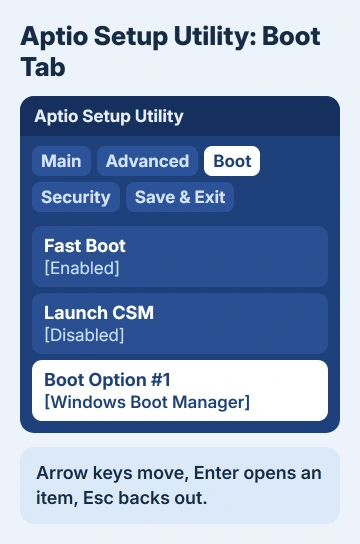
Aptio Setup Utility is the keyboard-only BIOS screen on many older ASUS laptops, with its name and an American Megatrends copyright along the top. Newer models open a graphical BIOS Utility or MyASUS in UEFI instead.
The laptop drops into that screen when the drive at the top of its boot list is missing, unreadable, or set up for a different boot mode than the one the BIOS is using.
Arrow keys move between the tabs (Main, Advanced, Boot, Security, Save & Exit), Enter opens an item, and Esc backs out.
Before changing anything, I'd look at what the Boot tab lists, because that list tells you which fix applies. On the graphical BIOS, press F7 for Advanced Mode to reach the same tabs.
1. Unplug everything and restart
ASUS's own troubleshooting starts with unplugging every accessory: USB drives, mice and keyboards, memory cards, discs, card-reader adapters and external monitors.
A USB stick or memory card that sits ahead of the internal drive in the boot list can stop Windows from loading.
Shut the laptop down with all of that unplugged, then turn it on. If Windows starts, plug your accessories back in one by one to catch the one that caused it.
2. Restore the defaults and choose the Windows drive
Loading the optimized defaults undoes any setting that changed by accident, and choosing the boot drive tells the laptop where Windows lives. On the Aptio screen:
- Go to Save & Exit, select Restore Defaults, and choose Yes.
- Go to Boot, select Boot Option #1, and pick the internal drive that holds Windows. A UEFI install often appears as Windows Boot Manager followed by the drive name.
- Go to Save & Exit, select Save Changes and Exit, and choose Yes.
On the graphical BIOS Utility or MyASUS in UEFI, press F7 first for the advanced settings, then follow the same three steps. If Windows loads now, you're done.
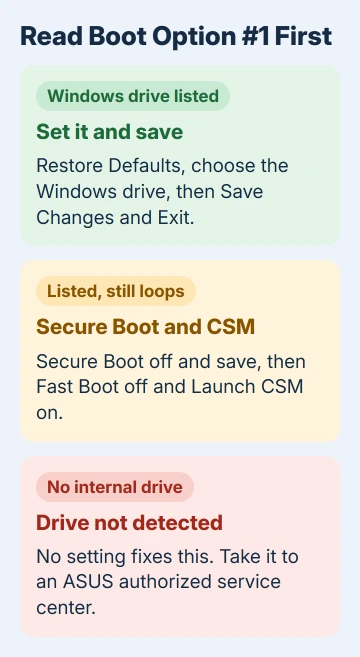
If the laptop lands straight back on the same screen, look again at what Boot Option #1 offered. An empty list and a list with your drive on it lead to different fixes.
3. No drive in the list means the laptop can't see it
An empty Boot Option #1, or one offering only network or USB entries, means the laptop isn't detecting its internal drive. Changing settings can't bring back a drive the hardware doesn't see.
That makes it a job for an ASUS authorized service center. Owners with laptops only a few months old reported this exact loop, so check your warranty before paying for a repair.
If you need the files on that drive, say so when you hand the laptop in, before anyone swaps it out.
4. Drive listed but the loop continues: Secure Boot and CSM
One owner on Microsoft's forum, whose refurbished ASUS had a replaced or wiped drive, got past this loop with two passes through the settings:
- On the Security tab, set Secure Boot Control to Disabled, then save and exit. The laptop returns to the Aptio screen once more.
- On the Boot tab, set Fast Boot to Disabled and Launch CSM to Enabled, then save and exit again.
CSM (the Compatibility Support Module) lets the BIOS start drives that were set up the older, legacy way. Some PCs only boot that kind of drive once the UEFI security features are switched off.
That's why Secure Boot goes first. Menu names vary a little between models, so look for something close if yours don't match exactly.
If nothing changes after both passes, put Secure Boot, Fast Boot and CSM back the way you found them. The same switches come up when a laptop ignores a USB installer, which the guide to booting from USB covers.
5. Update the BIOS
A firmware bug can also keep sending the laptop back to setup, and a newer BIOS may fix it. On another computer, find your exact model on the ASUS support site and download its latest BIOS.
Put the BIOS file on a USB stick, plug it into the stuck laptop, and install it with the EZ Flash tool built into the BIOS, following your model's update instructions.
Keep the charger connected the whole time, because a power cut during a BIOS update can leave the laptop unable to start.
6. Windows starts, then fails: repair it from Safe Mode
If the Windows logo appears but the laptop then restarts into the BIOS or a blue repair screen, the BIOS did find the drive, and the trouble is in Windows itself.
Start Windows in Safe Mode, copy your personal files to a USB drive, then reset Windows. If the repair screen says it couldn't repair your PC, the Automatic Repair guide shows how to read its log first.
When it still opens the BIOS
Contact ASUS Product Support or take the laptop to an authorized service center. Tell them the model, whether any drive appears under Boot Option #1, and which settings you changed, so they start where you stopped.
The Short Version
An ASUS laptop stuck in Aptio Setup Utility can't find a bootable drive. Unplug accessories, restore defaults and set Boot Option #1 to the Windows drive. No drive listed means a repair; a listed drive may need Secure Boot off and CSM on.
Checked November 19, 2026.






