

The blue screen says Automatic Repair couldn't repair your PC, points at a log called SrtTrail.txt, and offers Advanced options or Shut down. Restart, and you land right back on it.
I would open that log before trying a single fix. One line in it, Root cause found, names what actually failed, and the right repair depends on it. Notepad runs inside recovery, so you can read the log on the stuck PC itself.
A 2025 Microsoft Q&A thread on this screen has 40+ people stuck the same way. A thread about one root cause has 1,100+.
What the screen is actually telling you
The message is the same whatever broke. The useful part is the path at the bottom, because that file holds the diagnosis.
Microsoft's startup troubleshooting page says it plainly: "The Startup Repair tool generates a log file to help you understand the startup issues and the repairs that were made."
The log lists every test, then a root cause and the repair it tried.
On Windows 11 24H2 and later, recovery can also go online first. Microsoft says the device can "connect to the internet, and check Windows Update for a Microsoft-provided fix" when Windows can't start.
One owner's screen showed "Couldn't connect to the network" alongside the log path. Ours: that reads like the online step failing, so plug in a network cable if you have one. The log still matters most.
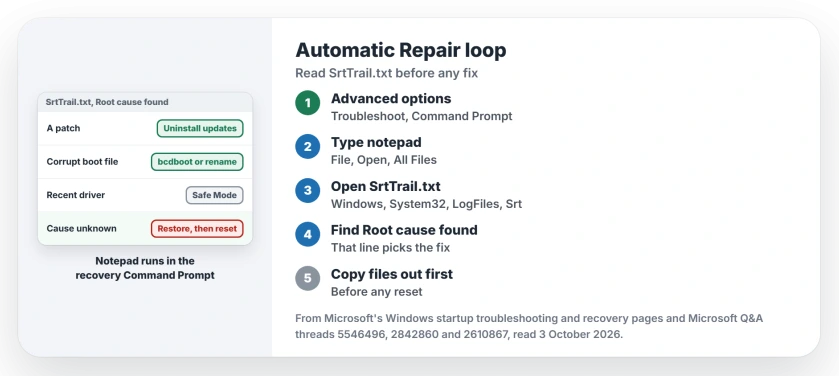
Status: checked 3 October 2026. The SrtTrail.txt log names the cause; owners fixed pending updates, corrupt boot files and blocking drivers once they knew which one.
Open the log with Notepad from recovery
Choose Advanced options, then Troubleshoot, Advanced options again, and Command Prompt. If it asks for a BitLocker key, your key is usually in one of a few places.
Type notepad and press Enter. Microsoft's own steps for a PC that won't start do the same thing: "Open a command prompt window in WinRE, and start a text editor, such as Notepad."
In Notepad, choose File, then Open, and set the file type to All Files. Browse to Windows, System32, LogFiles, Srt and open SrtTrail.txt.
Your Windows drive may not be C in recovery. One owner's log read Windows directory = G:\WINDOWS, so check each drive letter in the Open window until you find a Windows folder.
The owner whose fix became the accepted answer did exactly this. In their words: "Notepad opened with the log file." Scroll down until you reach the Root cause found line.
If the keyboard does nothing in recovery, Microsoft has a documented cause for that, with three ways round it.
When it says a patch is preventing startup
The line reads "A patch is preventing the system from starting." An update was half installed when Windows stopped, and it fails at the same spot on every start.
Microsoft's route needs no typing. Go back to Advanced options and choose Uninstall updates. "If the problem started after a recent Windows update, uninstalling it might fix the issue."
If that refuses, the command route cancels whatever is still pending. Replace C with the drive you found in Notepad:
dism /image:C:\ /cleanup-image /revertpendingactionsMicrosoft documents this command for startup failures after updates.
On a 300+ thread, an owner's answer with 100+ helpful votes explains the result: "All pending updates will be canceled and the system will start the graphical user interface again."
A boot critical file is corrupt
This line names a file, and the name decides the fix. Owners have met three kinds.
bootres.dll. That thread is the 1,100+ one. An owner fixed it by rebuilding the boot files with bcdboot, and Microsoft agrees "you can use the bcdboot command to re-create the boot files".
Run diskpart, then list vol, and find the small FAT32 volume. Type select vol with its number, then assign letter=S, then exit. Then run:
bcdboot C:\Windows /s S: /f UEFIThat owner formatted the boot partition first. Ours: try bcdboot on its own before you format anything.
Came here after bootrec /fixboot refused you in the same Command Prompt? bcdboot is the tool that takes its place on a UEFI PC.
A driver file ending in .sys. The accepted answer, with 30+ helpful votes, renamed the two driver files the log named, WdBoot.sys and WdFilter.sys. The PC started. "It seems silly, but after many hours, it was the only thing that solved it."
Microsoft's advice for a named driver is to know it first: "If the driver is a third-party boot driver, make sure that you understand what it does." Ours: rename, never delete, so you can put the file back.
Both of those files belong to Microsoft Defender, so check Windows Security once you are in.
A .cip file under CiPolicies. Two threads with 300+ and 100+ people carry this one. An owner "was able to boot back up by disabling virtualization in bios".
The same owner came back later: "Was able to fix the issue while keeping virtualization by uninstalling trusteer rapport". That is banking security software, so check for anything similar on yours.
A recent driver installation or upgrade
The line reads "A recent driver installation or upgrade may be preventing the system from starting." 90+ people share that thread, and it holds no fix that worked.
Ours: think about what you installed last. Advanced options, Startup Settings, then 4 starts Safe Mode, where you can remove that driver.
A restore point undoes it too, but System Restore may never have been switched on. On Windows 11 24H2 and later, Point-in-time restore is listed under Troubleshoot as well.
When it cannot determine the cause
Some logs say "Startup repair has tried several times but still cannot determine the cause of the problem." That thread has 200+ people. The accepted chkdsk advice failed for the asker.
Microsoft's order for a PC that won't start is a restore, then uninstalling updates, then Reset this PC. Keep my files keeps your documents, but your apps go.
Ours: before a reset, copy what matters to a USB stick. Notepad's Open window lets you right-click a file and copy it to another drive, which works when nothing else does.
Stop the loop while you work
Microsoft gives one command for a PC that keeps landing on this screen: "If the computer repeatedly stops the startup process on the recovery options display, run the following command at a command prompt to break the cycle".
bcdedit /set {default} recoveryenabled noOurs: this only stops the trip into recovery. It fixes nothing, so I would run it again with yes instead of no once Windows starts properly.
What did not help
The long generic list. The 2025 thread is full of sfc, chkdsk and bootrec steps, and an owner wrote this July: "I am having the exact same problem on my home PC but none of the solutions offered have worked."
Another owner could not reach the menus at all: "How am I supposed to do all this stuff from an unresponsive black screen with a countdown on it?" Boot from Windows installation media and choose Repair your computer to reach the same tools.
Which folder holds SrtTrail.txt?
Windows, System32, LogFiles, Srt, on the drive Windows is installed on. In recovery that drive can show a different letter, so look for the one with a Windows folder.
Can I delete SrtTrail.txt to stop the error?
Ours: no. It is only the report. Deleting it removes the diagnosis, and Automatic Repair will write a new one on the next failed start.
Why does Automatic Repair keep coming back?
Windows starts Startup Repair whenever it detects a startup problem. Until the root cause is fixed, every start fails the same way and lands you back here.
The Short Version
- The screen is generic; the log is specific.
- Open Notepad from the recovery Command Prompt.
- Find the Root cause found line in SrtTrail.txt.
- A pending patch: Uninstall updates or revertpendingactions.
- A corrupt bootres.dll: rebuild with bcdboot.
- A named .sys file: rename it, never delete.
- A .cip file: virtualization or banking security software.
- Copy your files out before any reset.
Where to Next
Open the log now, find the Root cause found line, and jump to the section that matches it. Most of these take minutes when the log has named the cause.
What did your root cause line say? Paste it in the comments, without your drive serials, and I will add any new kind to this page.

Isaac Smith is the founder and editor of PC Glance, a website that covers computers, laptops, and technology. He is a tech enthusiast and a computer geek who loves to share his insights and help his readers make smart choices when buying tech gadgets or laptops. He is always curious and updated about the latest tech trends.