
You add text to a PDF in Microsoft Edge, and it looks fine while you type. Then you click away. The words swell, turn bold, jump onto a second line, or vanish.
I would change Edge's fonts before you blame the PDF. That fix kept working for owners after the first one stopped.
Microsoft has posted no fix. The main question on Microsoft Q&A has 10+ people sharing it, and a second has 6. A new report arrived on 30 September 2026.
What owners describe
The first asker was filling in a form. In their words, "as soon as I click outside the text box, the text zooms in slightly and becomes bold".
Another owner's text went missing instead: "And then I have to click on the text so that I can see the rest of the text that I wrote before."
Microsoft presents Edge's built-in PDF reader as one where you can "annotate these files with ink and highlighting".
One student opened an edited file in Adobe Acrobat and got a font error: "The font 'AAAAAA+MicrosoftYaHeiUI' contains bad / Flags." It started in August 2025, with Edge 139.
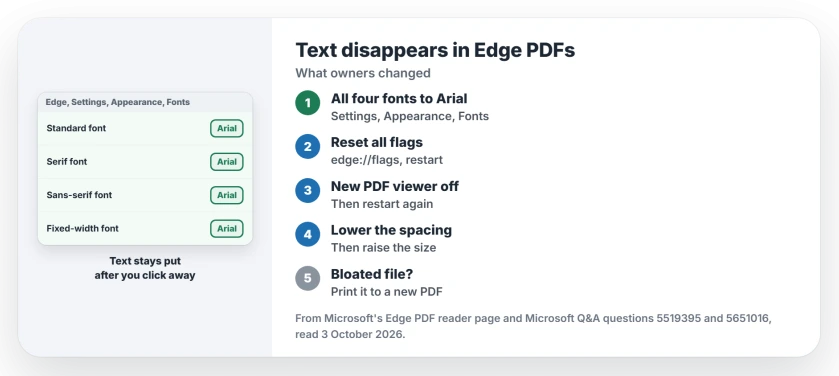
Status: checked 3 October 2026. Microsoft has posted nothing on it. Owners stopped it by setting Edge's fonts to Arial, turning off the new PDF viewer, or both; 10+ share the main question.
1. Set all four Edge fonts to Arial
Open Edge Settings, then Appearance, and scroll to Fonts. Set the standard, serif, sans-serif and fixed-width fonts all to Arial. The owner who found it stressed one detail: "(It only works with Arial.)"
Eight people marked that answer helpful, and owners kept confirming it. One owner had "tried the other solutions" before this one worked. Another, whose text split onto two lines, said: "This fixed that issue."
Ours: the Acrobat error names MicrosoftYaHeiUI, a Chinese interface font. Edge seems to pick it for your text box, and pinning every font to Arial keeps it out.
2. Reset the flags, then turn off the new viewer
The owner's sequence does not stop there. Open edge://flags, choose Reset all and restart Edge. Then open edge://flags again, find the new PDF viewer flag, and set it to Disabled.
In August 2025 the flag alone was the accepted answer, with 30+ helpful votes: "Search for the edge-new-pdf-viewer flag, then set it to Disabled". The asker replied: "This has resolved the problem."
By December it was not enough for some. One owner wrote "I had already disabled the new pdf viewer and this was still plaguing me", until the Arial change. Another found the flag useless because "you are stuck with the new pdf viewer".
Ours: the flag's name is still inside Edge 154 on our Windows 11 PC, so it may still show up. We could not test it.
3. Shrink the spacing, then raise the size
A third fix came in February 2026. One owner tried "decreasing the AV (word spacing) all the way, and then increasing the text size."
In their words, "Afterwards, it would show the whole text box." You will find the spacing and size controls in the small menu attached to the text box.
4. Keep text boxes simple
A moderator suggested some habits. Two of them: "Zoom the PDF to 100% before clicking Add text." and "Avoid resizing the text box after typing."
No owner confirmed these. Treat them as your damage control. For long notes, the same moderator pointed to a dedicated PDF editor.
5. File grew huge? Print it to a new PDF
Your edited PDF can balloon too, as one owner's did, into gigabytes. One owner opened the bloated file in Acrobat Reader and printed it to PDF. The result: "Reduces the size by x100."
Printing to PDF from Edge itself only cut about a third, they added. If printing fails outright, Edge 154 broke Print to PDF separately.
What did not help
Before any of this, the first asker had tried the usual list: "Clearing cache, disabling hardware acceleration, and testing other PDFs did not resolve the issue."
Repairing Edge lasted one session for another owner: "after shutting down my laptop and open it again the problem arises again".
The flag had a cost too. One owner who types Chinese found that with the viewer off, "Chinese characters are not supported (keep disappearing) with this disabled".
If Edge's Read aloud stalls on the same PDF, that tool has a fix of its own.
Why does my text disappear in Edge PDFs?
Owners have traced it to Edge's newer PDF viewer since August 2025. Text added with Add text can swell, wrap or vanish once you click away. Setting Edge's fonts to Arial is the fix that has held up longest.
Can I still turn off the new PDF viewer in Edge?
Owners did it with the edge-new-pdf-viewer flag in edge://flags. Since late 2025, several said it no longer helped on its own, and one found it removed the text tool.
Why did my PDF get so big after adding text in Edge?
Owners report edited files growing many times over. Printing the file to a new PDF, from Acrobat Reader for one owner, shrank it back down.
The Short Version
- Edge's PDF text tool can change text after you click away.
- Set Edge's four fonts to Arial first.
- Then reset flags and turn off the new PDF viewer.
- The flag alone stopped working for some in December.
- Lower the word spacing, then raise the size.
- Zoom to 100% before adding text.
- Print a bloated file to a new PDF.
Where to Next
Open Edge's font settings now and set all four to Arial, then reopen your PDF and add a test line. Click away and see whether it stays put.
If it still jumps or vanishes, name your Edge version in the comments. I want to know whether Edge 154 still does it.

Isaac Smith is the founder and editor of PC Glance, a website that covers computers, laptops, and technology. He is a tech enthusiast and a computer geek who loves to share his insights and help his readers make smart choices when buying tech gadgets or laptops. He is always curious and updated about the latest tech trends.