
You select Read aloud in Microsoft Edge, the bar appears at the top, and then nothing happens. It sits on loading and never reads a word. I would change the voice first.
Over on Microsoft Q&A, 10+ people say they have the same question about it. The asker got Edge reading again with that one switch.
What owners describe
The asker relied on it for study. In their words, it used to read straight away, "but now it takes forever to" load and "doesn't read anything".
A restart and updates did not help. Another owner saw the same thing on their PC: the bar appears, but no voice comes out.
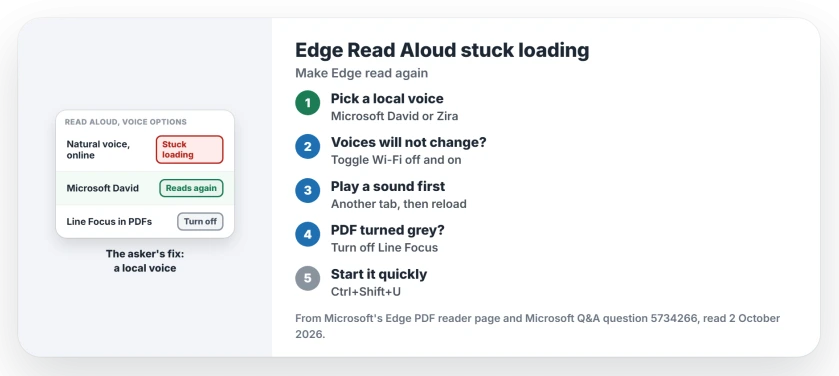
Status: checked 2 October 2026. Microsoft lists no fix. The asker got Read Aloud working again by switching to a local voice; 10+ share the question.
1. Switch to a local voice
Open the bar and select Voice options. One answer on the thread suggested "a basic local voice like Microsoft David or Microsoft Zira", rather than one marked Natural or Online.
The asker tried it and reported back: "As of now it can read normally again". Pick any voice without Natural or Online in its name and press play.
Ours: the Natural voices stream from Microsoft over the internet, while David and Zira live on your PC, installed with Windows. A local voice takes the network out of the picture.
2. Voice list will not open? Toggle Wi-Fi
Some owners could not change the voice. One found a way: "I found that Wi-Fi is turned off then on it forces that option".
Turn Wi-Fi off, wait a few seconds, turn it back on, and open Voice options again in the Read aloud bar. Then choose the local voice from step 1.
3. Play any sound in another tab first
Another owner spotted a clue in Windows. While Read aloud failed, Edge was missing from the volume mixer, the list of apps playing sound.
Their workaround: play a video with sound in another tab, reload the page you want read, and press Read aloud again. In their words, "Read Aloud may start working". The volume mixer also shows whether Edge itself is muted.
4. Grey page in a PDF? Turn off Line Focus
Once the voice worked, the asker hit a second problem in PDFs: the whole page turned grey except the words being read. The same helper explained that the grey overlay means "a feature called Line Focus is enabled".
While Read aloud is running, select Reading Preferences in the toolbar and switch Line Focus off. Microsoft describes Read aloud for PDFs as a way of "listening to PDF content while carrying out other tasks".
If printing that PDF fails instead, Edge 154 had a separate print fault with its own fix.
And if text you add to a PDF swells or disappears when you click away, setting all four Edge fonts to Arial fixed it for owners.
5. Start it with the shortcut
Press Ctrl+Shift+U on any page to start Read aloud without the menus, which also helps when your toolbar button is hard to find. An owner on the thread also pointed to the Read aloud button in the address bar.
What did not help
Neither a restart nor an update check brought the voice back for the asker. The fixes that worked were all user-reported, and none of them came from Microsoft.
Why is Read Aloud in Edge stuck loading?
For the asker, the voice was the problem. Switching from a Natural or Online voice to a local one such as Microsoft David let Edge read again, and it may do the same for you.
Why can't I change the Read Aloud voice in Edge?
One owner found the voice options would not open until they switched Wi-Fi off and on again. After that, the list worked.
Why does my PDF turn grey when Edge reads it?
That is Line Focus, which dims everything but the line being read so your eyes follow one line at a time. Turn it off under Reading Preferences while Read aloud is running.
The Short Version
- Read aloud can stall on loading in Edge.
- Switch to a local voice like Microsoft David.
- Natural and Online voices need the internet.
- Toggle Wi-Fi if the voice list will not open.
- Play a sound in another tab, then reload.
- Turn off Line Focus if a PDF goes grey.
- Ctrl+Shift+U starts Read aloud.
Where to Next
Open Voice options now and pick Microsoft David or Zira from the list. Then press play on the page that would not read.
If a different voice works for you, or none do, say which in the comments. I want to see which voices fail most often.

Isaac Smith is the founder and editor of PC Glance, a website that covers computers, laptops, and technology. He is a tech enthusiast and a computer geek who loves to share his insights and help his readers make smart choices when buying tech gadgets or laptops. He is always curious and updated about the latest tech trends.