Chrome-only touchpad trouble calls for a browser check first. Close a frozen tab and relaunch Chrome. For failed two-finger scrolling, try another page and app. If it fails everywhere, check your laptop's touchpad settings.
A page that won't scroll, a tap that won't click and a pointer that won't move are different faults. Check which one is happening so you don't reset the whole browser for a Windows setting that's turned off.
In this guide
1. Check another page before changing the laptop
Open a second, long page in Chrome and move the pointer over its main content. Try two-finger scrolling, then drag the scrollbar. If the page has a dialog waiting for an answer, close it before trying the rest of the page.
If a scrollbar moves but your fingers don't scroll, the page is responding and the gesture needs checking. If neither works on one tab while other tabs work, reload that page after saving any unfinished form.
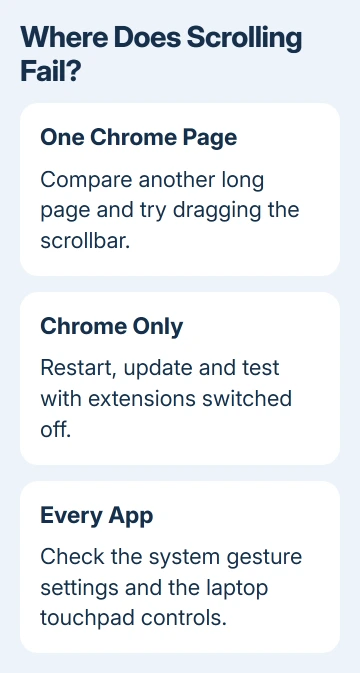
Try a long document in another app, such as a PDF viewer, and compare another browser if one is already installed. Use the same gesture. If that gesture fails in other apps too, the problem extends beyond Chrome.
If the pointer doesn't move anywhere, use the system-wide touchpad guide first. Chrome settings can't turn on a touchpad that Windows has disabled.
For a single website that blocks scrolling, compare it in a fresh browser window before changing hardware settings. A page overlay or an unresponsive tab can look like a broken touchpad even when the pad works normally elsewhere.
2. Restart Chrome and apply a pending update
Save work in web apps, then quit Chrome. On Windows, close all its windows. On a Mac, choose Chrome > Quit Google Chrome so the app exits rather than only closing the visible window.
Open Chrome again and return to the page used for the comparison. Test scrolling before reopening a large collection of tabs. If a crowded session was freezing, Google's Chrome troubleshooting steps recommend closing unneeded tabs and apps.
Open the three-dot menu and choose Help > About Google Chrome. Wait for the update check. Select Relaunch if offered, then repeat the gesture after Chrome returns.
If the update page says Chrome is up to date, it has no newer version for you to install. Note the version for support and move to the next comparison.
If Chrome's menus freeze along with the page, use the guide to the Chrome freezing problem. A gesture-only fault is narrower: menus, typing and dragging still work.
I'd make this distinction before touching the trackpad driver. A driver change affects the whole computer, while a Chrome-only problem gives you a much smaller place to look.
3. Turn extensions off for a clean comparison
Open the extension list by entering chrome://extensions into Chrome's address field. Turn off the switches for your installed extensions, then reload the affected page. Keep a note of the ones that were enabled.
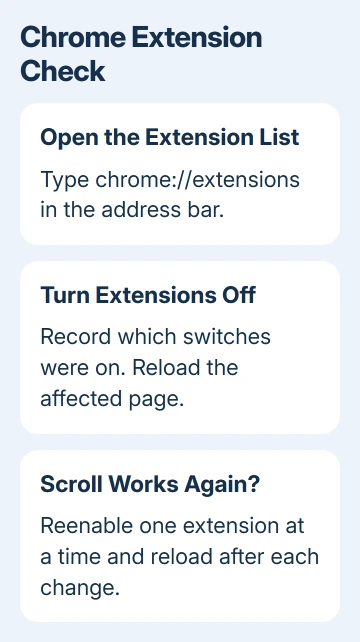
Check every enabled extension, including scroll helpers and gesture tools. Reload the page after switching them off. An open page can retain changes an extension made before you disabled it.
If scrolling or clicking returns, reenable each extension separately, reloading after every change. When the problem returns, disable that extension again and check for its update or report the failure to its developer.
If the problem remains with extensions off, restore the switches to their recorded state. You don't need to delete every extension when turning them off made no difference.
In a browser managed by an organization, an extension switch can be locked by an administrator. Ask IT to compare the affected profile rather than trying to remove management from the device.
4. Check gesture settings when other apps fail too
On Windows 11, open Settings > Bluetooth & devices > Touchpad. Expand Scroll & zoom and check Drag two fingers to scroll. For tap problems, review Taps and the option for tapping with one finger to click.
On Windows 10, the touchpad page is under Settings > Devices > Touchpad. The controls depend on the pad and its driver; older models can put extra gesture controls in the maker's touchpad software.
Test the changed gesture in another app too. If Windows lacks the expected controls, check your laptop model's own instructions. An unrelated touchpad driver isn't a substitute for its supported software.
On a Mac, choose Apple menu > System Settings > Trackpad. Under Point & Click, check Tap to click if taps fail but pressing the trackpad works. Under Scroll & Zoom, review the scrolling behavior.
Natural scrolling changes the direction rather than serving as a general on/off switch for scrolling. Don't toggle it repeatedly expecting it to repair a frozen Chrome tab. Available Mac options depend on the connected trackpad.
5. Compare graphics acceleration for a frozen browser view
If the page freezes or draws badly while the pointer still moves, open Chrome Settings > System. Set Use graphics acceleration when available to off, then choose Relaunch when offered.
Some help instructions call this hardware acceleration. With it enabled, Chrome uses graphics hardware for certain work. Changing it checks how Chrome draws pages; it doesn't adjust touchpad sensitivity.
Return to the same page and test the same action. If it behaves correctly with acceleration off, leave it off while checking your computer maker's graphics updates. If nothing changes, restore its previous setting and relaunch.
Failed scrolling on a page with no moving content doesn't by itself mean the graphics hardware has failed. Note whether this setting helped, which page was affected, and whether video or other page content was also freezing.
6. Reset a changed profile, then report a persistent fault
If the problem still affects only Chrome and the earlier checks haven't helped, open chrome://settings/reset. Choose the restore-defaults option, then select Reset settings in its confirmation.
Read the confirmation first. A reset changes browser settings, affects extensions and clears temporary site data, so some sites will need a fresh sign-in. Saved bookmarks and passwords aren't deleted.
Test the page before restoring extensions and custom settings. If the reset helps, restore only the changes you need and check as you go. Restoring every change together makes the returning fault harder to trace.
Report persistent Chrome-only trouble through Help > Report an issue. Include browser and operating system versions, the site and your extension and acceleration results. If other apps have touchpad trouble too, tell your laptop maker.
The Short Version
Compare another page and another app, then restart and update Chrome. Test extensions and, for a frozen view, graphics acceleration. Check system gestures when the problem affects other apps; reset Chrome only after the narrower checks.
Checked November 12, 2026.