AVG Secure Browser supports Intel and AMD Windows 11 PCs, but doesn't support ARM devices. Check the processor, then run a fresh official installer as administrator. Check Store restrictions, password prompts and setup errors separately.
The exact message matters more than how often setup has been retried. Keep its wording and note whether the download fails, Windows blocks the file, or the installer opens and then stops.
In this guide
1. Check the processor and browser requirements
Open Start > Settings > System > About. Under Device specifications, read Processor and System type. A Windows 11 laptop with a Snapdragon processor uses ARM, even though it can run many familiar Windows apps.
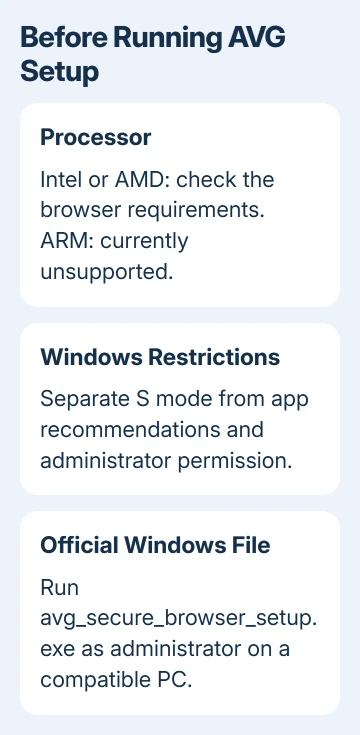
AVG's Secure Browser requirements list Windows 11, an Intel or AMD processor with SSE3 support, at least 1 GB RAM and 2 GB free disk space. The browser section says ARM-based devices aren't supported.
Read the Secure Browser section rather than the requirements for AVG AntiVirus. Different AVG products can support different processors. Having AVG antivirus installed doesn't mean the browser supports the same computer.
On an ARM laptop, stop retrying the same installer and use a browser that supports the device. Ask AVG Support whether browser support has changed for your exact processor before spending more time on installation workarounds.
On a compatible PC, check Settings > System > Storage for free space. Make enough room to meet the browser's free-space requirement. Install an available Windows update and finish its restart before another setup attempt.
2. Download the browser from its own product page
Use the official AVG Secure Browser download page. Choose the Windows download and keep the setup file in a familiar folder, such as Downloads.
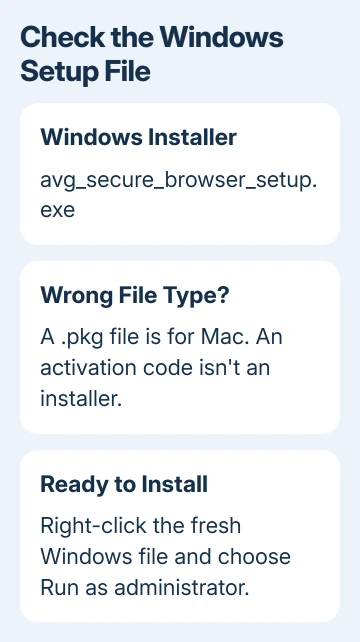
The Windows file named in the installation instructions is avg_secure_browser_setup.exe. A Mac package ending in .pkg, an antivirus installer, or a PRO activation code isn't the Windows browser installer.
Open File Explorer and select Downloads to find the saved file. If extensions are hidden, use View > Show > File name extensions. Then you can see which type of file you've actually downloaded.
If no file arrived, read the message in your browser's download list. A blocked download happens before installation. Follow that security message instead of opening an older, similarly named file.
I'd start with one fresh copy from the product page. Keeping several old setup files in Downloads makes it surprisingly easy to retry the wrong one.
3. Run setup with an administrator account
Right-click avg_secure_browser_setup.exe and choose Run as administrator. If Windows asks whether to allow changes, check that you're running the file you just downloaded, then approve the request.
A standard account can be asked for administrator credentials. Your AVG password doesn't grant Windows administrator access. Without those credentials, have the PC's administrator authorize installation.
When the AVG setup window appears, review its license agreement and privacy policy, then select Accept and install. Wait for setup to finish. Successful installation opens a new browser window automatically.
If setup opens but fails later, note the error message at that stage. If you can't authorize the Windows prompt at all, solve the account-permission problem first. Reinstalling a download won't supply a missing administrator password.
On an organization-owned PC, ask IT whether this browser is allowed. A company policy block needs the administrator's decision about allowing the installation. Changing local account settings won't necessarily remove that restriction.
4. Read a Microsoft Store restriction correctly
A message that Windows only allows Microsoft-verified apps can come from app recommendation settings or from S mode. Check Settings > Apps > Advanced app settings > Choose where to get apps when that setting is available.
On a personal PC outside S mode, the Anywhere choice allows apps from outside Microsoft Store. Change it only when you intend to install the official downloaded application. This choice won't resolve an unrelated setup error.
If Windows directs you to switch out of S mode, check Settings > System > Activation. S mode restricts installations to Microsoft Store apps. It requires a separate switch through the Store to run an outside installer.
Microsoft's S mode instructions explain that switching is free and one-way. Consider that permanent change before leaving S mode. Switching back isn't available afterward.
To stay in S mode, use a browser available within its restrictions. Ask IT about locked options on managed devices. S mode, SmartScreen warnings and an unsupported processor are different problems with different next steps.
5. Restart once, then retry the supported installation
Save your work and choose Start > Power > Restart. After signing in, retry the fresh setup file as administrator. The official installation steps include updating Windows and restarting before you try again.
Check whether Secure Browser already appears in Settings > Apps > Installed apps. If it does, the problem may be opening an existing installation rather than installing for the first time.
If an installed copy still won't open after a restart, the maker recommends uninstalling and reinstalling it. Save any browser information you need before removing it, and read the removal dialog's choices about browsing data.
The stale installed-app entry guide covers an entry that remains after removal. Don't start deleting AVG folders or disabling antivirus protection to force an installation through.
A failure involving Windows updates belongs to the Windows Update repair steps before another browser attempt. Keep a browser setup error separate from an update error so support gets the right message.
6. Give AVG Support the setup details that matter
Open the official AVG support page and choose AVG Secure Browser. Send the exact error, Windows version, processor type, available disk space and whether setup was run as administrator.
Tell support where it stops: no download, blocked launch, failed setup or installed browser that won't open. Also mention S mode or a work-management restriction if one is present.
If setup still fails on compatible hardware after the official sequence, request support's instructions for the exact error. There isn't a single repair command that fixes every failed browser installation.
The Short Version
Check processor support, then run the official Windows setup as administrator. Handle Store restrictions separately. After a restart and retry, send AVG Support the exact failure if installation still stops.
Checked November 12, 2026.