Chrome appears through SteamVR's PC desktop view: open it on the computer and select its display in VR. A missing dashboard or a black Desktop+ overlay needs different checks from a browser window on the wrong monitor.
Start by checking whether Chrome is visible on the real monitor. Then compare that display with the one shown inside the headset before changing browser settings.
In this guide
1. Put Chrome on the desktop you're viewing
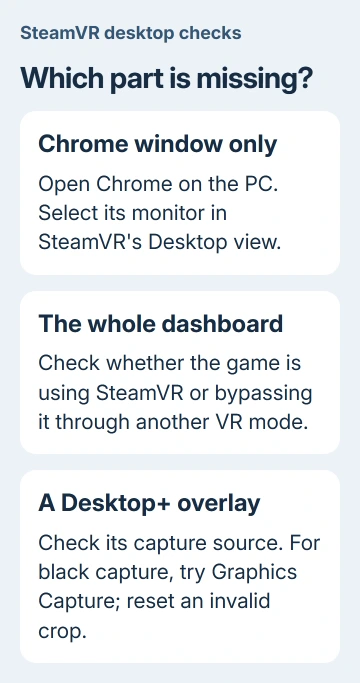
Start Chrome on your PC and open a normal page you can see on the monitor. Keep the window open. If it's minimized, click it on the taskbar to bring it back; a minimized window won't appear on the desktop you're trying to view.
Open the SteamVR dashboard using your controller's system control and select its Desktop view. The exact system button depends on the controller. Compare the desktop shown there with the physical display containing Chrome.
Valve says the dashboard lets you interact with your PC desktop. That is the route for an ordinary Windows browser, rather than waiting for Chrome to register itself as a VR application.
If multiple displays are available, choose the one holding Chrome. Alternatively, move the Chrome window onto the display already visible in VR. The browser should appear on both the monitor and the headset desktop.
If that works, the problem was window or display selection. If the entire dashboard is missing, go to the next section. If you use Desktop+ and its separate overlay fails, use its separate capture checks.
2. Check whether the game is actually using SteamVR
A game can run in a headset without using SteamVR for its VR display. This matters especially with Meta/Oculus software: a game running through that software directly can bypass the SteamVR dashboard.
Quit the game, leaving SteamVR running, and try opening its dashboard again. If the dashboard returns until that particular game starts, check how you're launching that game before changing Chrome.
Where the game offers a SteamVR launch choice, use it rather than its native Oculus/Meta option. Follow that game's support instructions when the choices aren't clear; launch modes differ between titles.
The Desktop+ troubleshooting notes explain that all overlays can disappear when a game bypasses SteamVR. An overlay that depends on SteamVR can't display over a session that isn't using it.
For supported Meta Quest setups, the Steam Link PC VR guide covers the SteamVR streaming route. Use that only when it fits your headset and PC, rather than adding another streaming app during an unrelated browser problem.
If the dashboard is missing even with no game running, restart SteamVR and Steam. Check the controller's connection and system-button behavior. A dashboard that won't open at all needs SteamVR support, not Chrome cookie cleanup.
3. Repair a black Desktop+ capture
This section applies to Desktop+, the optional overlay application, rather than SteamVR's built-in desktop viewer. If you don't use Desktop+, skip to the final support section.
A black Desktop+ screen with a question-mark display icon means it couldn't duplicate the desktop. A disconnected monitor or an unavailable capture source can cause that result. Restart Desktop+ with that display connected and awake.
If it stays black, open the affected overlay's Overlay Properties. Enable advanced settings to show Capture if needed. Change Capture Method to Graphics Capture, then use Source to select the Chrome window or the correct desktop.
Graphics Capture can select a window directly, while Desktop Duplication mirrors desktops. After changing methods, check the source again; selecting a capture method doesn't automatically choose the browser window you intended.
On systems with displays attached to more than one graphics processor, Desktop Duplication can't capture every processor's desktop set. The project's troubleshooting notes say Graphics Capture can often mirror the missing displays instead.
Use a current supported Windows installation for this comparison. Windows versions offer different Graphics Capture features. The project recommends the latest Windows version for desktop mirroring with that method.
If Chrome now appears, keep the working method for that overlay. Don't apply Desktop+ GPU or capture settings to every SteamVR component; they control different parts of the desktop-to-headset path.
4. Reset a cropped or hidden Desktop+ overlay
Changing a capture source can leave Desktop+'s old crop in place. A rectangle that fit another monitor or application might exclude the Chrome window or remove the useful part of the new source.
Open the overlay's Cropping Rectangle controls and use Reset. Look for the (!) warning beside that section, which can indicate an invalid crop. Check the full source before applying a smaller crop again.
Check that the overlay is enabled and visible, too. Desktop+ has visibility, position and gaze-fade controls. A hidden overlay or one positioned away from where you're looking can seem missing even when its capture source works.
I'd reset the crop before rebuilding an overlay profile. It preserves the rest of the setup while correcting a specific setting that can survive a source change.
If the overlay captures a different window after Chrome's tab title changes, review Use Strict Window Matching under its capture settings. Keep it off unless needed; a saved title can stop matching the window after its title changes.
The optional Desktop+ Browser component is another browser, not the Chrome window already open on your computer. Installing it isn't required just to mirror Chrome, and its sign-in state isn't your Chrome profile.
5. Fix missing Windows displays before rebuilding VR
If the expected display isn't available in Windows either, open Settings > System > Display and use Identify to match the numbered displays to the monitors. Reconnect a missing display before selecting its Chrome window in VR.
Use the Windows multiple-monitor instructions for a display that needs detecting or rearranging. The dual-monitor setup guide explains display numbering when Chrome opens on the wrong screen.
Once Chrome appears in Windows, retry the capture. If it still fails, contact Steam Support for dashboard trouble or the Desktop+ project for its overlay. Include your viewer, Windows version and connected displays.
For Desktop+, include DesktopPlus.log and DesktopPlusUI.log from its installation directory when requesting help. Explain whether Chrome's normal pages are missing or the black picture affects protected video alone.
The Short Version
View Chrome's PC display through SteamVR's Desktop tab. For missing overlays in one game, check its SteamVR launch mode. In Desktop+, choose the right Graphics Capture source, reset an invalid crop and check visibility.
Checked November 12, 2026.