
Steam Link streams virtual reality (VR) games to Meta Quest 3. Install Steam and SteamVR on a compatible Windows PC, and Steam Link on the headset. Pair them on your home network; the PC runs the game and sends its picture to the Quest.
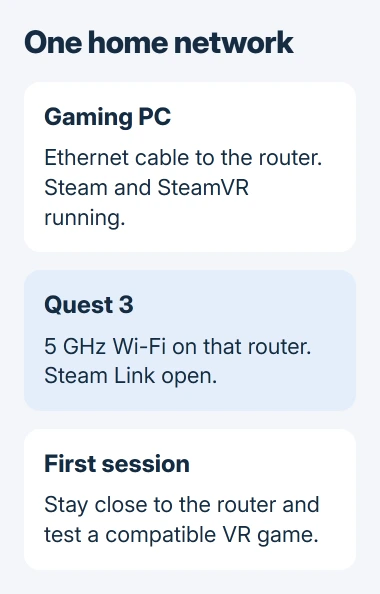
Start with the PC connected to the router by Ethernet and the headset on 5 GHz Wi-Fi. A fast internet plan alone won't fix a weak connection between those devices inside your home.
Check the PC and the game's requirements
Check your PC against Valve's Steam Link requirements and the VR game's requirements before installing more software. It needs to meet both. A PC that opens Steam may still have a graphics card that can't do this job.
Valve lists Windows 10 or newer, Steam and SteamVR, and supported graphics hardware. Minimum examples include NVIDIA GTX 970 and AMD RX 570. AMD RX 6400 and RX 6500 XT won't work because they lack the required video encoding support.
Status: Steam Link's Quest support checked November 3, 2026. This guide follows its Windows wireless setup; the PC must meet the streaming requirements and the game's own requirements.
Video encoding turns your PC's picture into a stream the headset can receive. Your graphics card must do that and draw the game, so check its model number even if your laptop was sold as a gaming machine.
Microsoft says dxdiag shows details about video and sound devices. Search Windows for it and open the result. Save All Information creates a report you can send to support; Microsoft's diagnostic instructions explain the tool.
Check the game's Steam store page for the VR modes and controllers it supports. Playing a normal flat-screen game inside a headset doesn't turn it into a full VR game.
Put the computer and headset on one home network
Connect the PC to the router with an Ethernet cable. In the Quest's Wi-Fi settings, join that router's 5 GHz network. Valve specifies Wi-Fi 5 as the minimum wireless standard and recommends Wi-Fi 6 or 6E.
If your router gives its Wi-Fi bands different names, choose the 5 GHz one. If both use the same name, check the router's connected-device list to see which band your headset uses. Signal bars alone won't tell you.
Use your regular home Wi-Fi for this setup. Guest networks can block devices from reaching each other even when both can browse the internet. Your headset needs a connection to the PC on your home network to pair with it.
Stay near the router for the first test. I'd get a short, stable session working there before trying another room. If the picture gets choppy when you move, distance or walls may be affecting the connection.
A work or school network may have settings you can't change. If you need to use one, ask its administrator whether it allows streaming between devices on the network.
Install the PC software and the headset app
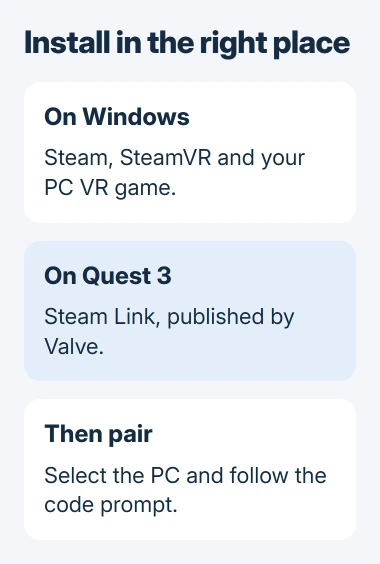
On the PC, install Steam from its official website and sign in. In Steam, find and install SteamVR, then install a VR game that the PC can run. Keep the computer awake while setting up the headset.
In the Quest store, find Steam Link published by Valve and install it. This app receives the stream on your headset. SteamVR belongs on the Windows computer, where it runs the VR games.
Steam Link sends SteamVR games from your PC to the headset, following the setup documented by the vendor VRChat in its PC streaming guide.
Open Steam Link on your Quest and follow the prompts. Choose your PC when it appears. If you see a pairing code, enter or confirm it on the computer as requested to finish connecting.
Once connected, launch your VR game through SteamVR. Check that you can see it in the headset and that your Quest controllers respond. Get that working before raising the picture-quality settings.
Leave Steam running on the PC. Games installed on the headset are separate from this PC stream, so opening an unrelated Quest app won't start the Windows version of a game.
If Steam Link can't see the computer
Look at your PC's screen first: check that Steam is open and signed in, then look for an error in SteamVR. In Steam > Settings > Remote Play, turn on Remote Play if it's off.
Check that your PC and headset share the same local network and neither is using a VPN. Valve includes both in its connection checks. Open Steam Link again after fixing the connection.
Valve also asks you to set your Windows network profile to Private. On Windows 11, open Settings > Network & internet, choose Ethernet or your connected Wi-Fi network, and check Network profile type.
Microsoft documents the difference in its network profile guide. Choose Private only for a home network where you trust the people and devices connected to it.
If your security software blocks the connection, check the app permissions for Steam and SteamVR. Keep the firewall on and allow those apps to connect through your trusted home network.
If your computer still doesn't appear, tell Steam Support whether the app can see another PC and whether yours shows a pairing code. This helps them tell whether the app can't find your PC or can't finish pairing with it.
Improve a connection that works but stutters
If the devices connect but the picture stutters, start with Auto bandwidth in SteamVR's Steam Link settings. Valve explains that setting a higher rate yourself can cause stuttering if your network can't keep up.
Stop any screen recording or broadcast and compare how the game runs. That software can share the graphics card's video encoder. If stopping it makes the game smoother, check the extra work it's adding before buying another router.
On mesh Wi-Fi, try using the same node, or Wi-Fi unit, for your PC and headset. Valve doesn't officially support mesh setups and lists them as a possible cause of trouble. Compare the result with using your main router.
Get current graphics drivers from your computer or graphics card maker; the Windows driver guide covers those sources. An update can fix software compatibility, but it can't add missing video encoding hardware.
If the game stutters on the PC too, use the game frame-time checks to check how it draws the game. If only the headset stutters, focus on the streaming connection and how much work the video encoder is doing.
If the problem continues, give Steam Support your graphics card (GPU) model, headset software version, SteamVR error and network layout. Say whether it affects every VR game or just one, and whether your PC uses Ethernet.
The Short Version
Install Steam and SteamVR on a compatible PC, then Steam Link on Quest 3. Pair them through your trusted home network, with PC Ethernet and headset 5 GHz Wi-Fi where possible. Test a game before raising stream quality.

Isaac Smith is the founder and editor of PC Glance, a website that covers computers, laptops, and technology. He is a tech enthusiast and a computer geek who loves to share his insights and help his readers make smart choices when buying tech gadgets or laptops. He is always curious and updated about the latest tech trends.